Manual · Datamax
Datamax I-Class Printer Quick Start Guide
Manual2 pagesPDF 598 KB
Both pages are below, each with its text.
Filed with · 1 model
Also filed with these models on the old site
From the manual · read page by page
Key facts from this manual
Each line names its page in the PDF.
Two-page Datamax Quick Start Guide for a printer, filed here under the I-4308; the guide itself names no model. It shows ribbon loading, internal and external media loading, the front panel buttons and lights, and how to print a configuration label.
- What it is
- Quick Start Guide for a Datamax printer: connections, ribbon and media loading, controls and a test label p. 1, 2
- Ready mode buttons
- Pause toggles pause; Feed feeds a label and clears corrected faults; Cancel cancels a job; Menu; Test starts quick test mode p. 2
- Menu mode buttons
- Arrow Up and Arrow Down move through the menu and change values; Enter selects; ESC goes back one level p. 2
- Indicator lights
- Ready: on when ready, blinking in menu mode; Stop: on when paused; Error: on at a fault p. 2
- Media loading
- Roll media on the internal Media Hub, or external media loading p. 2
- Test label media
- Media at least 4 inches wide p. 2
What this manual walks you through
- Loading the ribbon p. 1
- Loading roll media p. 2
- Using the front panel buttons in Ready and Menu mode p. 2
- Printing a configuration test label p. 2
- Clearing a fault p. 2
Good to know
- Narrow media needs the Printhead Cam Adjustment described in the Operator's Manual. p. 2
- Follow the cleaning schedule in the Operator's Manual. p. 2
Questions this manual answers
How do I print a configuration label on a Datamax printer?
With the printer in Ready Mode and media at least 4 inches wide loaded, scroll to 'Print Config Label' and press the button again; one Configuration Label prints. p. 2
How do I clear an error on the printer?
The Error light shows a fault; press the FEED button, which clears faults that have been corrected. p. 2
What does a blinking Ready light mean?
The printer is in menu mode. p. 2
The file
Size and text
Every page · 2
Read it here
Each page as it is printed, and its words beside it, so a phone can search and copy them.
Page1of 2
Open in the PDF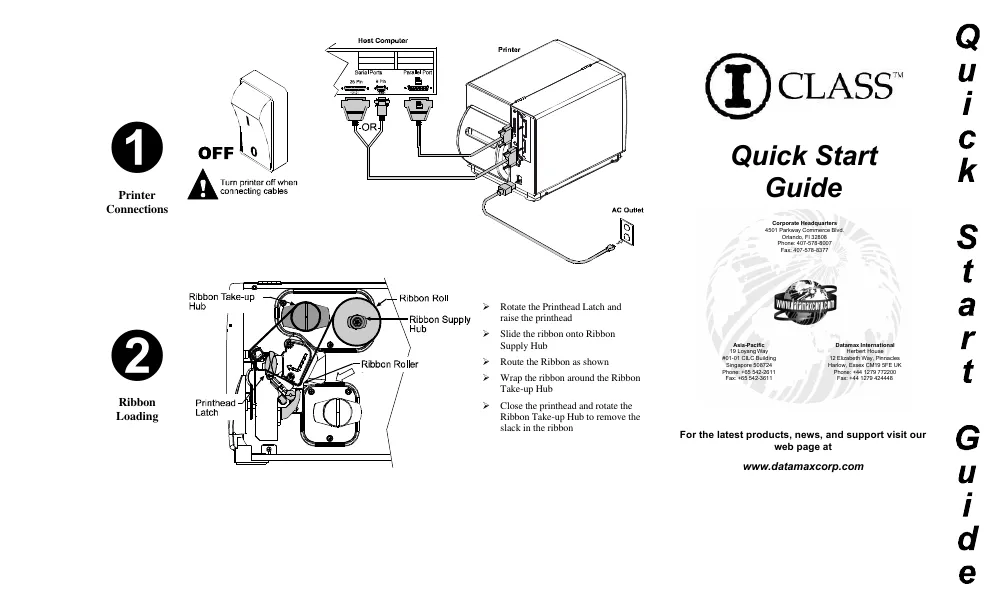
The text of page 1, from the PDF itself
ÊQuick Start GuidePrinter Connections
Corporate Headquarters 4501 Parkway Commerce Blvd. Orlando, Fl 32808 Phone: 407-578-8007 Fax: 407-578-8377
Ë Ribbon Loading
Ø
Rotate the Printhead Latch and raise the printhead
Ø
Slide the ribbon onto Ribbon Supply Hub
Ø
Route the Ribbon as shown
Ø
Wrap the ribbon around the Ribbon Take-up Hub
Ø
Close the printhead and rotate the Ribbon Take-up Hub to remove the slack in the ribbon
Asia-Pacific 19 Loyang Way #01-01 CILC Building Singapore 508724 Phone: +65 542-2611 Fax: +65 542-3611
Datamax International Herbert House 12 Elizabeth Way, Pinnacles Harlow, Essex CM19 5FE UK Phone: +44 1279 772200 Fax: +44 1279 424448
For the latest products, news, and support visit our web page at
www.datamaxcorp.com
Page2of 2
Open in the PDF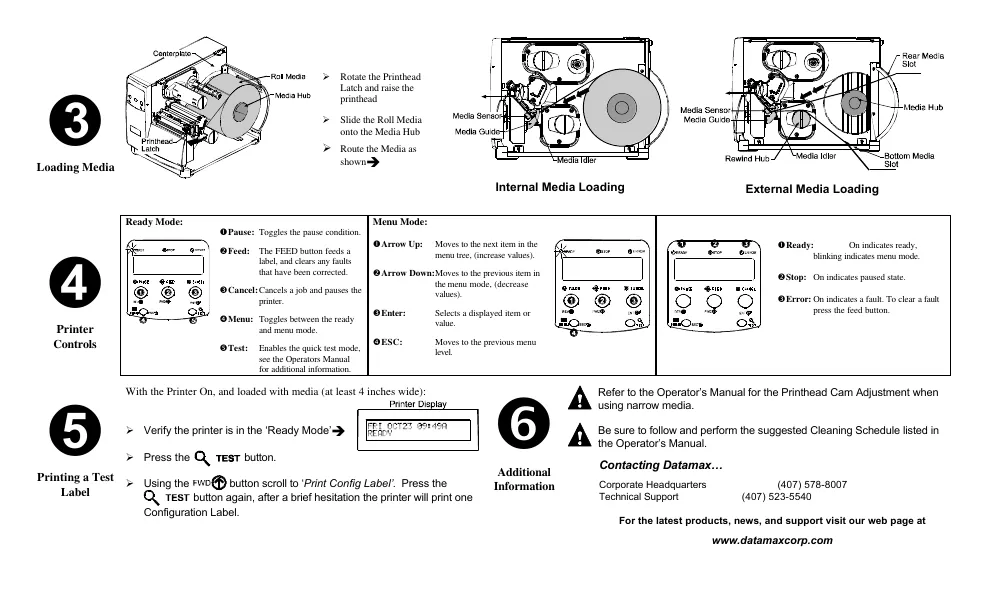
The text of page 2, from the PDF itself
Ì
Ø
Rotate the Printhead Latch and raise the printhead
Ø
Slide the Roll Media onto the Media Hub
Ø Route the Media as shownè
Loading Media
Internal Media Loading Ready Mode:
ŒPause: Toggles the pause condition.
- Feed:
Í
The FEED button feeds a label, and clears any faults that have been corrected.
ŽCancel: Cancels a job and pauses the printer.
- Menu: Toggles between the ready and menu mode.
Printer Controls
- •Test
- Enables the quick test mode, see the Operators Manual for additional information.
Menu Mode: ŒArrow Up:
- Arrow Down:Moves to the previous item in the menu mode, (decrease values). ŽEnter:
Selects a displayed item or value.
- •ESC
- Moves to the previous menu level.
Ø Verify the printer is in the ‘Ready Mode’è Ø Press the
button.
Printing a Test Ø Using the button scroll to ‘Print Config Label’. Press the Label button again, after a brief hesitation the printer will print one Configuration Label.
ŒReady: On indicates ready, blinking indicates menu mode.
Moves to the next item in the menu tree, (increase values).
With the Printer On, and loaded with media (at least 4 inches wide):
Î
External Media Loading
‘ Additional Information
- Stop: On indicates paused state. ŽError: On indicates a fault. To clear a fault press the feed button.
Refer to the Operator’s Manual for the Printhead Cam Adjustment when using narrow media. Be sure to follow and perform the suggested Cleaning Schedule listed in the Operator’s Manual.
Contacting Datamax… Corporate Headquarters Technical Support
(407) 578-8007 (407) 523-5540
For the latest products, news, and support visit our web page at
www.datamaxcorp.com