Manual · Datalogic
Viper-NET User's Manual
Manual71 pagesPDF 4.0 MB
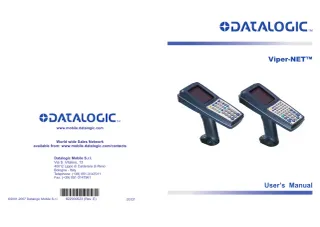
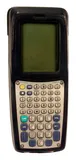
User's manual for the Datalogic Viper-NET pistol-grip Windows CE .NET mobile terminal with laser scanner and 802.11b wireless.
Covers · 1 model
The models it covers
Summary
What is in it
The user's manual for the Datalogic Viper-NET, a rugged pistol-shaped mobile terminal for warehouses and distribution centers, running Windows CE .NET with a laser scan engine and IEEE 802.11b wireless. It covers safety and compliance, package contents and accessories, RS232, USB and WLAN connections, startup, stylus and scanning, the 32-key and 48-key keypads, status indicators, data capture configuration, the control panel, ActiveSync and Remote Desktop, battery charging and replacement, technical data, reading diagrams and test codes.
Its parts
- Introduction
- Connections
- Use and Functioning
- Maintenance
- Technical Features
- Test Codes
From the manual
Key facts from this manual
Each line names its page in the PDF.
This is the User's Manual for the Datalogic Viper-NET, a pistol-grip mobile computer with a laser scanner and Windows CE .NET. It covers the Viper-NET 100-XXX, 300-XXX, 500-XXX and 700-XXX models, which differ in their radio. It explains connecting to a host, scanning, the status LEDs and battery care, and lists accessories and technical data.
- Device
- Pistol-grip mobile computer with laser scanner for warehouse and distribution use p. 19
- Radio
- 300-XXX: 802.11b (Wi-Fi) radio card p. 13
- Operating system
- Windows CE .NET 4.2 p. 60
- Processor
- Intel XScale PXA 255, 400 MHz p. 19, 59
- Display
- 64K color TFT LCD, 320 x 240 pixels, LED backlight, touch screen p. 59
- Ports
- IrDA, RS232, USB p. 19
- Scan engines
- Laser High Performance or Laser Extra Long Range (autofocus) p. 19
- Battery
- 94ACC4661 B-9600 Li battery pack, 2000 mAh at 7.2 V p. 21
- Keypad
- 32 or 48 silicone-covered rubber keys p. 59
- Battery charger
- 94A154840 MBC9600, 4 slots p. 21
- Power supply
- 94ACC4595 FPS18 (without cord); cords 94ACC1150 EU, 94ACC1160 AUS p. 21
- Cables
- 94A051000 CAB-405 RS232 and 94A051001 CAB-406 USB, each with a power jack for the FPS18 p. 21
- Dimensions
- 23.5 x 10.5 x 18 cm (9.25 x 4.13 x 7.08 in) p. 59
- Weight
- 808 g / 28.5 oz with Li-Ion battery; 835 g / 29.5 oz with PC card p. 59
What this manual walks you through
- Connecting the terminal to a PC by RS232 or USB cable p. 22, 25
- Setting up a Wi-Fi connection through an access point p. 23, 24
- Turning the terminal on and off p. 26, 27
- Using and aligning the stylus p. 28
- Scanning barcodes p. 29
- Reading the LED status indicators and status bar p. 37, 38
- Charging the batteries p. 53, 54
- Replacing the battery pack p. 55, 56
- Cleaning the terminal p. 58
Good to know
- Battery packs ship uncharged, so charge them first. p. 20
- USB communication may be unreliable while charging; avoid powering the CAB-406 while a USB link is active. p. 22
- Charge the batteries between 0 and +45 C (+32 to +113 F). p. 54
- The Wi-Fi module is off by default and must be powered on in the Wireless Communications applet. p. 24
- The manual states that 5XX-XXX and 7XX-XXX models are not FCC certified; 3XX-XXX models carry FCC ID LDK102040. p. 15
Questions this manual answers
What battery does the Viper-NET take?
The B-9600 Li battery pack, 94ACC4661, rated 2000 mAh at 7.2 V. p. 21
How long does a Viper-NET battery take to charge?
A fully run-down Li-Ion pack takes at most about 5 hours to recharge. p. 53
What cable connects a Viper-NET to a PC by USB?
The CAB-406 cable, 94A051001, which also has a power jack for the FPS18 supply. p. 21
What power supply is needed to charge the Viper-NET?
The manual calls for a UL Listed or CSA Certified Class 2 or LPS unit rated 12-14 V, at least 1 A; the accessory list names the FPS18. p. 15, 21
Why won't my Viper-NET turn on after a battery change?
It checks the battery level and does not turn on if the pack is not charged enough; use a charged pack or external power. p. 58
Contents
Chapters and sections
Each line opens the PDF at its page.
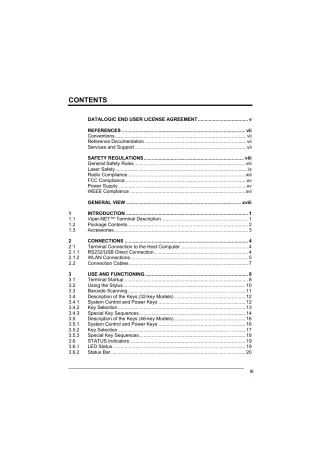
- DATALOGIC END USER LICENSE AGREEMENT5
- REFERENCES7
- SAFETY REGULATIONS8
- GENERAL VIEW18
- INTRODUCTION19
- CONNECTIONS22
- USE AND FUNCTIONING26
- MAINTENANCE53
- TECHNICAL FEATURES59
- TEST CODES63
3 more lines, from page 66 on
The whole text · 12 parts
Read the manual here as text
Its text as extracted from the PDF, unedited, in parts; each page opens the PDF at that page.
The file