Manual · Datalogic
Datalogic Memor Mobile Computer Quick Start Guide
Manual2 pagesPDF 246 KB
Both pages are below, each with its text.
Covers · 1 model
The models it covers
From the manual · read page by page
Key facts from this manual
Each line names its page in the PDF.
Two-page quick start guide for the Datalogic Memor mobile computer. It shows the parts of the terminal and its keypad, what comes in the package, and how to insert and charge the battery. It also covers fitting a microSD or SIM card, scanning, and setting up synchronization with a PC.
- Device
- Datalogic Memor mobile computer p. 1
- Display
- QVGA 64K color display p. 1
- Interfaces
- USB and RS232, directly or through the Single Dock; Bluetooth p. 2
- Connectors
- DC charger connector, communication/charger connector for the cradle, mini USB connector for a cable p. 1
- Card slots
- microSD card and SIM card, under the battery p. 2
- Charging
- With the power supply or the Single Cradle p. 1
- In the box
- Memor, AC/DC power supply, EU and UK plug adapters, mini USB cable, extensible stylus, standard battery pack and cover, hand strap p. 1
- Keypad keys
- Call, navigation, scan, hang up, yellow and blue modifiers, soft key p. 1
- PC sync software
- Windows Mobile Device Center (Windows Vista, Windows 7) or Microsoft ActiveSync (Windows XP or earlier) p. 2
What this manual walks you through
- Inserting the battery pack p. 1
- Charging the battery with the power supply or a single cradle p. 1
- Using the modifier keys for the Start menu, backlights and keyboard lock p. 1
- Installing a microSD card or SIM card p. 2
- Setting up synchronization with a PC through Windows Mobile Device Center p. 2
- Laser and imager data capture and the aiming pattern p. 2
Good to know
- Charge the batteries for at least 4 hours before using the Memor. p. 1
- Windows Mobile Device Center works only with Windows Vista and Windows 7; older Windows needs ActiveSync. p. 2
- Turn off the Memor before installing a microSD or SIM card. p. 2
Questions this manual answers
What comes in the Datalogic Memor box?
The Memor, an AC/DC power supply with EU and UK plug adapters, a mini USB cable, a stylus, a standard battery pack with cover and a hand strap, plus printed guides. p. 1
How long should a new Memor battery charge before use?
At least 4 hours. p. 1
How do I sync a Memor with a Windows XP PC?
Windows XP or earlier needs Microsoft ActiveSync; Windows Mobile Device Center is for Windows Vista and Windows 7. p. 2
How does the Memor connect to a PC?
By USB or RS232, either directly or through the Single Dock, or by Bluetooth. p. 2
The file
Size and text
Every page · 2
Read it here
Each page as it is printed, and its words beside it, so a phone can search and copy them.
Page1of 2
Open in the PDF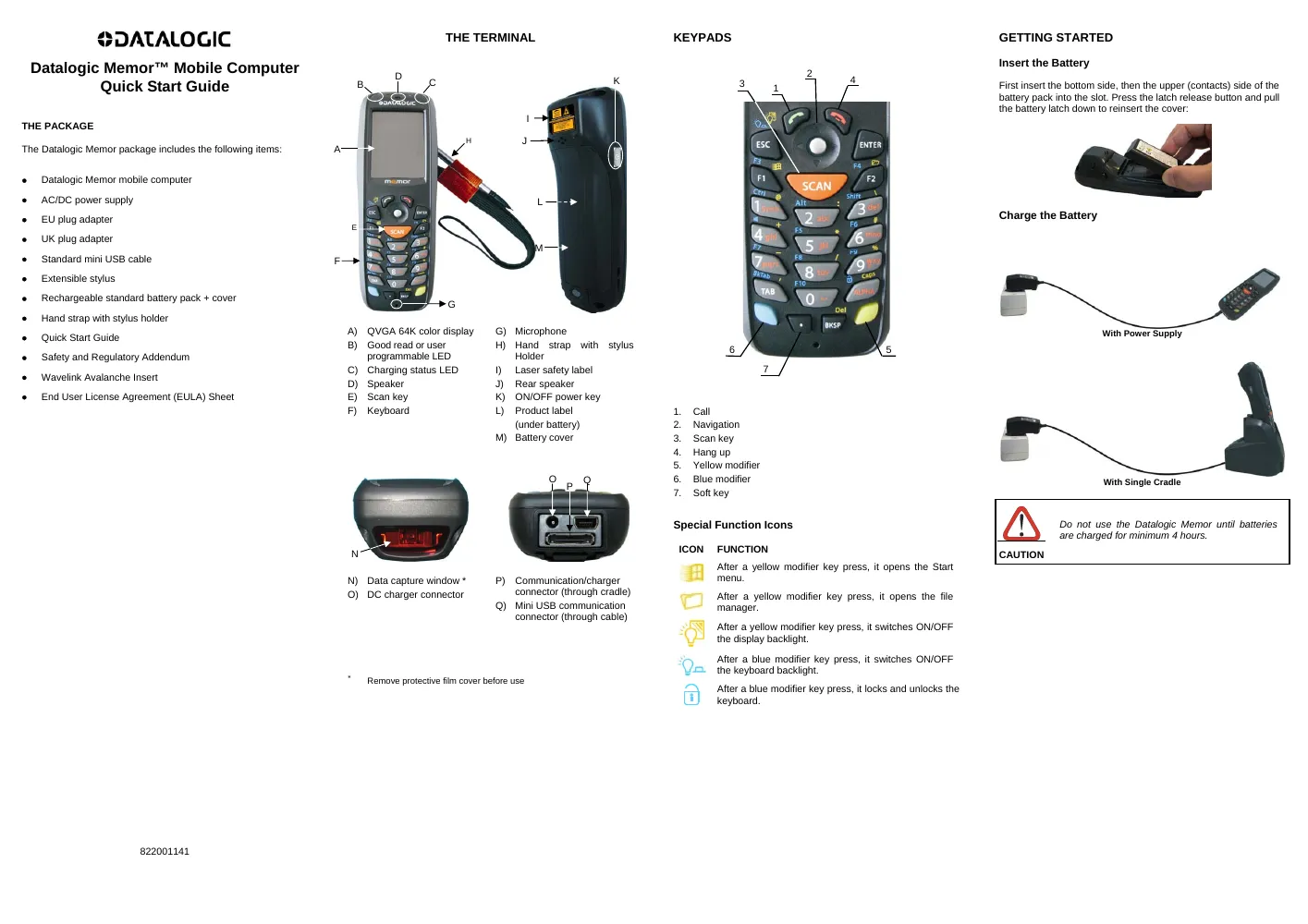
The text of page 1, from the PDF itself
THE TERMINAL
KEYPADS
GETTING STARTED Insert the Battery
Datalogic Memor™ Mobile Computer Quick Start Guide
BD2KC314
First insert the bottom side, then the upper (contacts) side of the battery pack into the slot. Press the latch release button and pull the battery latch down to reinsert the cover:
I
THE PACKAGE H
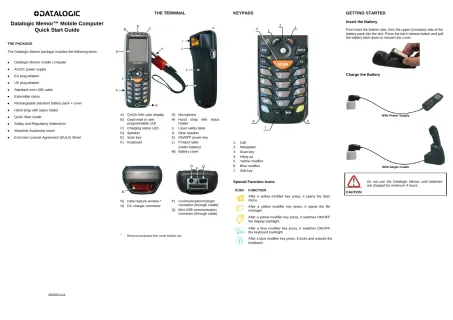
The Datalogic Memor package includes the following items:
Datalogic Memor mobile computer
AC/DC power supplyEU plug adapterUK plug adapter
Standard mini USB cable
Extensible stylus
Rechargeable standard battery pack + cover
Hand strap with stylus holder
Quick Start Guide
Safety and Regulatory Addendum
Wavelink Avalanche Insert
End User License Agreement (EULA) Sheet
JALCharge the Battery EM FG A) B)
QVGA 64K color display Good read or user programmable LED C) Charging status LED D) Speaker E) Scan key F) Keyboard
G) Microphone H) Hand strap with stylus Holder I) Laser safety label J) Rear speaker K) ON/OFF power key L) Product label (under battery) M) Battery cover
OPQWith Power Supply65 71. 2. 3. 4. 5. 6. 7.
Call Navigation Scan key Hang up Yellow modifier Blue modifier Soft key
With Single Cradle
Do not use the Datalogic Memor until batteries are charged for minimum 4 hours.
Special Function Icons ICON
N N) Data capture window * O) DC charger connector
P)
Communication/charger connector (through cradle) Q) Mini USB communication connector (through cable)
FUNCTION After a yellow modifier key press, it opens the Start menu. After a yellow modifier key press, it opens the file manager. After a yellow modifier key press, it switches ON/OFF the display backlight.
822001141
After a blue modifier key press, it switches ON/OFF the keyboard backlight. Remove protective film cover before use
After a blue modifier key press, it locks and unlocks the keyboard.
CAUTION
Page2of 2
Open in the PDF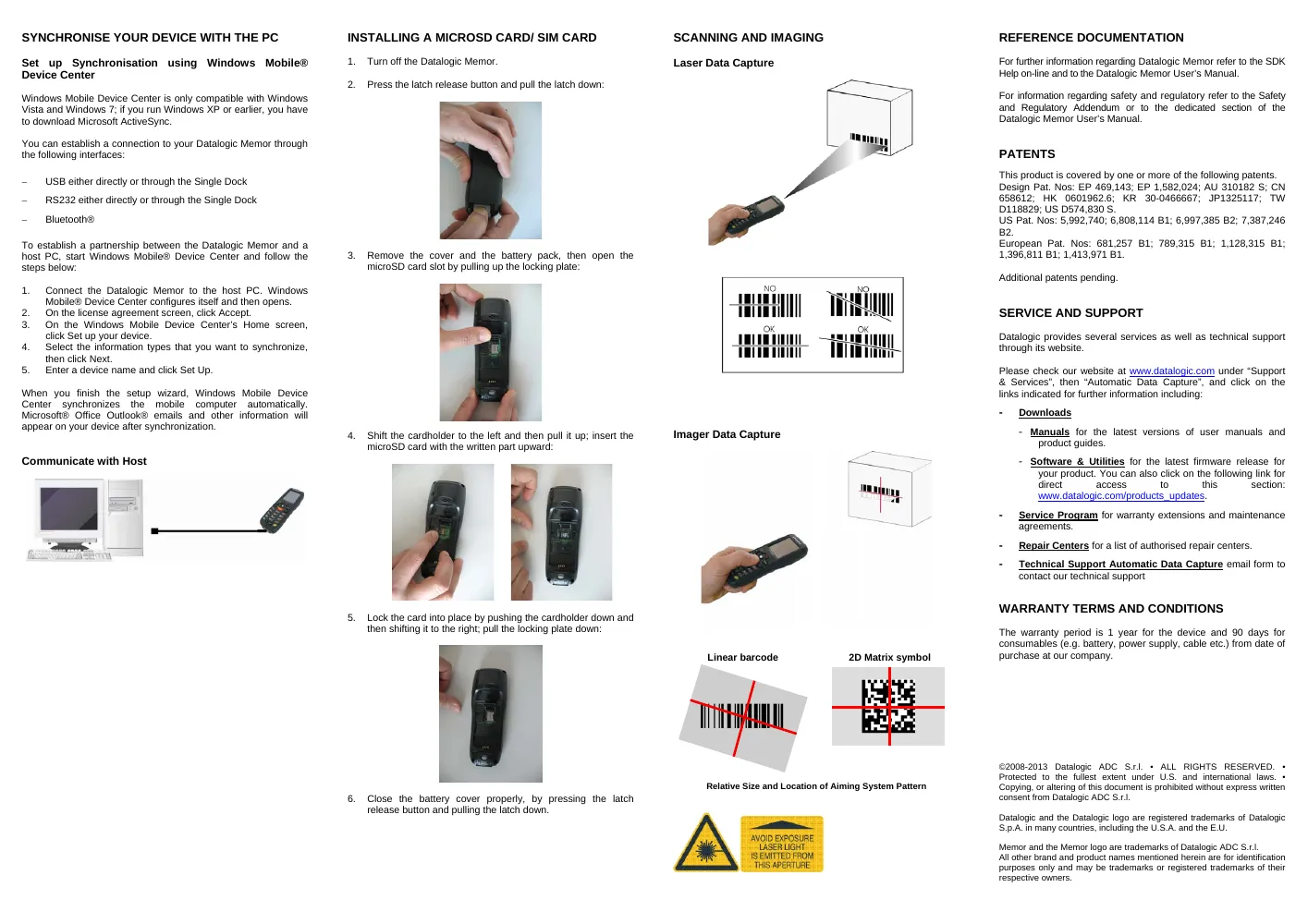
The text of page 2, from the PDF itself
SYNCHRONISE YOUR DEVICE WITH THE PC
INSTALLING A MICROSD CARD/ SIM CARD
SCANNING AND IMAGING
REFERENCE DOCUMENTATION
Set up Synchronisation using Windows Mobile® Device Center
1.
Turn off the Datalogic Memor.
Laser Data Capture
For further information regarding Datalogic Memor refer to the SDK Help on-line and to the Datalogic Memor User’s Manual.
2.
Press the latch release button and pull the latch down:
Windows Mobile Device Center is only compatible with Windows Vista and Windows 7; if you run Windows XP or earlier, you have to download Microsoft ActiveSync.
For information regarding safety and regulatory refer to the Safety and Regulatory Addendum or to the dedicated section of the Datalogic Memor User’s Manual.
You can establish a connection to your Datalogic Memor through the following interfaces:
PATENTS
USB either directly or through the Single Dock
RS232 either directly or through the Single Dock
Bluetooth®
To establish a partnership between the Datalogic Memor and a host PC, start Windows Mobile® Device Center and follow the steps below:
3.
This product is covered by one or more of the following patents. Design Pat. Nos: EP 469,143; EP 1,582,024; AU 310182 S; CN 658612; HK 0601962.6; KR 30-0466667; JP1325117; TW D118829; US D574,830 S. US Pat. Nos: 5,992,740; 6,808,114 B1; 6,997,385 B2; 7,387,246 B2. European Pat. Nos: 681,257 B1; 789,315 B1; 1,128,315 B1; 1,396,811 B1; 1,413,971 B1.
Remove the cover and the battery pack, then open the microSD card slot by pulling up the locking plate:
Additional patents pending. 1. 2. 3. 4. 5.
Connect the Datalogic Memor to the host PC. Windows Mobile® Device Center configures itself and then opens. On the license agreement screen, click Accept. On the Windows Mobile Device Center’s Home screen, click Set up your device. Select the information types that you want to synchronize, then click Next. Enter a device name and click Set Up.
When you finish the setup wizard, Windows Mobile Device Center synchronizes the mobile computer automatically. Microsoft® Office Outlook® emails and other information will appear on your device after synchronization.
SERVICE AND SUPPORT Datalogic provides several services as well as technical support through its website. Please check our website at www.datalogic.com under “Support & Services”, then “Automatic Data Capture”, and click on the links indicated for further information including:
4.
Shift the cardholder to the left and then pull it up; insert the microSD card with the written part upward:
Downloads
- Manuals for the latest versions of user manuals and
Imager Data Captureproduct guides.Communicate with Host
- Software & Utilities for the latest firmware release for your product. You can also click on the following link for direct access to this section: www.datalogic.com/products_updates.
5.
-
Service Program for warranty extensions and maintenance agreements.
-
Repair Centers for a list of authorised repair centers.
-
Technical Support Automatic Data Capture email form to contact our technical support
WARRANTY TERMS AND CONDITIONS
Lock the card into place by pushing the cardholder down and then shifting it to the right; pull the locking plate down: Linear barcode
2D Matrix symbol
The warranty period is 1 year for the device and 90 days for consumables (e.g. battery, power supply, cable etc.) from date of purchase at our company.
ÌBX3ÉÎ
Relative Size and Location of Aiming System Pattern
6.
Close the battery cover properly, by pressing the latch release button and pulling the latch down.
©2008-2013 Datalogic ADC S.r.l. • ALL RIGHTS RESERVED. • Protected to the fullest extent under U.S. and international laws. • Copying, or altering of this document is prohibited without express written consent from Datalogic ADC S.r.l. Datalogic and the Datalogic logo are registered trademarks of Datalogic S.p.A. in many countries, including the U.S.A. and the E.U. Memor and the Memor logo are trademarks of Datalogic ADC S.r.l. All other brand and product names mentioned herein are for identification purposes only and may be trademarks or registered trademarks of their respective owners.