Manual · Datalogic
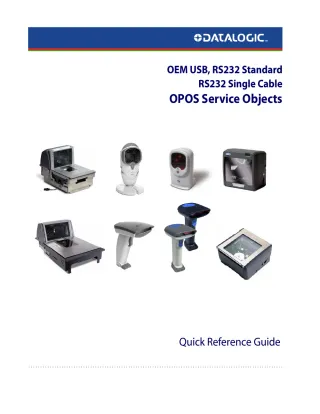
OEM USB, RS232 Standard, RS232 Single Cable OPOS Service Objects Quick Reference Guide
Manual38 pagesPDF 1.4 MB
Quick reference guide for the Datalogic OPOS service objects that connect Magellan 2200VS, 2300HS and other scanners to POS software.
What this file really is
The old site listed this file as “Quick Reference” for the Datalogic 2200VS and 2300HS. The document is a quick reference for Datalogic OPOS service objects (POS software drivers) that support the Magellan 2200VS and 2300HS among other scanners, not an operating guide for the scanner itself.
Filed with · 2 models
Also filed with these models on the old site
Summary
What is in it
A quick reference guide for the Datalogic OPOS Service Objects, the Windows drivers that let point-of-sale applications use Datalogic scanners and scanner/scales over OEM USB, RS232 Standard and RS232 Single Cable interfaces. Supported devices listed include the Magellan 2200VS and 2300HS. It covers GUI and silent installation, the DualTest utility for testing scanners and scales, firmware updates and live weight display, and a developers guide to scanner and scale properties, methods and events, with DirectIO command support.
Its parts
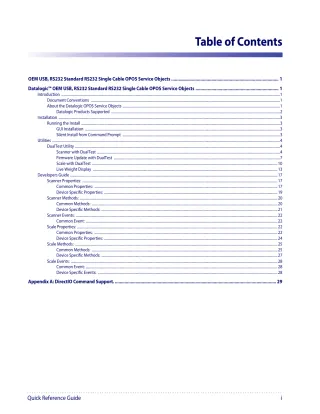
- Introduction
- Installation
- Utilities
- Developers Guide
- Appendix A: DirectIO Command Support
From the manual · read page by page
Key facts from this manual
Some pages are scans or cannot be read; this says only what the readable text supports. Each line names its page in the PDF.
The Datalogic quick reference guide (R44-2622 Rev D, 12/08) for its OPOS service objects, the retail POS drivers for OEM USB, RS232 Standard and RS232 Single Cable scanners and scales. It lists many supported products, among them the Magellan 2200VS and 2300HS, Magellan 8100, 8200, 8300, 8400, 8500, 9500, 1000i and 1400i and several handhelds. It explains installation, testing and firmware updates with the DualTest utility, and the properties, methods and DirectIO commands for developers.
- Software
- Datalogic OPOS service objects for scanners and scales, current to OPOS version 1.12 p. 5
- Interfaces
- RS232 Standard (Dual Cable), RS232 Single Cable and OEM USB p. 5
- Products listed
- Magellan 2200VS, 2300HS, 8100, 8200, 8300, 8400, 8500, 9500, 1000i, 1400i; Duet, VS800, QS6000+, QS2500, QS6500, QS6500BT p. 6
- Installer
- R96-xxxx.msi, run by GUI or silently with /quiet p. 7
- Common Controls
- OPOS Common Control Objects version 1.12.000 included in the package p. 7
- Test utility
- DualTest: open, claim, enable, read weights and scan bar codes through the service objects p. 8
- Firmware update
- Select scanners can be updated through DualTest; about 7 to 40 minutes depending on interface and baud rate p. 11, 12
- Firmware files
- Interface and scanner specific, from Datalogic Tech Support p. 11
- Live weight
- Scale service object supports Live Weight Display per UPOS 1.9 and above p. 17
- Scale maximum
- MaximumWeight returns 15000 in metric mode and 30000 in pound mode p. 28
- Scanner statistics
- Device category, manufacturer, model number, serial number, firmware revision, interface type, power on time, number of label scans p. 25
- DirectIO
- Datalogic commands plus legacy scanner and NCR scanner and scale DirectIO for compatibility p. 33, 34, 35
What this manual walks you through
- Installing the service objects by GUI or silent install p. 7
- Testing a scanner with DualTest p. 8, 9, 10
- Updating scanner firmware with DualTest p. 11, 12, 13, 14
- Reading a weight from a scale with DualTest p. 14, 15, 16
- Showing live weight, under zero, motion and overweight states p. 17, 18, 19
- Scanner and scale properties, methods and events for developers p. 21, 22, 23, 24, 25, 26
- DirectIO command support by interface p. 33, 34, 35
Good to know
- Uninstall any earlier Datalogic or PSC OPOS scanner/scale service objects first. p. 7
- Silent install mode does not install the Common Control Objects. p. 7
- Close the scale service object before a firmware update, or the scanner may be left inoperative. p. 11
- Do not disconnect the interface or power cable during a firmware update. p. 12
- The Weight Unit entry in Settings.xml must match the scale configuration, metric or English. p. 31
Questions this manual answers
Is there an OPOS driver for the Magellan 2200VS?
Yes. The Datalogic OPOS service objects list the Magellan 2200VS and 2300HS among the supported products. p. 6
How do I install the Datalogic OPOS service objects silently?
From a command window in the folder with the installer, run R96-xxxx.msi /quiet. This mode leaves out the Common Control Objects. p. 7
How long does a Magellan firmware update through OPOS take?
About 7 to 40 minutes, depending on the interface and settings such as baud rate. p. 12
Where do I get firmware files for a Datalogic scanner?
Firmware files are specific to the interface and scanner and come from Datalogic Tech Support. p. 11
Contents
Chapters and sections
Each line opens the PDF at its page.
The whole text · 5 parts
Read the manual here as text
Its text as extracted from the PDF, unedited, in parts; each page opens the PDF at that page.
- Pages 1 to 41-4
- Datalogic™ OEM USB, RS232 Standard RS232 Single Cable OPOS Service Objects, pages 5 to 145-14
- Datalogic™ OEM USB, RS232 Standard RS232 Single Cable OPOS Service Objects, pages 15 to 2415-24
- Datalogic™ OEM USB, RS232 Standard RS232 Single Cable OPOS Service Objects, pages 25 to 3225-32
- Appendix A: DirectIO Command Support.33-38
The file