Manual · Blue Bamboo
Blue Bamboo H50 Advantage Terminal User Guide
Manual28 pagesPDF 803 KB
User guide for the Blue Bamboo H50 Advantage portable payment terminal: setup, battery, paper, SAM and SIM cards, card readers.
Covers · 1 model
The models it covers
Summary
What is in it
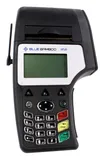
User guide for the Blue Bamboo H50 Advantage, a portable terminal for performing transactions remotely. It covers the operating environment and safety, the carton contents, keypad and terminal features, installing and charging the Li-ion battery, the AC power supply, loading paper, installing SAM and SIM cards and the GPRS, modem, Bluetooth or Ethernet module, smart card and magnetic card transactions, maintenance, troubleshooting, specifications and accessories.
Its parts
- Introduction
- Operating Environment and Safety
- H50 Advantage Terminal Operation
- Maintenance
- Troubleshooting
- Service and Support
- Specifications
- Accessories and Documentation
- Revision History
From the manual · read page by page
Key facts from this manual
Each line names its page in the PDF.
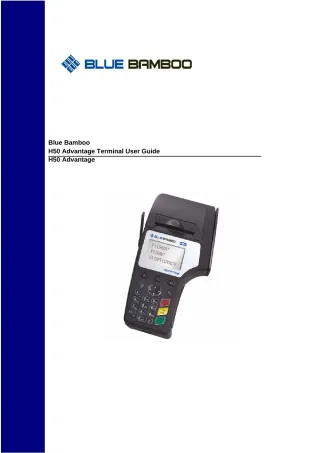
This is the 2010 user guide for the Blue Bamboo H50 Advantage, a portable wireless card payment terminal with a built-in thermal printer. It explains the keypad, installing and charging the battery, loading paper, fitting SAM and SIM cards and communication modules, taking card transactions, cleaning, and troubleshooting.
- Device
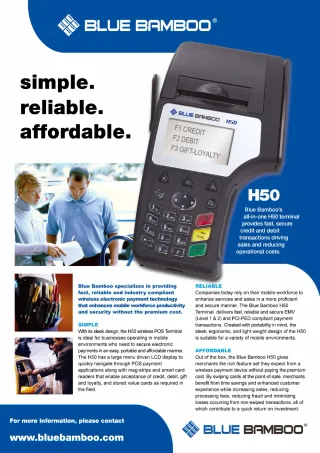
- Portable wireless payment terminal with smart card and magnetic card readers and an internal thermal printer p. 5, 16, 22, 23
- Battery
- Li-ion; charges in the terminal in 3-4 hours or in a separate battery charger p. 11, 12, 13
- Power adapter
- Input 100 - 240VAC, 50/60 Hz; output 9-10V DC, 1000 mA p. 27
- Paper
- Single-ply thermal paper roll, 58 mm wide, 40 mm or less in diameter p. 16
- Communication modules
- Plug-in GPRS, modem, Bluetooth or Ethernet module; listed as 33.6K baud modem, Bluetooth 2.0, 850/1800/1900 GSM/GPRS p. 21, 28
- Keypad
- Telco-style alphanumeric keys; green Enter, yellow Clear, red Cancel; four navigation keys; three programmable function keys; menu and power keys p. 8, 9, 10
- Temperature and humidity
- Operating 0 to 40 C, 15% to 85% RH non-condensing; storage -20 to 60 C p. 27
- Size and weight
- 109mm(L)x192mm(W)x53mm(H); 0.424 kg p. 27
- Serial port
- 18 pin serial cable connection p. 17
- SAM and SIM cards
- Support for 2 SAM cards beneath the GPRS/Modem module; SIM card fits in the GPRS module p. 18, 20, 28
- In the box
- Terminal, adapter cable, serial port, spindle, paper, battery, power adapter, QIG p. 6
- Accessories
- Serial cable, rechargeable battery, charging cradle, carrying case, holster, car charger, USB to RS232 cable, SDK, Blue Tools SDK p. 28
- Magnetic stripe
- Track 2 and 3 magnetic stripe reader support (MSR T 2/3) listed as an accessory p. 28
What this manual walks you through
- Installing and removing the battery p. 11, 12
- Charging the battery in the terminal or the battery charger, and reading the charger lights p. 12, 13, 14
- Running the terminal from the AC adapter and power box p. 15
- Loading a paper roll p. 16, 17
- Installing SAM cards p. 18, 19
- Installing a SIM card in the GPRS module p. 20
- Fitting a GPRS, modem, Bluetooth or Ethernet module p. 21
- Taking smart card and magnetic card transactions p. 22, 23
- Cleaning the terminal, card readers and printer p. 24
- Troubleshooting start-up, charging, printer, serial port, transaction and keypad problems p. 25, 26
Good to know
- Do not leave the terminal in a vehicle without climate control; it is highly sensitive to temperature extremes. p. 5
- Remove the battery if the terminal will sit unused for several days, as it keeps discharging when off. p. 11
- Leave a smart card in the reader until the transaction completes; removing it early voids the transaction. p. 22
- Do not attempt to clean the card readers, and never use thinner, acetone or similar solvents on the terminal. p. 24
- The printer will not print if the battery lacks charge to finish the job. p. 25
Questions this manual answers
How long does the Blue Bamboo H50 battery take to charge?
About 3-4 hours in the terminal. Five steady bars on the display show a full charge. p. 12
What paper does the H50 printer use?
Single-ply thermal paper rolls 58 mm wide and 40 mm or less in diameter. p. 16
Why won't my H50 terminal turn on?
Check that the battery protection plastic is removed, recharge or replace the battery, and hold the power key about 2 seconds. p. 25
What do the lights on the H50 battery charger mean?
Blue on means charging, blue flashing means fully charged, red on means a charging error and red flashing means the charger is not plugged in. p. 14
What power adapter does the H50 use?
One taking 100 - 240VAC, 50/60 Hz and giving 9-10V DC at 1000 mA. p. 27
Contents
Chapters and sections
Each line opens the PDF at its page.
- Introduction5
- 1. Operating Environment and Safety5
- 2. H50 Advantage Terminal Operation6
- 2.1 Unpack the Unit Carton6
- 2.2 Terminal Features7
- 2.3 Battery11
- 2.4 AC Power Supply15
- 2.5 Paper Installation16
- 2.6 SAM Card Installation18
- 2.7 SIM Card Installation (For GPRS Module Only)20
- 2.8 GPRS/Modem/Bluetooth/Ethernet Module Installation21
- 2.9 Smart Card Reader Transactions22
- 2.10 Magnetic Card Reader Transactions23
- 3 Maintenance24
- 4 Troubleshooting25
- 5 Service and Support27
- 6 Specifications27
- 7 Accessories and Documentation28
- 8 Revision History28
The whole text · 4 parts
Read the manual here as text
Its text as extracted from the PDF, unedited, in parts; each page opens the PDF at that page.
The file