Manual · Aceeca
User's Guide MEZ1500-WinCE
Manual82 pagesPDF 6.1 MB
User's guide for the Aceeca MEZ1500 handheld running Windows CE 5.0: controls, device settings, ActiveSync and care.
Covers · 1 model
The models it covers
Summary
What is in it
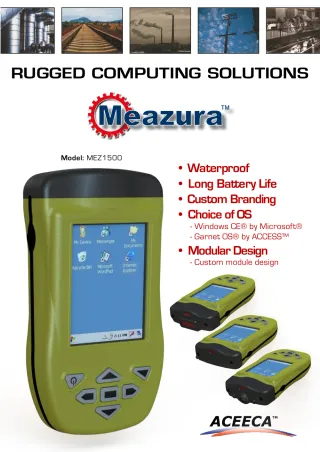
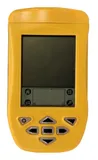
The user's guide for the Windows CE 5.0 version of the Aceeca MEZ1500 handheld. It shows the front, back, top and bottom case components, explains the Windows CE desktop, input panel and file handling, and walks through every Control Panel setting, including the Aceeca applet for I/O ports, keypad and reset. Later chapters cover ActiveSync (also over Bluetooth), WiFi power control and Internet Explorer, and close with care of the screen and battery.
Its parts
- Introduction to the MEZ1500 Windows CE 5.0
- Getting Started with Windows CE Devices
- Windows CE Device Settings
- Windows CE Applications
- Maintaining Your MEZ1500
From the manual
Key facts from this manual
Each line names its page in the PDF.
Aceeca's User's Guide (printed July 2012) for the MEZ1500-WinCE, the MEZ1500 handheld running Windows CE 5.0. It covers the Windows CE desktop and Control Panel settings, the Aceeca I/O port, keypad and reset options, ActiveSync by USB or Bluetooth, the optional WiFi module, and screen and battery care.
- Operating system
- Windows CE 5.0 p. 8
- PC sync
- Microsoft ActiveSync 4.5 by cable, cradle, Bluetooth or infrared; works only with Windows XP SP2 or earlier p. 63
- PC connection
- USB cable or serial cable, enabled in Control Panel, PC Connection p. 64
- COM1 options
- Regular RS232 port, IrDA OBEX, or IrCOMM (COM3) p. 24
- Keypad
- 8 programmable keys, assigned in the Aceeca Control Panel Keypad tab p. 25
- Reset options
- Warm, Cold, Factory and Total Power Down, from the Aceeca Control Panel Reset tab p. 26
- Wireless
- Optional Bluetooth; optional WiFi module switched by WiFiCtrl, with AES, TKIP or WEP networks p. 67, 73, 74
- Battery
- Custom rechargeable Lithium Ion pack; 300-500 charge/discharge cycles; about two to three years p. 81
- Power states
- On, User Idle, System Idle and Suspend, with timers set in Control Panel, Power p. 45, 46
- Screen brightness
- Screen Brightness button, then directional arrows or stylus to move the slider p. 15
- Text input
- Soft keyboard, Block Recognizer, Letter Recognizer or Transcriber p. 14
- Case material
- GE Plastic CYCOLOY C6600; resists mineral acids, many organic acids and saline solutions p. 80
- Storage
- Flash Disk partition and SD card keep files through cold and factory resets p. 26
What this manual walks you through
- Using the Windows CE desktop, input panel and Windows Explorer p. 12, 13, 14, 15, 16, 17
- Setting COM1 use for RS232 or infrared p. 24
- Assigning functions to the programmable keys p. 25
- Warm, cold and factory reset p. 26
- Setting power schemes and checking battery levels p. 44, 45, 46
- Adjusting program and storage memory p. 54, 55
- Synchronizing with a PC by ActiveSync over USB p. 63, 64
- Connecting to ActiveSync by Bluetooth p. 67, 72
- Turning on WiFi and joining a wireless network p. 73, 74
- Cleaning the handheld, replacing screen protectors and battery care p. 80, 81
Good to know
- A cold reset loses installed programs and data not on the Flash Disk partition or an SD card; a factory reset erases all such data. p. 26
- User-installed programs live in RAM and must be reinstalled after a cold boot. p. 55
- ActiveSync must be installed on the PC before the device is connected. p. 63
- The handheld must be completely dry before charging, and the supplied charger must be used with a mains adaptor. p. 81
- The case is not resistant to bases, aromatics, ketones, esters, chlorinated hydrocarbons and some greases and oils. p. 80
Questions this manual answers
How do I sync an Aceeca MEZ1500 with Windows CE to a PC?
Install Microsoft ActiveSync 4.5 on the PC, allow USB connections, enable direct connections in PC Connection on the device, then connect the USB cable. p. 63, 64
How do I reset the MEZ1500 Windows CE handheld?
In Control Panel, open Aceeca, Reset tab, and choose Warm, Cold, Factory or Total Power Down. A warm reset keeps programs and data. p. 26
Does ActiveSync work with newer Windows versions for the MEZ1500?
The guide says Microsoft ActiveSync works only with Windows XP SP2 or earlier. p. 63
How do I turn on WiFi on the MEZ1500?
On units fitted with the optional WiFi module, open Start, Programs, WiFiCtrl and tick the WiFi enabled box. p. 73
How many charge cycles does the MEZ1500 battery last?
Between 300 and 500 charge/discharge cycles, typically about two to three years. p. 81
Contents
Chapters and sections
Each line opens the PDF at its page.
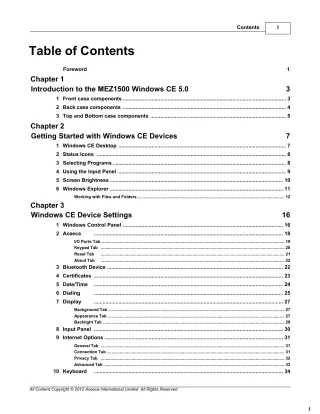
- Introduction to the MEZ1500 Windows CE 5.08
- Getting Started with Windows CE Devices12
- Windows CE Device Settings21
- Windows CE Applications63
- Maintaining Your MEZ150080
4 more lines, from page 80 on
The whole text · 11 parts
Read the manual here as text
Its text as extracted from the PDF, unedited, in parts; each page opens the PDF at that page.
- Pages 1 to 71-7
- Introduction to the MEZ1500 Windows CE 5.08-11
- Getting Started with Windows CE Devices12-20
- Windows CE Device Settings, pages 21 to 2921-29
- Windows CE Device Settings, pages 30 to 3830-38
- Windows CE Device Settings, pages 39 to 4739-47
- Windows CE Device Settings, pages 48 to 5648-56
- Windows CE Device Settings, pages 57 to 6257-62
- Windows CE Applications, pages 63 to 7163-71
- Windows CE Applications, pages 72 to 7972-79
- Maintaining Your MEZ150080-82
The file