Manual · Zebra
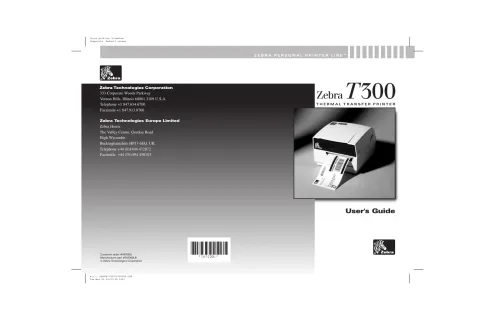
Zebra T300 Thermal Transfer Printer User's Guide
Manual38 pagesPDF 1.2 MB
User's guide for the Zebra T300 desktop thermal transfer label printer: setup, software, operation, maintenance and specifications.
Covers · 1 model
The models it covers
Summary
What is in it
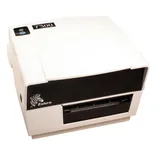
Zebra's user's guide for the T300, a thermal transfer printer from the Zebra Personal Printer Line. It covers unpacking and what else you need (shielded serial or parallel cable, power cord), illustrated setup for tear-off and other modes, installing the BAR-ONE label software, operating the printer (feed key modes, media sensor calibration, communication parameters), the ZebraNet option, preventive maintenance, troubleshooting, specifications, the software license and warranty.
Its parts
- Introduction
- Unpacking and Inspection
- Additional Requirements
- Setting Up the Zebra T300 Printer
- Setting Up the Software
- Operating the System
- ZebraNet Option
- Preventive Maintenance
- Troubleshooting
- Specifications
- Software License Agreement
- Warranty
From the manual · read page by page
Key facts from this manual
Each line names its page in the PDF.
User's guide for the Zebra T300 thermal transfer label printer from the Zebra Personal Printer Line. It covers loading media for tear-off, peel-off and fanfold use, connecting to a computer, installing BAR-ONE software, Feed key modes, calibration, serial settings, cleaning, troubleshooting and specifications with port pinouts. A calibration addendum bound into it also covers the Zebra A300.
- Device
- Thermal transfer printer for labels, tags or tickets; printing requires a thermal transfer ribbon p. 6, 19
- Ports
- 36-pin Centronics-compatible parallel port; RS-232 serial port (DB-9 connector) p. 34
- Power
- External 120 or 230 VAC power supply, depending on the model ordered p. 34
- Label software
- BAR-ONE for Windows, or ZPL II commands sent as ASCII text p. 18, 19
- Operating modes
- Tear-off, peel-off, and cutter (with the optional cutter module) p. 19
- Media
- Roll or fanfold; transmissive or black-mark sensing; continuous, die-cut or notched; outside-wound recommended p. 33
- Serial default
- 9600 baud, 8 bit word length, no parity, 1 stop bit (after a Feed key reset) p. 20
- Serial range
- 110 to 19200 baud, 7 or 8 data bits, XON/XOFF or DTR/DSR handshake, set with ^SC p. 28
- Serial cable
- 9-pin to 9-pin null modem (crossover) cable to a 9-pin PC port; standard 9-pin to 25-pin cable to a 25-pin port p. 36
- Parallel cable
- No longer than 6 ft (1.8 m) for maximum reliability p. 34
- Processor
- 32-bit microcontroller p. 34
- Fonts
- CG Triumvirate Bold Condensed (6, 8, 10, 12, 14, 18 pt.); Zebra fonts A, B, C, D, E, H, GS p. 34
- Network option
- ZebraNet micro print server for Ethernet p. 28
- Firmware
- The addendum's new calibration features need firmware 23.8.1 or later on the T300 p. 24
What this manual walks you through
- Loading media for tear-off, peel-off and fanfold operation p. 7, 8, 9, 10, 11, 12, 14, 15
- Connecting the printer by parallel or serial cable p. 16, 17
- Installing BAR-ONE label software p. 18, 19
- Using the Feed key to print a configuration label, calibrate, reset serial settings or restore defaults p. 20
- Adjusting for media width, ribbon width and printhead position p. 21, 22
- Calibrating the media sensor, automatic and manual p. 24, 25, 27
- Setting serial communication parameters with ^SC p. 27, 28
- Cleaning schedule for printhead, rollers, sensor and media path p. 29
- Troubleshooting power light, print quality and communication problems p. 30, 31
- Parallel and RS-232 pinouts p. 35, 36
Good to know
- No lubricants of any kind should be used on the printer; some damage the finish and mechanical parts. p. 29
- Turn the power switch off before connecting or disconnecting any cables. p. 20
- The printer must be used with shielded communication cables to stay within its FCC compliance. p. 3
- A manual calibration turns auto-calibration off until the printer is defaulted or reset from the label software. p. 25
- The power line cord must be under 12.5 ft (3.8 meters), rated at least 3 A, 250 V, with the earth wire connected. p. 34
Questions this manual answers
Why is the power light flashing on my Zebra T300?
Flashing means paper out or not sensed, ribbon out, calibration needed, an overheated printhead or a cutter error. Flashing once every 3 seconds after power-up means it failed internal diagnostics. p. 21
How do I calibrate the T300 for new labels?
Remove a few labels so only backing is under the printhead, hold Feed until the power light flashes twice in a row, then reload a label under the printhead and press Feed to print the sensor profile. p. 27
How do I reset the T300 serial port settings?
Hold the Feed key until the power light blinks three times, then release it. The port resets to 9600 baud, 8 bits, no parity, 1 stop bit. p. 27, 28
What serial cable does the Zebra T300 need?
A 9-pin to 9-pin null modem (crossover) cable for a 9-pin PC port, or a standard straight-through 9-pin to 25-pin cable for a 25-pin port. p. 36
The whole text · 4 parts
Read the manual here as text
Its text as extracted from the PDF, unedited, in parts; each page opens the PDF at that page.
The file