Manual · Zebra
2844 Thermal Printer User's Manual
Manual38 pagesPDF 8.2 MB
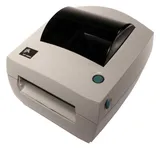
User's manual for the Zebra LP 2844 and TLP 2844 desktop thermal label printers: setup, media loading, options and troubleshooting.
Covers · 2 models
The models it covers
Summary
What is in it
User's manual for the Zebra LP 2844 and TLP 2844 series desktop thermal printers. It covers unpacking and the printer's parts, attaching power and a serial, parallel or USB interface cable, loading media, AutoSense media gap sensing, installing software and choosing direct or transfer printing, then the options (transfer ribbon, label dispenser, fan-fold media, media cutter), troubleshooting, interface cable wiring and cleaning the print head and platen.
Its parts
- Installation and Operation
- Using Options
- Troubleshooting
From the manual · read page by page
Key facts from this manual
Some pages are scans or cannot be read; this says only what the readable text supports. Each line names its page in the PDF.
User's manual for the Zebra LP 2844 and TLP 2844 desktop thermal printers. It shows, mostly in pictures, how to attach power and an interface cable, load media, run AutoSense gap sensing and use the options: transfer ribbon, label dispenser, fan-fold media and media cutter. It closes with troubleshooting by status light, cable wiring for serial, parallel and USB, and print head and platen cleaning.
- Device
- Desktop thermal printer for labels, tags or continuous receipts p. 7
- Interfaces
- Serial, parallel and USB p. 11
- Host computers
- DOS, Windows or ASCII-based compatible hosts p. 7
- Programming language
- EPL2 commands (for example Q sets form length and gap) p. 18
- Options
- Thermal transfer printing, label dispenser, fan-fold media, media cutter p. 19
- Serial cables
- Female DB-9 to male DB-9: P/N 300017-006 (6') or 300017-010 (10'); female DB-25 to male DB-9: P/N 300018-006 (6') p. 32
- Print method
- TLP 2844: direct thermal and thermal transfer (ribbon) media p. 20
- Power for accessories
- +5 volts at 150 mA on the serial port and 300 mA on the parallel port, for a KDU or scanner p. 32, 33
- Media cutter
- Media 1.12 inch (28mm) to 4.25 inches (108mm) wide, at least 0.75 inch (19.1mm) long; blade life 1,000,000 cuts p. 27
- USB wiring
- Contact 1 VBUS, 2 D-, 3 D+, 4 GND, shell shield p. 34
What this manual walks you through
- Attaching the power supply and interface cable p. 10, 11
- Loading a media roll p. 12, 13, 14
- Running AutoSense media gap sensing for a new roll p. 15, 16
- Loading and replacing thermal transfer ribbon p. 20, 21, 22, 23, 24
- Setting up the label dispenser p. 25
- Using fan-fold media p. 26
- Using and clearing the media cutter p. 27, 28
- Troubleshooting by status indicator and media handling p. 29, 30, 31
- Serial, parallel and USB cable wiring p. 32, 33, 34
- Cleaning the print head and platen, and preparing media p. 35, 36, 37
Good to know
- Do not turn the printer off while replacing labels or ribbon, or data is lost; printing resumes once new supplies are loaded. p. 18
- A non-approved ribbon may be wound wrongly or contain chemicals that permanently damage the print head. p. 4
- The print head gets hot while printing; avoid touching it and use only the cleaning pen for maintenance. p. 4
- Keep the cutter dry and never clean the blade with solutions or solvents. p. 28
- When using ribbon, thermal transfer media must be used too. p. 23
Questions this manual answers
What does an orange status light mean on the LP 2844?
Lit orange means the ribbon is out, the optional cover open sensor is active, or the printer has a syntax or command error. Blinking orange means a firmware download is in progress. p. 29
What does a red status light mean on the 2844?
Media is out, a power-up failure, or the printer is ready for flash programming during a firmware download. p. 29
How do I run AutoSense on a 2844 printer?
Turn the power off, hold the Feed button, turn the power on, and release Feed when the indicator flashes. The printer prints a status summary; tap Feed to return to normal operation. p. 15, 16
How wide can media be for the 2844 media cutter?
From 1.12 inch (28mm) up to 4.25 inches (108mm) wide, and at least 0.75 inch (19.1mm) long. p. 27
Why does my 2844 keep printing between labels in dispense mode?
Make sure the label-taken sensor is on and clean, and check that continuous media is not set through the Q command. p. 31
Contents
Chapters and sections
Each line opens the PDF at its page.
The whole text · 4 parts
Read the manual here as text
Its text as extracted from the PDF, unedited, in parts; each page opens the PDF at that page.
The file