Manual · Zebra
UPS 2348+ Thermal Printer Quick Start
Manual28 pagesPDF 2.9 MB
Quick start guide for the Zebra LP2348+ (UPS 2348+) direct thermal label printer: setup, media loading, calibration, peel mode and cleaning.
Covers · 1 model
The models it covers
Summary
What is in it
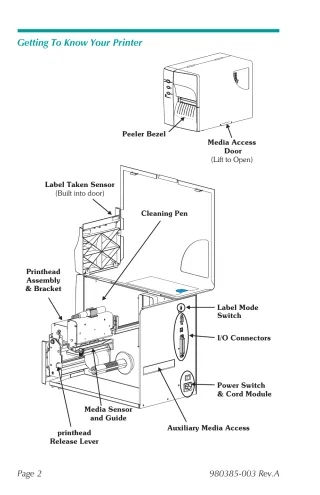
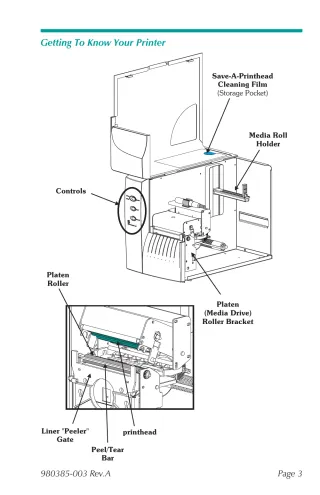
A quick start guide for the UPS 2348+ thermal label printer, the Zebra LP2348+. It shows the box contents, the printer's parts, controls and indicator lights, connecting power and the serial, USB or parallel interface, preparing and loading media, running the AutoSense media calibration, setting up label peel mode, installing the printer for UPS Internet Shipping, cleaning the printhead and platen roller, and reading the configuration settings on the Dump mode printout.
From the manual · read page by page
Key facts from this manual
Each line names its page in the PDF.
Quick start guide for the UPS 2348+ thermal printer, also marked LP 2348+, a Zebra direct thermal label printer. It shows the parts and controls, how to connect the printer, load and calibrate labels, set up label peel mode and install it for UPS Internet Shipping. It also covers cleaning and printhead care and how to read the configuration printout.
- Device
- Direct thermal label printer with a 4 in print width p. 25
- Interfaces
- Serial (RS-232), USB and parallel; an Ethernet option exists p. 1, 5
- Serial defaults
- 9600 baud, no parity, 8 data bits, 1 stop bit p. 5
- In the box
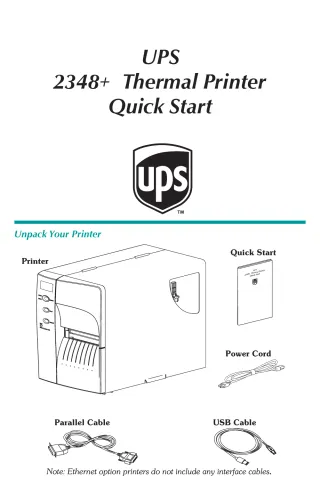
- Printer, power cord, parallel cable, USB cable and quick start; Ethernet option printers come with no interface cables p. 1
- Print mode
- Direct thermal p. 25
- Model code
- MO3257, printed with the firmware version on the configuration label p. 25
- Settings memory
- Flash (non-volatile) memory stores the configuration settings p. 25
- Controls
- PAUSE, FEED and CANCEL buttons; POWER and ERROR indicator lights; rear Label Mode switch (Peel or Batch) p. 4
- Cleaning film
- Save-A-Printhead cleaning film, Part No.105950-047 p. 22
- USB driver files
- OEMSETUP.INF and USBPRINT.INF, under the UPS folder p. 5
What this manual walks you through
- Connecting the power and interface cables and installing the USB driver p. 5
- Preparing a new roll before loading p. 6
- Loading labels through the media guide and printhead p. 7, 8, 9, 10
- Calibrating for new media with AutoSense p. 11, 12
- Setting up label peel mode with the liner rewind p. 13, 14, 15, 16, 17
- Installing the printer from UPS Internet Shipping p. 18
- Cleaning the media path, printhead and platen roller p. 20, 21, 24
- Conditioning the printhead with cleaning film p. 23
- Reading the Dump mode configuration printout p. 25
Good to know
- Turn the power off before connecting cables, cleaning or moving the printer. p. 27
- Never touch the printhead; static discharge and skin oils damage it. Clean it only with a cleaning pen. p. 20
- Do not use the cleaning pen on the platen roller; use a swab or cloth lightly moistened with medical grade alcohol. p. 24
- Never operate the printer where it can get wet. p. 27
- Placing the printer on its front bezel or back while unpacking can damage the interface connector, accessories or door. p. 27
Questions this manual answers
How do I calibrate the UPS 2348+ printer for new labels?
With the Label Mode switch on Batch, turn the printer on, hold Cancel and Feed for one second, release Cancel, then release Feed three seconds later. Press Feed until "Out of DUMP" prints. p. 11, 12
What are the LP 2348+ serial port settings?
The RS-232 port defaults to 9600 baud, no parity, 8 data bits and 1 stop bit. p. 5
How do I make the printer peel labels one at a time?
Thread the liner through the peeler gate onto the rewind tube, set the rear Label Mode switch to PEEL and press CANCEL to start Peel Mode. p. 15, 16, 17
How often should the printhead be cleaned?
Clean it with a cleaning pen whenever new labels are loaded, and condition it with Save-A-Printhead cleaning film every third new roll. p. 21, 23
Which cables come with the UPS 2348+ printer?
A power cord, a parallel cable and a USB cable; printers with the Ethernet option come with no interface cables. p. 1
The whole text · 3 parts
Read the manual here as text
Its text as extracted from the PDF, unedited, in parts; each page opens the PDF at that page.
The file