Manual · Yongli
Wired Laser Barcode Scanner User Manual
Manual12 pagesPDF 1.2 MB
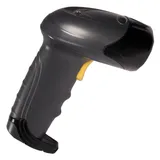
User manual and setup bar codes for a wired handheld laser barcode scanner with USB, PS/2 keyboard and RS232 interfaces.
Filed with · 1 model
Also filed with these models on the old site
Summary
What is in it
A short user manual for a wired laser barcode scanner; it does not name the maker or a model number. It explains connecting by USB, PS/2 keyboard wedge or RS232, the correct reading angle, automatic scanning with a stand, and lists technical parameters. Most pages are setup bar codes for interface, reading mode, buzzer, baud rate and serial settings, keyboard language, each symbology, prefixes and suffixes, hidden characters and a full ASCII table, followed by a warranty card.
From the manual · read page by page
Key facts from this manual
Some pages are scans or cannot be read; this says only what the readable text supports. Each line names its page in the PDF.
Short user manual (V:1509) for a wired laser barcode scanner with USB, PS/2 keyboard and RS232 interfaces; the manual itself never prints a model number. It shows how to connect the scanner, hold it, use automatic scanning on the stand, and change settings by scanning setup bar codes, and it lists the technical parameters.
- Device
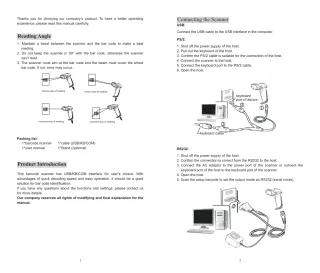
- Wired laser barcode scanner with USB, keyboard and COM interfaces p. 2
- Interfaces
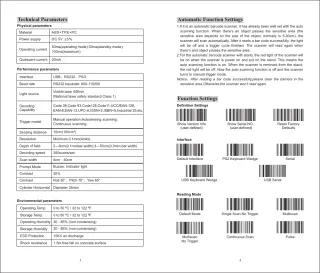
- USB, RS232, PS/2; RS232 baud rate 600-115200 p. 3
- Power
- DC 5V ±5%; 50ma operating, 30ma standby, 100ma maximum p. 3
- Light source
- Visible laser 650nm p. 3
- Decoding speed
- 300 scans/sec p. 3
- Depth of field
- 2-9cm at 0.1mm bar width; 3-50cm at 0.3mm bar width; minimum resolution 0.1mm (4mils) p. 3
- Scan width
- 5cm to 30cm p. 3
- Bar codes
- Code 39, Code 93, Code128, Code11, UCC/EAN-128, EAN-8, EAN-13, UPC-A, ISSN+2, ISBN+5, Industrial 25 and others p. 3
- Trigger modes
- Manual, autosensing and continuous scanning p. 3
- In the box
- Scanner, user manual, one cable (USB/KB/COM), stand optional p. 2
- Operating temperature
- 0 to 50 ºC / 32 to 122 ºF p. 3
- Humidity
- 20 - 85% non-condensing p. 3
- Durability
- 1.5m free fall on concrete; 15KV air discharge ESD protection p. 3
- Keyboard languages
- America English, Canada French, France French, German, Spanish, Italian, Brazil Portuguese, Czech, Polish 214 and others p. 4
What this manual walks you through
- Connecting the scanner by USB p. 2
- Connecting the scanner to a PS/2 keyboard port p. 2
- Connecting the scanner by RS232 p. 2
- Holding the scanner at the right reading angle p. 2
- Automatic scanning with the stand p. 3
- Choosing the interface and reading mode, and restoring factory defaults p. 3
- Setting serial baud rate, handshake, data bits and parity p. 4
- Turning individual bar code types on or off p. 5, 6, 7
- Adding prefix and suffix characters p. 9
Good to know
- Do not hold the scanner at 90 degrees to the bar code, or it cannot read. p. 2
- The beam must cover the whole bar code, or errors may occur. p. 2
- Shut off the host before connecting the scanner by PS/2 or RS232. p. 2
- In automatic mode, clear objects from the sensing area after a read, or the scanner will not read again. p. 3
Questions this manual answers
What interfaces does this wired laser barcode scanner have?
USB, RS232 and PS/2 keyboard. p. 3
How do I use the laser scanner on an RS232 port?
With the host off, connect the RS232 cable, power the scanner from the AC adaptor or the host keyboard port, then scan the setup bar code for RS232 output. p. 2
How far away can the scanner read a bar code?
2-9cm for 0.1mm bars and 3-50cm for 0.3mm bars. p. 3
What power does the scanner need?
DC 5V ±5%, drawing 50ma when operating and up to 100ma. p. 3
Can the scanner read automatically without pulling the trigger?
Yes. On the stand its red light stays on and it scans when an object passes the sensing area, normally 5-30cm. p. 3
Contents
Chapters and sections
Each line opens the PDF at its page.
The whole text · 2 parts
Read the manual here as text
Its text as extracted from the PDF, unedited, in parts; each page opens the PDF at that page.
The file