Manual · Wizcom
InfoScan TS Elite User Manual
Manual46 pagesPDF 391 KB
User manual for the WizCom InfoScan TS Elite scanning pen: setup, scanning, Notes and Scan to PC, and the WizCom Desktop software.
Covers · 1 model
The models it covers
Summary
What is in it
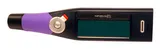
The user manual for the WizCom InfoScan TS Elite, a portable scanning pen with a touch screen and stylus that scans printed text for editing and transfer to a PC. It covers the pen parts, batteries and USB power, installing the WizCom Desktop and learning to scan with the Trainer, the pen keys, main menu and preferences, the Notes and Scan to PC applications with tutorials, the WizCom Desktop software and managing Notes files, scanning tips, maintenance, troubleshooting pen-PC communications and specifications.
Its parts
- Introduction
- Getting Started
- The Pen User Interface
- The Pen Applications
- The WizCom Desktop
- The Desktop User Interface
- Tips
- Product Specification
From the manual
Key facts from this manual
Each line names its page in the PDF.
User manual for the WizCom InfoScan TS Elite, a handheld pen scanner with a touch screen that reads printed text into notes on the pen or straight into a PC application. It walks through setup, scanning, the pen menus, the WizCom Desktop software, care and troubleshooting, and lists the specifications.
- Device
- Handheld scanning pen with a touch screen and stylus; scanned text can be edited and sent to a PC p. 5
- Power
- 2 AAA alkaline batteries; also powered by the PC over the USB cable p. 7, 8
- Connections
- USB cable outlet, infrared screen for beaming files to IrOBEX devices, headphone socket p. 6, 14
- Display
- Monochrome FSTN touch screen, 208 x 65, 61mm x 20mm p. 46
- Optical scanner
- 128 pixel linear array image sensor, 400 DPI p. 46
- Text it reads
- Printed text from 6 to 22 points (up to 8mm), scanned right to left or left to right p. 43
- Keys
- 5-way button (Enter and direction keys) and a red Power/Escape key p. 6
- Size
- 177.5 mm x 41.5 mm x 33 mm (7 in. x 1.62 in. x 1.3 in.) p. 46
- Weight
- 77 grams without batteries; 100 grams with batteries p. 46
- Current draw
- Idle 42 mA; peak 212 mA p. 46
- PC software
- WizCom Desktop and USB driver from the supplied CD-ROM; Windows XP and Vista; needs a free USB port p. 8, 46
- Scan to PC modes
- Auto Send (text goes straight to the PC) or non-Auto Send (review, then send) p. 27
- Auto shut-off
- After two minutes idle by default; adjustable; disabled while connected to the PC p. 12
What this manual walks you through
- Unpacking the pen and inserting the batteries p. 8
- Installing the WizCom Desktop and the USB driver p. 8
- Learning to scan with the plastic Trainer p. 9
- Setting preferences: menu language, voice, auto shut-off, handedness, contrast p. 12
- Calibrating the touch screen p. 12
- Scanning text straight into a PC application p. 29, 30
- Moving, copying and deleting Notes files with the Desktop p. 39, 40
- Scanning inverse text, numbers only, or another language p. 42
- Fixing pen-to-PC connection and USB driver problems p. 44, 45
Good to know
- Use AAA alkaline batteries only; the manual warns of a risk of explosion with an incorrect type. p. 7
- Keep batteries in the pen even when it is connected to the PC, or unsaved information may be lost. p. 8
- The pen does not recognize handwriting, cursive fonts, mathematical symbols or other profession-specific signs. p. 43
- Red on white, white on red, blue on black and black on blue are not recognized. p. 43
- Do not use soap or other cleaning aids on the touch screen, and do not spray liquid directly on the screen. p. 44
Questions this manual answers
What batteries does the InfoScan TS Elite use?
Two AAA alkaline batteries. It also draws power from the PC over the USB cable, but the batteries should stay in. p. 7, 8
Which Windows versions does the WizCom Desktop run on?
Windows XP and Vista, on a PC with a free USB port. p. 46
Can the InfoScan TS Elite scan into Microsoft Word?
Yes. Scan to PC sends text into any application with a blinking cursor, such as most Microsoft Office applications, while the WizCom Desktop runs. p. 29, 30
What text sizes can the InfoScan TS Elite read?
Printed text from 6 to 22 points, up to 8mm. p. 43
The whole text · 5 parts
Read the manual here as text
Its text as extracted from the PDF, unedited, in parts; each page opens the PDF at that page.
The file