Manual · Wasp
WPA1200 Product Reference Guide
Manual44 pagesPDF 2.5 MB
Product reference guide for the Wasp WPA1200 rugged PDA barcode scanner: battery, hardware, ActiveSync connections, scanner settings and resets.
Covers · 1 model
The models it covers
Summary
What is in it
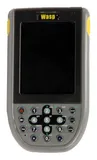
The product reference guide for the Wasp WPA1200, a rugged palm-sized PDA with a built-in barcode laser scanner, running Windows Mobile 5.0 or Windows CE 5.0. It explains installing and charging the battery, a tour of the controls, keypad functions, stylus, SD/MMC card and laser scanner use, connecting to a PC with ActiveSync over USB, infrared, Bluetooth or WiFi, the Scan2Key and scanner setting programs, battery and power settings, and warm and cold boots.
Its parts
- Getting Started
- Using the Hardware
- Getting Connected
- Barcode Scanner Programs
- Advanced Settings
From the manual
Key facts from this manual
Each line names its page in the PDF.
The 2007 Wasp product reference guide for the WPA1200, a rugged palm-sized PDA barcode scanner running Windows Mobile 5.0 or Windows CE 5.0 with a built-in laser scanner. It covers fitting and charging the battery, the keypad, memory card and scanner, connecting to a PC, the scanner programs, power settings and resets, and closes with a specifications table.
- Device
- Rugged palm-sized PDA with a laser barcode scanner, color touchscreen, keypad, IrDA and wireless, running Windows Mobile 5.0 / Windows CE 5.0 p. 4
- Processor
- Intel PXA270, up to 520 MHz p. 4
- Memory
- 64 MB SDRAM, 128 MB Flash ROM p. 4
- Display
- 3.5-inch QVGA touch screen, 320 x 240, color transflective TFT with backlight p. 4, 44
- Scanner
- Laser scan engine (CCD optional), Symbol SE950 support, left and right trigger keys, vibrator for scan indication p. 4, 7, 44
- Communication
- 802.11b/g with diversity antenna, Bluetooth 1.2, GPRS (data only), IrDA 1.2 (SIR), USB host and client p. 4
- Battery
- Removable 3.7 V, 1950 mAH Li-ion pack; embedded rechargeable Ni-MH backup cell p. 7, 8, 44
- Battery life
- 6 hours of normal use p. 4
- Expansion
- SD/MMC card slot that also takes SDIO cards p. 16
- Sealing
- IP54, with multiple drop tests p. 4
- Size and weight
- About L149.5 x H26.6 x W85mm; under 300g with battery and scan engine p. 44
- Accessories
- Desktop cradle (with 5V/3A AC-DC adapter), 4 slot battery charger, vehicle quick charging cable, holster p. 2, 44
- In the box
- Battery pack, AC adaptor with universal plug, stylus and elastic string, USB charging cables, CD-ROM, quick start guide p. 5
- Development software
- Microsoft Visual Studio 2005, Microsoft Windows CE 5.0 SDK, WPA1200 SDK p. 44
What this manual walks you through
- Installing the battery and switching on the backup battery p. 8, 9
- Charging with the USB charging cable and AC adapter p. 10
- Connecting the WPA1200 to a PC for ActiveSync p. 11
- First power-on and calibrating the touch screen p. 11, 12, 13
- Keypad keys, the function key and screen brightness p. 14, 15, 16
- Inserting and removing an SD/MMC card p. 16, 17
- Testing the laser scanner with Scanner Settings p. 17, 18
- Sending scans as keystrokes with Scan2Key and changing symbology defaults p. 34, 35
- Extending battery life with auto power-off and backlight settings p. 38, 39, 40
- Warm boot, cold boot and hard reset p. 41, 42, 43
Good to know
- The backup cell keeps the system up for 2 hours at most, and works only after the unit has charged with the main battery for at least 16 hours. p. 8
- Charge the Li-ion battery pack only between -5°C and 50°C. p. 2
- At very low battery the unit enters deep sleep, leaving about 72 hours to recharge before internal memory data may be lost. p. 11
- The scanner works only when scanning software is enabled, such as a loaded application or the Scanner Setting utility. p. 17
- A cold boot or hard reset erases records and added programs; use it only when a soft reset does not help. p. 41
Questions this manual answers
What operating system does the Wasp WPA1200 run?
Windows Mobile 5.0 or Windows CE 5.0. p. 4
How long should I charge a new WPA1200?
About 16 hours before first use, which also charges the built-in backup battery. p. 10
What do the WPA1200 status light colors mean?
Red means the battery is charging or the scanner is working; green means fully charged or a scan finished without error. p. 6
How do I soft reset a frozen WPA1200?
Press the stylus tip lightly on the reset button on the back; records and entries are kept. p. 41
Contents
Chapters and sections
Each line opens the PDF at its page.
- Laser Information1
- Notices1
- Battery Charge Notice1
- Storage and Safety Notice2
- Chapter 1: Getting Started4
- Introducing the WPA12004
- Features4
- Package Contents5
- A Tour of the WPA12006
- Installing the Battery8
- Charging the Battery10
- Charging the Battery using the USB Cable10
- Led Status10
- Checking the Battery Status11
- Connecting the WPA1200 to a PC11
- Turning on the WPA1200 for the First Time11
- Calibrating the WPA1200 Screen12
- Chapter 2: Using the Hardware14
- Chapter 3: Getting Connected19
- Chapter 4: Barcode Scanner Programs34
- Chapter 5: Advanced Settings36
1 more line, from page 44 on
The whole text · 5 parts
Read the manual here as text
Its text as extracted from the PDF, unedited, in parts; each page opens the PDF at that page.
The file