Manual · Wasp
W-300 Thermal Label Printer User's Guide for Wasp Bar Code Technologies DT/TT Printer
Manual32 pagesPDF 296 KB
User's guide for the Wasp W-300 DT/TT thermal label printer: quick setup, ribbon and media loading, driver, troubleshooting.
Covers · 1 model
The models it covers
Summary
What is in it
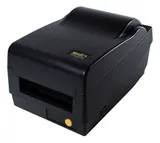
User's guide for the Wasp W-300 thermal label printer in direct thermal (DT) and thermal transfer (TT) versions. A quick setup guide covers the package contents, the connection diagram, connecting power and the parallel cable, loading the ribbon and media, and calibrating the printer. Further chapters cover the operator controls, resetting the printer, the printer driver and its properties, troubleshooting, maintenance, technical specifications, and product support and warranty information.
Its parts
- Quick Setup Guide
- Operator Controls
- Resetting the Printer
- Printer Driver
- Setting Printer Properties
- Troubleshooting
- Printer Maintenance
- Technical Specifications
- Product Support & Warranty Information
From the manual · read page by page
Key facts from this manual
Each line names its page in the PDF.
The 2001 Wasp Bar Code Technologies user's guide for the W-300 thermal label printer (DT/TT), which prints by direct thermal or thermal transfer. It takes the reader through setup, loading ribbon and labels, calibration, the Windows driver and its settings, troubleshooting by the indicator lights, cleaning and the technical specifications.
- Print method
- Direct thermal or thermal transfer p. 28
- Resolution
- 203 DPI p. 28
- Print width and length
- Up to 4” wide; maximum length 45” p. 28
- Print speed
- 3 IPS; the driver sets 1.0 to 3.0 ips p. 23, 28
- Memory
- 512K standard p. 28
- Interface
- Parallel port; the included 1284-compliant cable has a 36-pin connector at the printer end p. 7
- Power
- External AC power adapter with a barrel connector, plugged into a 120V AC outlet p. 7
- Size and weight
- 7.3” W x 10.9” D x 6.0” H; 3.74 lbs p. 28
- Operating environment
- 40ºF to 100ºF (4ºC to 38ºC); 15 to 85% RH p. 28
- Ribbons
- Wax, wax resin and resin p. 28
- In the box
- Printer, AC power supply, CD-ROM disk, sample media, sample ribbon, parallel printer cable p. 5
- Windows driver
- Windows 2000/ME/9x and Windows NT p. 21
- Darkness range
- 0 (lowest) to 15 (highest heat) p. 23
- Settings memory
- Settings kept in non-volatile EPROM when power is off p. 20
What this manual walks you through
- Connecting the power adapter and parallel cable p. 7
- Loading a ribbon for thermal transfer printing p. 8, 9, 10, 11, 12
- Loading a roll of labels p. 13, 14, 15, 16, 17
- Calibrating the label sensor after a media change p. 18
- Printing a configuration report p. 18
- Resetting the printer to factory default settings p. 20
- Installing the Windows printer driver p. 21
- Setting label size, media type, darkness and speed in the driver p. 22, 23
- Troubleshooting by the Power and Ready indicator patterns p. 24, 25, 26
- Cleaning the print head and paper sensor p. 27
Good to know
- Calibrate every time the media is changed, or the printer will misread the label size. p. 18
- Connect the power supply to the printer before the communication cables. p. 7
- Ribbon loading does not apply to direct thermal printing. p. 8
- Use the lowest darkness setting that works, to reduce print head wear. p. 23
- Clean the print head and paper sensor after every 8 rolls of labels, with the power off, and never touch the heater element. p. 27
Questions this manual answers
What do the blinking lights mean on a Wasp W-300 printer?
Both LEDs blinking together point to a label problem (gap, empty, misloaded or jammed); blinking alternately to a ribbon problem; only Power blinking to a serial, memory full or hardware error. p. 24, 25
How do I reset the Wasp W-300 to factory defaults?
Turn it on, wait about 5 seconds, hold Feed for 10 seconds until both indicators go off and light again, then release; it feeds 12 inches of labels and resets. p. 20
How do I calibrate the W-300 label printer?
Hold the feed button while turning on the power until the motor starts; calibration is done when it feeds the label stock, then press feed once more. p. 18
Which Windows versions does the W-300 driver support?
The bundled driver works with Windows 2000, ME, 9x and Windows NT. p. 21
Why does my W-300 print vertical streaks?
Streaks usually mean a dirty or faulty print head; clean it first, and if the lines persist the head may need replacing. p. 26
The whole text · 4 parts
Read the manual here as text
Its text as extracted from the PDF, unedited, in parts; each page opens the PDF at that page.
The file