Manual · VoxTec
VoxTec Phraselator P2 Manual
Manual2 pagesPDF 5.0 MB
Both pages are below, each with its text.
Covers · 1 model
The models it covers
From the manual · read page by page
Key facts from this manual
Each line names its page in the PDF.
The two-page Voxtec quick reference guide (52-0092 Rev C) for the Phraselator P2 handheld one-way translation device running the P2 v3.0 Application. It lists what comes in the box, labels the controls and ports, and walks through first setup, the three ways to translate a phrase, voice commands and the My Favorites category.
- Device
- Rugged handheld voice and touch-activated one-way translation device p. 1, 2
- Battery
- AA Battery SMART Cartridge holding 4 rechargeable NiMH AA batteries; 10-12 hours of continuous use per charge p. 1, 2
- Charging
- AC/DC power supply with universal charger adapter into the DC IN port; charges the batteries inside the P2 p. 1, 2
- Storage
- SD card holding the P2 v3.0 Application and Language Modules p. 1
- Ports
- Mini USB port for the PC, SD card slot, audio-in jack, audio-out jack, DC-In port p. 1
- Controls
- Color touchscreen, PUSH TO TALK, PUSH TO TRANSLATE, TOGGLE, volume, POWER and RESET buttons p. 1
- In the box
- P2, SD card, battery cartridge, NiMH AA batteries, power supply with universal charger adapter, mini USB cable, stylus and lanyard, documentation p. 1
- Translation modes
- Touchscreen, TOGGLE button, or voice recognition with the PTT button p. 2
- Software
- P2 v3.0 Application; Core Categories built with Voxtec Module Builder ENTERPRISE or PRO p. 1
- Recordings
- Time-stamped audio recordings for later playback or translation; Auto-Record after a phrase p. 1
What this manual walks you through
- Assembling and installing the AA Battery SMART Cartridge p. 2
- Removing and resealing the rubber boot p. 2
- Installing the SD card and loading a Language Module p. 2
- Translating with the PTT button and voice recognition p. 2
- Using system voice commands such as Broadcast All Languages p. 2
- Copying phrases to My Favorites with Quick Copy p. 2
- Understanding category and phrase types p. 1
Good to know
- The P2 does not replace an interpreter; it helps when none is available. p. 2
- Charge the batteries in the device at least 6 hours before first use. p. 2
- Loop All Languages works only within a Sequence or Custom Category. p. 2
- Core Phrases and Core Categories cannot be changed or deleted on the P2. p. 1
- The All Phrases Category appears only in Modules with less than 1,000 Core Phrases. p. 1
Questions this manual answers
What batteries does the Phraselator P2 use?
Four rechargeable NiMH AA batteries in the AA Battery SMART Cartridge, giving 10-12 hours of continuous use per charge. p. 1, 2
How long should I charge the Phraselator P2 before first use?
No less than 6 hours, with the batteries in the device and the charger in the DC IN port. p. 2
How do I translate a phrase by voice on the P2?
Hold the P2 4-6 inches from your mouth, press and hold PTT, say the phrase exactly as shown, then release and wait. p. 2
Where is the Phraselator P2 software stored?
On the SD card, which holds the P2 v3.0 Application and the Language Modules. p. 1
The file
Size and text
Every page · 2
Read it here
Each page as it is printed, and its words beside it, so a phone can search and copy them.
Page1of 2
Open in the PDF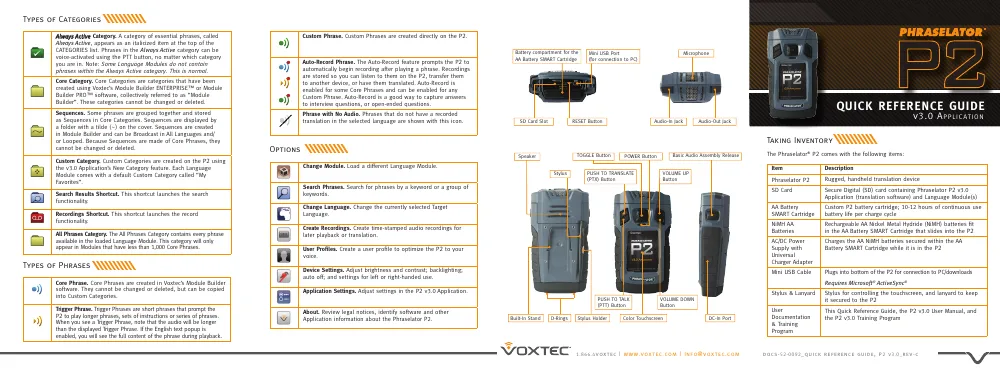
The text of page 1, from the PDF itself
Types of Categories Custom Phrase. Custom Phrases are created directly on the P2.
Always Active Category. A category of essential phrases, called Always Active, appears as an italicized item at the top of the CATEGORIES list. Phrases in the Always Active category can be voice-activated using the PTT button, no matter which category you are in. Note: Some Language Modules do not contain phrases within the Always Active category. This is normal.
Auto-Record Phrase. The Auto-Record feature prompts the P2 to automatically begin recording after playing a phrase. Recordings are stored so you can listen to them on the P2, transfer them to another device, or have them translated. Auto-Record is enabled for some Core Phrases and can be enabled for any Custom Phrase. Auto-Record is a good way to capture answers to interview questions, or open-ended questions.
Core Category. Core Categories are categories that have been created using Voxtec’s Module Builder ENTERPRISE™ or Module Builder PRO™ software, collectively referred to as “Module Builder”. These categories cannot be changed or deleted. Sequences. Some phrases are grouped together and stored as Sequences in Core Categories. Sequences are displayed by a folder with a tilde (~) on the cover. Sequences are created in Module Builder and can be Broadcast in All Languages and/ or Looped. Because Sequences are made of Core Phrases, they cannot be changed or deleted. Custom Category. Custom Categories are created on the P2 using the v3.0 Application’s New Category feature. Each Language Module comes with a default Custom Category called “My Favorites”. Search Results Shortcut. This shortcut launches the search functionality. Recordings Shortcut. This shortcut launches the record functionality. All Phrases Category. The All Phrases Category contains every phrase available in the loaded Language Module. This category will only appear in Modules that have less than 1,000 Core Phrases.
Types of Phrases Core Phrase. Core Phrases are created in Voxtec’s Module Builder software. They cannot be changed or deleted, but can be copied into Custom Categories. Trigger Phrase. Trigger Phrases are short phrases that prompt the P2 to play longer phrases, sets of instructions or series of phrases. When you see a Trigger Phrase, note that the audio will be longer than the displayed Trigger Phrase. If the English text popup is enabled, you will see the full content of the phrase during playback.
Phrase with No Audio. Phrases that do not have a recorded translation in the selected language are shown with this icon.
Battery compartment for the AA Battery SMART Cartridge
Microphone
Mini USB Port (for connection to PC)
quick reference guide SD Card Slot
Audio-In Jack
RESET Button
v3.0 A p p l i c at i o n
Audio-Out JackTaking InventoryOptionsTOGGLE ButtonSpeaker
Basic Audio Assembly Release
POWER Button
Change Module. Load a different Language Module.
The Phraselator® P2 comes with the following items: Item
Description
Phraselator P2
Rugged, handheld translation device
Search Phrases. Search for phrases by a keyword or a group of keywords.
SD Card
Secure Digital (SD) card containing Phraselator P2 v3.0 Application (translation software) and Language Module(s)
Change Language. Change the currently selected Target Language.
AA Battery SMART Cartridge
Custom P2 battery cartridge; 10-12 hours of continuous use battery life per charge cycle
NiMH AA Batteries
Rechargeable AA Nickel Metal Hydride (NiMH) batteries fit in the AA Battery SMART Cartridge that slides into the P2
User Profiles. Create a user profile to optimize the P2 to your voice.
AC/DC Power Supply with Universal Charger Adapter
Charges the AA NiMH batteries secured within the AA Battery SMART Cartridge while it is in the P2
Device Settings. Adjust brightness and contrast; backlighting; auto off; and settings for left or right-handed use.
Mini USB Cable
Plugs into bottom of the P2 for connection to PC/downloads
Stylus
PUSH TO TRANSLATE (PTX) Button
VOLUME UP Button
Create Recordings. Create time-stamped audio recordings for later playback or translation.
Requires Microsoft® ActiveSync®
Application Settings. Adjust settings in the P2 v3.0 Application. PUSH TO TALK (PTT) Button
About. Review legal notices, identify software and other Application information about the Phraselator P2.
Built-In StandD-RingsStylus HolderVOLUME DOWN ButtonColor TouchscreenDC-In Port
1.866.4 voxtec | www.voxtec.com | Info@voxtec.com
Stylus & Lanyard
Stylus for controlling the touchscreen, and lanyard to keep it secured to the P2
User Documentation & Training Program
This Quick Reference Guide, the P2 v3.0 User Manual, and the P2 v3.0 Training Program
docs- 52-0092 _quick reference guide, p 2 v 3.0_ rev-c
Page2of 2
Open in the PDF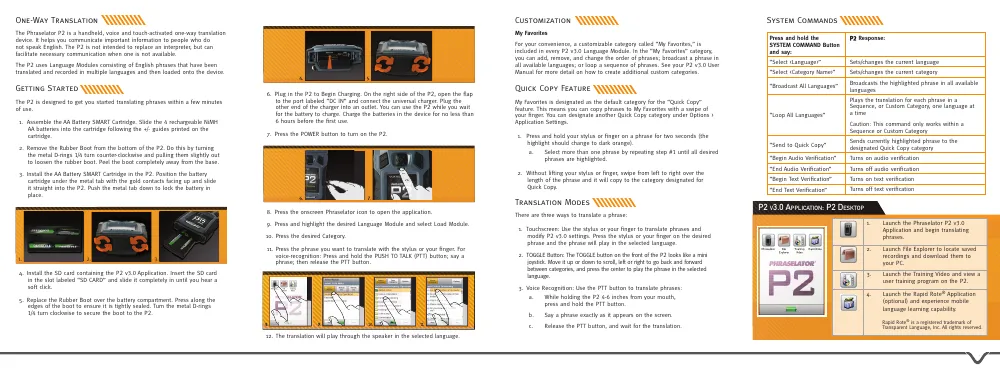
The text of page 2, from the PDF itself
One-Way Translation
Customization
The Phraselator P2 is a handheld, voice and touch-activated one-way translation device. It helps you communicate important information to people who do not speak English. The P2 is not intended to replace an interpreter, but can facilitate necessary communication when one is not available.
My Favorites For your convenience, a customizable category called “My Favorites,” is included in every P2 v3.0 Language Module. In the “My Favorites” category, you can add, remove, and change the order of phrases; broadcast a phrase in all available languages; or loop a sequence of phrases. See your P2 v3.0 User Manual for more detail on how to create additional custom categories.
The P2 uses Language Modules consisting of English phrases that have been translated and recorded in multiple languages and then loaded onto the device.
Getting Started The P2 is designed to get you started translating phrases within a few minutes of use. 1. Assemble the AA Battery SMART Cartridge. Slide the 4 rechargeable NiMH AA batteries into the cartridge following the +/- guides printed on the cartridge.
6. Plug in the P2 to Begin Charging. On the right side of the P2, open the flap to the port labeled “DC IN” and connect the universal charger. Plug the other end of the charger into an outlet. You can use the P2 while you wait for the battery to charge. Charge the batteries in the device for no less than 6 hours before the first use. 7. Press the POWER button to turn on the P2.
2. Remove the Rubber Boot from the bottom of the P2. Do this by turning the metal D-rings 1/4 turn counter-clockwise and pulling them slightly out to loosen the rubber boot. Peel the boot completely away from the base.
Select more than one phrase by repeating step #1 until all desired phrases are highlighted.
Translation Modes 9. Press and highlight the desired Language Module and select Load Module. 10. Press the desired Category.
3.
1. Press and hold your stylus or finger on a phrase for two seconds (the highlight should change to dark orange).
2. Without lifting your stylus or finger, swipe from left to right over the length of the phrase and it will copy to the category designated for Quick Copy.
8. Press the onscreen Phraselator icon to open the application.
2.
My Favorites is designated as the default category for the “Quick Copy” feature. This means you can copy phrases to My Favorites with a swipe of your finger. You can designate another Quick Copy category under Options > Application Settings.
a.
3. Install the AA Battery SMART Cartridge in the P2. Position the battery cartridge under the metal tab with the gold contacts facing up and slide it straight into the P2. Push the metal tab down to lock the battery in place.
1.
Quick Copy Feature
11. Press the phrase you want to translate with the stylus or your finger. For voice-recognition: Press and hold the PUSH TO TALK (PTT) button; say a phrase; then release the PTT button.
4. Install the SD card containing the P2 v3.0 Application. Insert the SD card in the slot labeled “SD CARD” and slide it completely in until you hear a soft click.
There are three ways to translate a phrase: 1. Touchscreen: Use the stylus or your finger to translate phrases and modify P2 v3.0 settings. Press the stylus or your finger on the desired phrase and the phrase will play in the selected language. 2. TOGGLE Button: The TOGGLE button on the front of the P2 looks like a mini joystick. Move it up or down to scroll, left or right to go back and forward between categories, and press the center to play the phrase in the selected language. 3. Voice Recognition: Use the PTT button to translate phrases:
5. Replace the Rubber Boot over the battery compartment. Press along the edges of the boot to ensure it is tightly sealed. Turn the metal D-rings 1/4 turn clockwise to secure the boot to the P2.
12. The translation will play through the speaker in the selected language.
a.
While holding the P2 4-6 inches from your mouth, press and hold the PTT button.
b.
Say a phrase exactly as it appears on the screen.
c.
Release the PTT button, and wait for the translation.
System Commands Press and hold the SYSTEM COMMAND Button and say:
- P2 Response
- “Select <Language>”
Sets/changes the current language
“Select <Category Name>”
Sets/changes the current category
“Broadcast All Languages”
Broadcasts the highlighted phrase in all available languages
“Loop All Languages”
Plays the translation for each phrase in a Sequence, or Custom Category, one language at a time Caution: This command only works within a Sequence or Custom Category
“Send to Quick Copy”
Sends currently highlighted phrase to the designated Quick Copy category
“Begin Audio Verification”
Turns on audio verification
“End Audio Verification”
Turns off audio verification
“Begin Text Verification”
Turns on text verification
“End Text Verification”
Turns off text verification
P2 v3.0 Application: P2 Desktop 1.
Launch the Phraselator P2 v3.0 Application and begin translating phrases.
2.
Launch File Explorer to locate saved recordings and download them to your PC.
3.
Launch the Training Video and view a user training program on the P2.
4.
Launch the Rapid Rote® Application (optional) and experience mobile language learning capability. Rapid Rote® is a registered trademark of Transparent Language, Inc. All rights reserved.