Manual · Trimble
GeoExplorer Series Getting Started Guide
Manual65 pagesPDF 1.1 MB
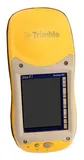
Getting started guide for the Trimble GeoExplorer series GeoXT and GeoXM GPS handhelds running Windows Mobile 2003 for Pocket PC.
Covers · 1 model
The models it covers
Summary
What is in it
The getting started guide for Trimble's GeoExplorer series handhelds, the GeoXT and GeoXM, which combine a Trimble GPS receiver with a Pocket PC field computer. It lists what comes in the box, then covers Pocket PC basics, connecting to a computer by USB support module, Bluetooth or serial clip, installing TerraSync, ArcPad and GPScorrect, using GPS and real-time corrections, power and battery, memory and backups, Bluetooth setup, network connections, troubleshooting and care.
Its parts
- About this manual
- System components
- Getting started
- Pocket PC basics
- Connecting to a computer
- Installing software
- Using GPS
- Power
- Memory
- Using Bluetooth
- Using the optional serial clip
- Customizing the Handheld
- Internet and network connection
- Troubleshooting
- Use and care
From the manual
Key facts from this manual
Each line names its page in the PDF.
The GeoExplorer Series Getting Started Guide, covering the Trimble GeoXT and GeoXM handhelds running Windows Mobile 2003 for Pocket PCs. It walks through first setup, connecting to a computer, using the built-in GPS, power, memory and resets, Bluetooth, the optional serial clip, and troubleshooting.
- Device type
- Handheld field computer with integrated GPS receiver, running Windows Mobile 2003 for Pocket PCs p. 11
- Processor and memory
- 206 MHz Intel StrongARM 1110; 64 MB RAM; 512 MB non-volatile internal flash disk p. 15
- Display
- TFT color touch screen, 1/4 VGA, 65,536 colors, multi-stage backlight p. 14
- GPS
- Integrated receiver with WAAS/EGNOS; EVEREST multipath rejection on the GeoXT only p. 14
- GPS COM ports
- COM2 NMEA output, COM3 TSIP, COM4 real-time RTCM corrections p. 24
- Connections
- USB through the support module, Bluetooth, or serial COM1 through the optional serial clip p. 21, 22, 44
- Battery
- Internal battery for a full working day with GPS, charged in the support module p. 30, 31
- External antenna
- Connector for an optional external antenna p. 15
- In the box
- Handheld, support module, AC power adaptor, USB data cable, pouch, stylus, companion CD, Getting Started Guide p. 12
- Optional accessories
- Power/serial clip, vehicle power adaptor, portable power kit, external antenna, null modem cable, Beacon-on-a-Belt receiver p. 12
- External power
- Through the serial clip from mains, a camcorder battery or a vehicle cigarette lighter socket p. 46
- Preinstalled software
- ActiveSync, GPS Controller, GPS Connector, Pocket Backup, Pocket Word, Pocket Excel and others p. 13
What this manual walks you through
- First setup: charging, aligning the screen and setting the time zone p. 16, 17
- Connecting to a computer with ActiveSync p. 21, 22
- Choosing the right GPS COM port p. 24
- Suspend mode and conserving battery power p. 30, 31
- Soft and hard resets p. 34
- Attaching the serial clip and connecting external devices or power p. 44, 45, 46
- Troubleshooting ActiveSync, Bluetooth, GPS and real-time corrections p. 55, 56, 57, 58
- Cleaning and storing the handheld p. 60
Good to know
- With the serial clip attached, the handheld cannot sit in the support module. p. 44
- The vehicle power adaptor, portable power kit, null modem cable and Beacon-on-a-Belt receiver need the power/serial clip. p. 12
- Do not immerse the handheld in water; clean it with a dry cloth. p. 60
- A hard reset clears main memory; files on the Disk are not affected. p. 34
- WAAS and EGNOS corrections work only inside their coverage areas in the Northern hemisphere. p. 58
Questions this manual answers
How do I reset a frozen GeoXT?
For a soft reset hold the Power button about 5 seconds until the screen goes blank. If that fails, hold it 15 seconds for a hard reset, which clears main memory. p. 34
Which COM port does the GeoXT GPS use for NMEA?
NMEA messages come out on COM2; TSIP uses COM3 and real-time corrections go to COM4. p. 24, 57
Why is my GeoXT not getting a GPS position?
An application must open the GPS COM port to activate the receiver, only one program can hold the port at a time, and the antenna needs a clear view of the sky. p. 57
How do I realign the GeoXT touch screen?
Hold down the Display button and the Power button together to start the alignment sequence. p. 59
Why can't my GeoXT find a Bluetooth device?
The handheld ships with its Bluetooth radio deactivated; the radio must be turned on and the other device made Discoverable and in range. p. 56
Contents
Chapters and sections
Each line opens the PDF at its page.
The whole text · 13 parts
Read the manual here as text
Its text as extracted from the PDF, unedited, in parts; each page opens the PDF at that page.
The file