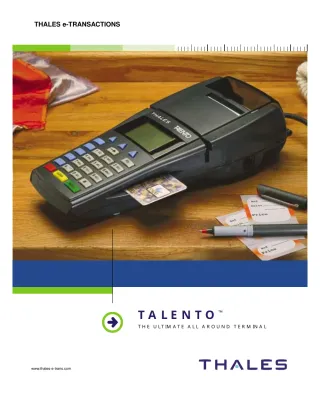
Manual · Thales
Thales Talento Retail Application Quick Reference Guide
Manual3 pagesPDF 66 KB
The text of all 3 pages is below; the pictures of the pages are in the PDF.
Covers · 1 model
The models it covers
From the manual · read page by page
Key facts from this manual
Some pages are scans or cannot be read; this says only what the readable text supports. Each line names its page in the PDF.
Quick reference card for the retail application on the Thales Talento credit card terminal, issued by a card processor for its merchants. It gives the key presses for sales, voids, refunds, force transactions, settlement and reports, and how to load paper and set the date and time.
- What it is
- Quick reference guide for the retail application on the Thales Talento terminal p. 1
- Transactions
- Sale, manual sale (card not present), void, return/refund, force p. 2, 3
- Manual sale entry
- Account #, expiration date (MMYY), order/invoice #, address number and zip code, CVV if applicable p. 2
- Settlement
- CLOSE key; the settlement report prints with a GB### successful response p. 2
- Reports
- TERM RPT prints a Total & Detail report p. 2
- Reprint
- REPRINT key, by REF #, LAST or FIND p. 2
- Clock setting
- FN, then TERM SETUP and CLOCK SET; date MM/DD/YY, time in 24hr HH:MM p. 3
- Paper loading
- Trim a straight edge, insert it into the slot in the back; a sensor pulls it into position p. 3
- Paper feed
- There is no paper feed button p. 3
What this manual walks you through
- Running a sale with the card swiped p. 2
- Keying a mail or phone order sale with the card not present p. 2
- Voiding a transaction by reference number p. 2
- Processing a return or refund p. 2
- Settling (closing) the batch p. 2
- Printing reports and reprinting receipts p. 2
- Entering a force transaction with an approval code p. 3
- Loading a new roll of paper p. 3
- Updating the date and time p. 3
Good to know
- A phone authorization must be followed by a FORCE transaction for payment to be received. p. 3
- Keeping the terminal on power and a phone line lets it settle automatically each day. p. 3
Questions this manual answers
How do I set the date and time on a Thales Talento terminal?
Press FN, go to TERM SETUP and CLOCK SET, enter the date as MM/DD/YY and the time in 24 hour HH:MM format. p. 3
How do I load paper in the Talento?
Remove the old roll, peel back 6 inches of the new roll and trim a straight edge, then insert it into the slot in the back; a sensor pulls it in. p. 3
How do I void a sale on the Talento?
Select VOID, swipe the card or key the account number if asked, enter the REF# and confirm with ENTER. p. 2
What does the Talento print when settlement succeeds?
A settlement report with a GB### successful response. p. 2
The file
Size and text
Every page · 3
Read it here
The words of each page, so a phone can search and copy them. The pages themselves are in the PDF.
Page1of 3
Open in the PDFThe text of page 1, read from a scan by OCR; it may hold reading errors
Quick Reference GuideRETAIL APPLICATIONa4 |conto Carns
AT ELECTRONIC MERCHANT SYSTEMS INC.
Customer Service (800)476-5020
Thales Talento
Page2of 3
Open in the PDFThe text of page 2, from the PDF itself
Quick Reference Guide
RETAIL APPLICATION SALE (card present)
MANUAL SALE (card not present)
> Swipe card
> Select [SALE] > Enter account # and press [ENTER] > Input expiration date (MMYY) and press [ENTER] Terminal displays: MAIL/PHONE ORDER? > Select [YES] > Enter Order/Invoice # and press [ENTER] > Input customer’s address (# only) and zip code, then press [ENTER]
> Input last 4 digits of account # and press [ENTER ], if applicable > Input $ amount and press [ENTER] > Confirm $ amount by pressing [ENTER] > Transaction is sent for authorization > Once transaction is approved, provide Merchant Copy for customer to sign > Press [ENTER] to print Customer Copy
VOID
> Select [VOID] > Swipe card or input account # and press [ENTER], if applicable > Enter REF# and press [ENTER] Terminal displays: VOID CANCEL=NO
$X.XX ENTER=YES
> Select appropriate option [ENTER/CANCEL] > Present Merchant Copy for signature > Press [ENTER] to print Customer Copy
RETURN/REFUND
> Select [RETURN] > Input password and press [ENTER], if applicable > Swipe card or input account # and exp. date and press [ENTER] > Input last 4 digits of account # and press [ENTER], if applicable > Input $ amount and press [ENTER] > Confirm $ amount by pressing [ENTER] > Provide Merchant Copy to customer to sign, and Customer Copy to customer, if applicable
> Input Card Verification Value (CVV) and press [ENTER], if applicable > Input $ amount and press [ENTER] > Confirm $ amount by pressing [ENTER] > Transaction is sent for authorization > Once transaction is approved, provide Merchant Copy for customer to sign > Provide Customer Copy to customer, if applicable
SETTLEMENT
> Press [ CLOSE] Terminal displays: ARE YOU SURE? > Select [YES] > Batch is submitted for settlement > Once settlement is completed, settlement report prints with GB### successful response
PRINT REPORTS
> Press [TERM RPT] > Total & Detail report prints
REPRINT RECIEPT
> Press [REPRINT] Terminal displays: REF # LAST FIND > Select appropriate option and follow prompts
Page3of 3
Open in the PDFThe text of page 3, from the PDF itself
Quick Reference Guide
RETAIL APPLICATION FORCE
Loading a new roll of paper
> Press [
]
> Select [FORCE] > Swipe card or enter account # and press [ENTER] > Input expiration date (MMYY) and press [ENTER], if applicable Terminal displays: MAIL/PHONE ORDER? > Select [YES] > Enter Order/Invoice # and press [ENTER] > Input $ amount and press [ENTER] > Confirm $ amount by pressing [ENTER] > Input Approval Code and press [ENTER] > Provide Merchant Copy for signature > Provide Customer Copy to customer, if applicable
> Carefully remove any remnants of the “old roll” from the printer > Peel back 6 inches from the new roll and trim off a straight, flat edge with scissors > Insert the leading edge of the new roll into the slot in the back of the terminal with the leading edge coming from underneath the roll > A sensor inside the terminal will detect the paper and automatically pull it into position There is no paper feed button!
Update the Date & Time > Press [FN] > Input password and press [ENTER], if applicable > Press [ ] > Select [TERM SETUP] > Select [CLOCK SET] > Enter the current date MM/DD/YY > Enter the current time in 24hr format HH:MM; e.g. 1:30pm = 13:30, press [ENTER] > Select [TERM SETUP]
To receive the lowest rates, swipe all cards through the card reader and keep the terminal connected to power and a phone line at all times so that it can automatically settle daily. You may also obtain Authorizations over the phone by dialing: (800)525-5093 *Phone Authorizations must be followed with a FORCE in order to revieve payment*
For all error messages, technical assistance, supplies or any questions related to your merchant account, please contact Customer Service: (800)476-5020