Manual · Teklogix
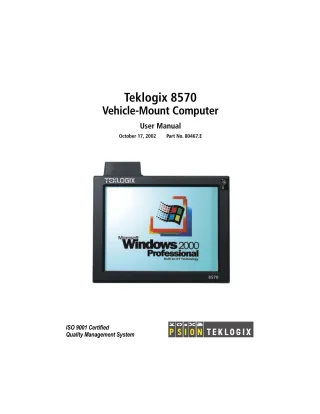
Teklogix 8570 Vehicle-Mount Computer User Manual
Manual124 pagesPDF 3.0 MB
User manual for the Teklogix 8570 vehicle-mount computer: ports, operation, mounting and power installation, maintenance and specifications.
Covers · 1 model
The models it covers
Summary
What is in it
The Psion Teklogix user manual for the 8570 Vehicle-Mount Computer and its freezer version. It covers unpacking, the touch screen display, side buttons and ports (PC card slots, Ethernet, COM1 and COM2, USB, multimedia), the processor, hard disk and memory, accessories, BIOS and software installation, mounting brackets, security mounts, antennas and power options, maintenance, troubleshooting under Windows 98 and Windows 2000, and hardware, radio card and keyboard specifications.
Its parts
- Introduction
- Getting Started
- Operating Information
- Installation
- Maintenance
- Troubleshooting
- Specifications
From the manual
Key facts from this manual
Each line names its page in the PDF.
The Psion Teklogix user manual, dated October 2002, for the Teklogix 8570 vehicle-mount computer in its standard and freezer versions. It covers setup, ports and cable sealing, freezer operation, installation, maintenance, troubleshooting and specifications, and lists accessory and mount part numbers.
- Device
- Rugged vehicle-mount computer for forklifts, carts and fixed stations, in standard and freezer versions p. 18
- Processor
- Intel Mobile Pentium 266 MHz MMX; Pentium III 500 MHz option p. 19, 39
- Memory and storage
- 128 MB SDRAM; 20 GB IBM Travelstar 2.5 in. hard drive p. 39
- Display
- 12.1 in. 800 x 600 SVGA color TFT, 500 NIT, 0-100% dimmable, resistive touch screen p. 40, 97
- Operating system
- Windows 98, with the My-T-Soft onscreen keyboard installed p. 41, 98
- Radios
- Lucent/Agere 802.11b PC card (TRX7431) or Cisco Air350 802.11b PC card (TRX7441) p. 19
- Ports
- Two RS-232 COM ports (DB9 male, up to 115 kbps), 10/100 Ethernet RJ-45, keyboard/mouse, multimedia, two USB, two PC card slots p. 43, 44, 47
- Power
- Vehicle DC through a pre-regulator power module; optional 55-90 VDC module, universal AC/DC adaptor and transient suppressor p. 46
- Size and weight
- 30.5 x 24 x 6.1 cm (12 x 9.4 x 2.4 in.); 3.7 kg (7.7 lb.) p. 95
- Operating temperature
- Standard: -20°C to +60°C; freezer version: -35°C to +60°C p. 49, 96
- Sealing
- IP66 when the cable cover is properly installed p. 95
- Sealing supplies
- Natural lubricating grease PN 98083; Nyogel connector lubricant PN 95146 p. 44
- Mounts
- Pedestal mounts PN 30921-100 (12 in.), PN 30921 (14 in.), PN 30921-200 (16 in.), PN 30921-300 (20 in.); quick-release bracket PN 30876-400 p. 23
- Antennas
- 2.4 GHz magmount PN 97583 (0 dBi) or PN 1000159 (5 dBi); 2 dBi articulating PN 96302 p. 23
What this manual walks you through
- Sealing peripheral cables through the cable gasket and cover p. 43, 44
- Operating the computer in freezer and outdoor environments p. 49, 50
- Using the My-T-Soft onscreen keyboard and Touch Right mouse p. 41, 42
- Backing up the D:\Install partition and registration numbers p. 87
- Troubleshooting display, hard drive, keyboard, PC card and power problems p. 88, 89
- Vehicle installation and power connections p. 17
Good to know
- The USB and Ethernet ports are meant only for maintenance and setup connections, not everyday use. p. 47
- A cold start below -20°C is not recommended because of radio limitations. p. 49
- After a long powered-off stay in a freezer, allow a 15 minute warm-up before use. p. 50
- Shut down from Windows; holding the power button over seven seconds forces the computer off. p. 46
- Record the Windows registration number fixed under the port cover; it is needed to reinstall the operating system. p. 87
Questions this manual answers
What power does the Teklogix 8570 run on?
Vehicle DC through a pre-regulator power module, with an optional 55-90 VDC module, an optional universal AC/DC adaptor and an optional transient suppressor. p. 46
How cold can the 8570 freezer version work?
It operates from -35°C to 60°C, but a cold start below -20°C is not recommended. p. 49
What operating system does the 8570 run?
Windows 98 (English), on a Phoenix PC/AT compatible BIOS. p. 98
The 8570 screen shows no video. What should I check?
Check that the backlight is on and turned up, that the unit has power, that Suspend is off, and that a keyboard's Num Lock LED works. p. 88
Contents
Chapters and sections
Each line opens the PDF at its page.
The whole text · 17 parts
Read the manual here as text
Its text as extracted from the PDF, unedited, in parts; each page opens the PDF at that page.
- Teklogix 8570 Vehicle-Mount Computer1-4
- TABLE OF CONTENTS5-10
- Approvals & Safety Summary11-14
- Introduction 115-24
- Getting Started 225-36
- Operating Information 3, pages 37 to 4437-44
- Operating Information 3, pages 45 to 5245-52
- Operating Information 3, pages 53 to 5853-58
- Installation 4, pages 59 to 6859-68
- Installation 4, pages 69 to 7869-78
- Maintenance 579-84
- Troubleshooting 685-92
- Specifications 793-104
- Pages 105 to 107105-107
- Pages 108 to 114108-114
- Touch Screen Calibration115-118
- INDEX119-124
The file