Manual · Symbol
WS 1200 Scanner Quick Reference
Manual24 pagesPDF 453 KB
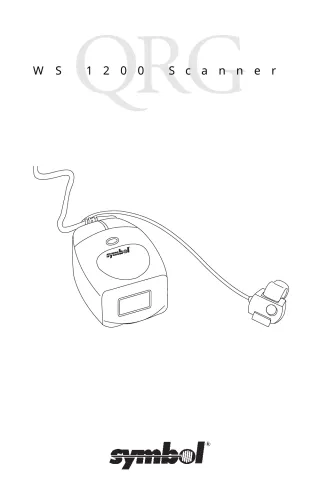
Quick reference guide for the Symbol WS 1200 wearable laser scanner used with the WSS 1000 wearable scanning system and WWC 1000.
Covers · 1 model
The models it covers
Summary
What is in it
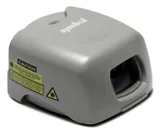
A short quick reference guide for the Symbol WS 1200, a modular laser scanner worn on the back of the hand with a thumb-activated trigger. It lists the shipping contents and the parts of the scanner, shows step by step how to assemble it with the WWC 1000 wrist computer as part of the WSS 1000 system on the right or left arm, how to operate it (including the aiming dot of the long range version), scanning tips, cleaning, troubleshooting, ergonomic recommendations and regulatory information.
Its parts
- Introduction
- About This Guide
- Parts of the WS 1200
- Assembling the WSS 1000 System with the WS 1200
- Operating the WS 1200 Scanner
- Cleaning
- Troubleshooting
- Ergonomic Recommendations
- Regulatory Information
From the manual · read page by page
Key facts from this manual
Some pages are scans or cannot be read; this says only what the readable text supports. Each line names its page in the PDF.
This quick reference guide (70-32646-03, Revision A, November 2002) covers the Symbol WS 1200, a wearable laser scanner worn on the back of the hand. It shows the parts, how to assemble it with the WSS 1000 wearable scanning system and WWC 1000 wrist computer, how to scan, and how to clean and troubleshoot it.
- What it is
- Wearable laser bar code scanner worn on the back of the hand, with a thumb-operated trigger p. 3
- Host
- Symbol WSS 1000 wearable scanning system (WWC 1000 wrist computer) or other host computers p. 3
- Power
- Supplied by the WWC 1000 wrist computer or other host p. 3, 13
- Connections
- Trigger cable to the scan port; WWC 1000 data cable to the interface port p. 6
- In the box
- WS 1200 scanner with protective cap, scanner mount, trigger cable, trigger mount p. 4
- Versions
- Standard version, and a long range version with an optional aiming dot p. 10
- Handedness
- Mount fits right- or left-handed users p. 6
- Good-read signal
- Scan LED flashes green and the WWC 1000 shows the code p. 10
- Document number
- 70-32646-03, Revision A, November 2002 p. 24
What this manual walks you through
- Identifying the parts of the scanner p. 5
- Assembling the WS 1200 with the WSS 1000 and fitting it on the hand p. 6, 7, 8, 9
- Scanning with Single Trigger Aim Mode on the long range version p. 10
- Scanning tips for distance and angle p. 11
- Cleaning the scan window and washing the mount p. 12
- Troubleshooting a scanner that does not come on or does not decode p. 13
Good to know
- Do not pour, spray or spill liquid on the scanner. p. 12
- Holding the scanner square to the bar code can bounce light back and stop a decode; tilt it. p. 11
- Do not clean the scan window with tissues coated with lotion. p. 13
- The WSS 1000 must have the correct data cable for the WS 1200. p. 6
Questions this manual answers
What does the Symbol WS 1200 scanner connect to?
It plugs by an interface cable into the WWC 1000 wrist computer of the WSS 1000 wearable system, or it can be used with other host computers. p. 3
What powers the WS 1200 scanner?
Power comes from the WWC 1000 wrist computer or other host, so check that the host has a charged battery. p. 3, 13
My WS 1200 scanner does not come on, what should I check?
Make sure the data cable and trigger cable are secure, and that the WWC 1000 or other host has a charged battery. p. 13
Why won't the WS 1200 decode a bar code?
The bar code may be smudged or broken, the scan window may be dirty, or the symbology may not be enabled; see your system administrator for the last. p. 13
How do I clean the WS 1200?
Wipe the scan window with lens tissue, and hand wash the mount in warm water with mild detergent, then air dry. p. 12
Contents
Chapters and sections
Each line opens the PDF at its page.
The whole text · 4 parts
Read the manual here as text
Its text as extracted from the PDF, unedited, in parts; each page opens the PDF at that page.
The file