Manual · Symbol
RP 1000 Quick Reference
Manual20 pagesPDF 467 KB
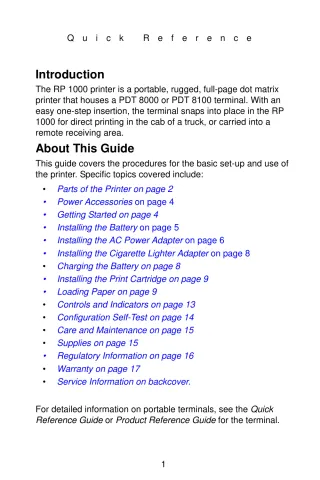
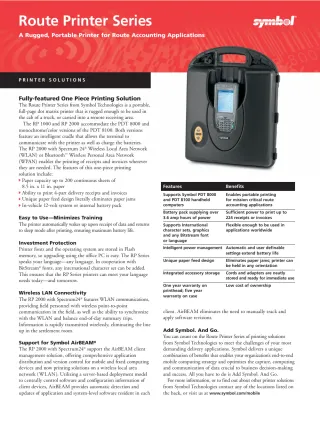
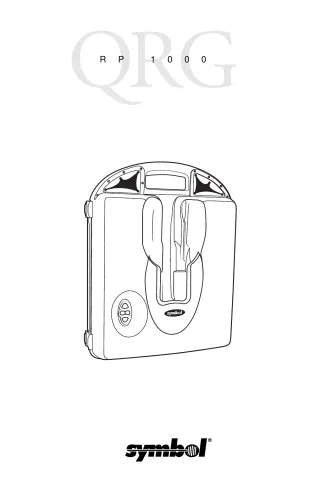
Quick reference for the RP 1000 portable full-page dot matrix printer that holds a Symbol PDT 8000 or PDT 8100 terminal.
Names · 3 models
The models it names
 O'Neil RP-1000Portable dot matrix printer from$695.001 in stock Symbol RP-1000-8000Portable dot matrix printer from$695.0010 in stock Datamax RP-1000Portable dot matrix printer Call for availability
Filed with · 1 model
Also filed with these models on the old site
Summary
What is in it
A quick reference for the RP 1000, a portable, rugged full-page dot matrix printer that houses a PDT 8000 or PDT 8100 terminal for printing in a truck cab or a remote receiving area. It shows the parts of the printer and its power accessories, then covers installing the battery, AC power adapter and cigarette lighter adapter, charging, installing the print cartridge, loading paper and setting the top of form, controls and indicators, the configuration self-test, care, supplies and regulatory information.
Its parts
- Introduction
- About This Guide
- Parts of the Printer
- Power Accessories
- Getting Started
- Installing the Battery
- Installing the AC Power Adapter
- Installing the Cigarette Lighter Adapter
- Charging the Battery
- Installing the Print Cartridge
- Loading Paper
- Controls and Indicators
- Configuration Self-Test
- Care and Maintenance
- Supplies
From the manual · read page by page
Key facts from this manual
Each line names its page in the PDF.
Symbol quick reference guide for the RP 1000 portable dot matrix printer, which holds a PDT 8000 or PDT 8100 terminal for printing in a truck cab or a receiving area. It walks through fitting the battery and power adapters, charging, installing the print cartridge and loading paper, and explains the buttons, LED and beep signals and the configuration self-test.
- Device type
- Portable, rugged, full-page dot matrix printer that holds a PDT 8000 or PDT 8100 terminal p. 3
- Power options
- Optional 12 volt nickel metal hydride battery, AC power adapter or cigarette lighter adapter p. 6
- Charge time
- About 3 to 4 hours; 4 to 5 hours with the terminal installed p. 10
- Paper capacity
- 1-part forms: 200 sheets; 2-part: 90; 3-part: 60; 4-part: 50 p. 11
- Paper feed
- Folded continuous forms on tractor feed; the left tractor is adjustable p. 13, 14
- Infrared
- IrDA, version 1.0-12, max. 115.2K baud p. 17
- Sample serial settings
- 9600 baud, no parity, 8 data bits, handshaking Both p. 16
- Memory
- Flash/RAM 4/1 Mbit (sample configuration printout) p. 16
- Controls
- Two buttons and two LEDs p. 5
What this manual walks you through
- Installing the battery p. 7
- Installing the AC power adapter p. 8, 9
- Connecting the cigarette lighter adapter and charging the battery p. 10
- Installing the print cartridge p. 11
- Loading tractor-feed paper p. 11, 12, 13, 14
- Setting the top of a form and tearing off paper p. 14, 15
- Button functions, LED and beep signals p. 15, 16
- Printing a configuration self-test to match the computer's settings p. 16, 17
Good to know
- Loading more sheets than the listed maximum causes paper jams. p. 11, 12
- The battery is charged through the AC power adapter or the cigarette lighter adapter. p. 6
- The printer ships without the print cartridge installed. p. 11
- Keep the printer between -40°C/-40°F and 70°C/158°F. p. 17
- Use only approved power supplies, or damage may result. p. 17
Questions this manual answers
How long does the RP 1000 battery take to charge?
About 3 to 4 hours, or 4 to 5 hours with the terminal installed in the printer. p. 10
How many sheets of paper does the RP 1000 hold?
200 sheets of 1-part forms, 90 of 2-part, 60 of 3-part or 50 of 4-part forms. p. 11
What does a flashing red LED mean on the RP 1000?
On LED 1, a slow red flash means low temperature or a disconnected battery, and a fast red flash means high temperature. p. 15
What do 5 double beeps mean on the RP 1000 printer?
The printer is out of paper. Three beeps mean a low battery. p. 16
How do I print a configuration self-test on the RP 1000?
Hold down Button 1 for a few seconds. The printout shows settings such as baud rate, parity and data bits. p. 16
Contents
Chapters and sections
Each line opens the PDF at its page.
- Introduction3
- About This Guide3
- Parts of the Printer4
- Power Accessories6
- Getting Started6
- Installing the Battery7
- Installing the AC Power Adapter8
- Installing the Cigarette Lighter Adapter10
- Charging the Battery10
- Installing the Print Cartridge11
- Loading Paper11
- Controls and Indicators15
- Configuration Self-Test16
- Care and Maintenance17
- Supplies17
- Regulatory Information18
The whole text · 2 parts
Read the manual here as text
Its text as extracted from the PDF, unedited, in parts; each page opens the PDF at that page.
The file