Manual · Symbol
PPT 8800 Quick Reference
Manual32 pagesPDF 1.4 MB
Quick reference guide for the Symbol PPT 8800 Series terminals (batch, Spectrum24 and Bluetooth): setup, charging, keypads and troubleshooting.
Names · 1 model
The models it names
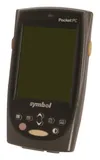
Filed with · 2 models
Also filed with these models on the old site
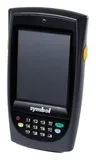
Summary
What is in it
The quick reference guide for Symbol's PPT 8800 Series terminals, covering the batch, Spectrum24 and Bluetooth versions running Embedded Windows CE .NET. It lists accessories and the parts of the terminal, then explains installing and charging the battery, starting and calibrating the screen, the 6-key and 15-key keypads, scanning, starting a network connection, soft and hard resets, host communications by serial cable and cradle, the neck strap, maintenance, troubleshooting and regulatory information.
Its parts
- Introduction
- Accessories
- Parts of the Terminal
- Getting Started
- Installing the Battery
- Charging the Battery
- Starting the Terminal
- Initiating a Network Connection
- Resetting the Terminal
- Host Communications
- Attaching the Neck Strap
- Maintenance
- Troubleshooting
- Regulatory Information
- Service
From the manual · read page by page
Key facts from this manual
Some pages are scans or cannot be read; this says only what the readable text supports. Each line names its page in the PDF.
Quick reference guide for the Symbol PPT 8800 Series handheld terminal, in its batch, Spectrum24 and Bluetooth versions. It shows how to install and charge the battery, start and calibrate the terminal, scan bar codes, reset it, and connect it to a host or printer. A troubleshooting table covers common problems.
- What it is
- Small rugged handheld terminal in batch, Spectrum24 and Bluetooth versions p. 3
- Operating system
- Microsoft Embedded Windows CE .NET p. 3
- Radio
- Spectrum24 wireless LAN or Bluetooth wireless PAN p. 17
- Display
- Transflective color LCD touch screen, used with a stylus p. 3, 13
- Keypad
- Standard 6-key or 15-key configuration p. 12
- Battery
- Lithium-ion rechargeable, with an optional large capacity battery; charges in about 2 1/2 hours p. 4, 8
- Scanner
- Integrated bar code scanner with right and left scan triggers p. 13, 14
- Power supply
- Symbol-approved 50-14000-107, rated 9.0 Vdc, minimum 2.0 A p. 25
- Backup battery
- Memory backup battery charges from the main battery; about 24 hours on first use p. 8
- Charging temperature
- +32° F to +104° F (0° C to +40° C) p. 8
- Cradles
- Single-Slot Serial, Four-Slot Serial, Four-Slot Ethernet and Vehicle cradles; the CRD 8800 Single-Slot Cradle or UBC Adapter charges batteries p. 4, 9
- Other accessories
- Serial Charging Cable, wall-charging cable, Universal Cable Cup (printer, DEX and auto charging cables), pistol grip, magnetic strip reader, holster, stylus p. 4
- IrDA printing
- Prints to an IrDA printer at up to 39 inches (1 meter) p. 18
- Auto shutoff
- After 1 to 5 minutes of inactivity, set in one-minute steps p. 20
What this manual walks you through
- Installing the battery and battery cover p. 7, 8
- Charging the main and spare batteries by cable or cradle p. 9
- Calibrating the touch screen p. 10
- Adjusting the backlight on each keypad p. 11
- Scanning bar codes p. 13, 14
- Performing a soft reset or a hard reset p. 15, 16
- Connecting to a host and printing by cable or IrDA p. 17, 18
- Attaching the neck strap p. 18
- Troubleshooting power, display, memory, beaming and scanning problems p. 19, 20, 21, 22
Good to know
- Do not remove the main battery during the first 24 hours of use, or data may be lost. p. 8
- A hard reset erases all stored records and entries and restores factory default settings. p. 15, 16
- Do not perform a soft reset while the terminal is suspended. p. 15
- Receiving beamed data needs free memory of at least twice the size of the data. p. 21
- Never put the terminal into a fire; it may explode. p. 19
Questions this manual answers
How long does the PPT 8800 battery take to charge?
About 2 1/2 hours in a cradle or on the serial charging cable. The memory backup battery takes about 24 hours on first use. p. 8
What power supply does the Symbol PPT 8800 need?
A Symbol-approved power supply, 50-14000-107, rated 9.0 Vdc and at least 2.0 A. p. 25
How do I hard reset a PPT 8800?
Remove the battery cover, hold the Function key and press the reset button with the stylus, then replace the cover. This erases stored records. p. 16
Why does my PPT 8800 not accept scan input?
Check that a scanning application is loaded, the bar code is readable and in range, the terminal is programmed for that bar code, the battery is not low and the scan window is clean. p. 22
What operating system does the PPT 8800 run?
Microsoft Embedded Windows CE .NET. p. 3
Contents
Chapters and sections
Each line opens the PDF at its page.
- PPT 88001
- Introduction3
- Accessories4
- Parts of the Terminal5
- Parts of the Terminal (continued)6
- Getting Started7
- Installing the Battery7
- Charging the Battery8
- Starting the Terminal10
- Initiating a Network Connection14
- Resetting the Terminal15
- Host Communications17
- Attaching the Neck Strap18
- Maintenance19
- Troubleshooting19
- Ergonomic Recommendations23
- Bluetooth® Wireless Technology Information23
- Regulatory Information23
The whole text · 4 parts
Read the manual here as text
Its text as extracted from the PDF, unedited, in parts; each page opens the PDF at that page.
The file