Manual · Stratix
Stratix Verification Software User's Reference Guide
Manual12 pagesPDF 525 KB
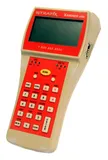
User's reference guide for Stratix Verification Software (SVS), used with the Stratix Xaminer Elite and Xaminer MD bar code verifiers.
Covers · 1 model
The models it covers
Summary
What is in it
The user's reference guide for Stratix Verification Software (SVS), the PC program that works with the Stratix Xaminer Elite and Xaminer MD bar code verifiers. It covers installing SVS from email or CD, connecting the verifier to a PC, commanding the verifier's laser (target, scan, profile), setting up the statistics and measured grades screens, Auto Scan, uploading records from the verifier, saving sessions, printing scan reports and exporting results to Excel as CSV.
Its parts
- Introduction
- Installation Instructions
- Commanding the Verifier via SVS
- Statistics and Measured Grades Setup
- Uploading Verification Data from the Verifier to SVS
- Saving Your SVS Session
- Deleting/Emptying Records from an SVS Session
- Printing Scan Reports
- Exporting Results to Excel via CSV Upload
- Other SVS Buttons
- Exiting SVS and Returning to Verifier Stand-Alone Operation
- Assistance
From the manual · read page by page
Key facts from this manual
Each line names its page in the PDF.
This is the user's reference guide (Revision 2.0) for Stratix Verification Software (SVS), the PC program used with the Stratix Xaminer Elite and Xaminer MD bar code verifiers. It explains installing SVS, connecting the verifier, commanding scans, reviewing statistics and grades, uploading records, printing reports and exporting results to Excel.
- Software
- Stratix Verification Software (SVS): shows each bar code scan graphically, with statistics and batched reports p. 2
- Supported verifiers
- Xaminer Elite and Xaminer MD, with SVS version 2.3 and above p. 3
- PC connection
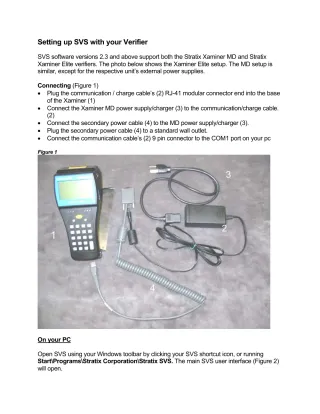
- Communication/charge cable: RJ-41 modular plug into the verifier base, 9-pin connector to the PC COM1 port p. 3
- Elite setup
- Power on; the Elite needs no further action to work with SVS p. 4
- Scan control
- Target, Scan and Profile buttons in SVS control the verifier laser p. 5
- Scan reflectance profile
- Profile screen with two zoom buttons; the SRP can only be captured through Profile in SVS p. 5, 9
- Auto Scan
- Collects a set number of successful scans in a batch for average grades p. 8
- Upload
- Verifier in Output mode, Func +1 selects CSV Upload; most recent records upload first p. 9
- Excel export
- Tools, Excel CSV File; always includes symbol data and type, ISO/ANSI overall grade, pass/fail grades and date and time p. 11
- Reports
- Condensed scan report, 10 scans per page p. 10
- Session file
- Save button writes Stratix.svs; Save As gives a unique name p. 12
- Installation
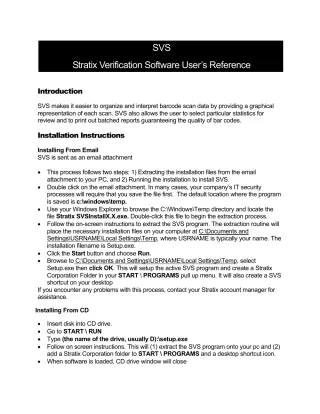
- From an email attachment or a CD, by running Setup.exe p. 2
What this manual walks you through
- Installing SVS from an email attachment or CD p. 2
- Connecting the verifier to the PC p. 3
- Setting up the Xaminer verifier for SVS p. 4
- Targeting, scanning and profiling a bar code from the PC p. 5, 6
- Choosing the statistics and measured grades shown p. 6, 7
- Collecting scans in batches with Auto Scan p. 8
- Uploading stored records from the verifier p. 9
- Saving sessions and deleting records p. 10
- Printing scan reports p. 10, 11
- Exporting results to Excel p. 11
Good to know
- Target, Scan and Profile are not available when a wand captures the data. p. 5
- Opening a saved file overwrites all records in the current session. p. 10
- Starting a new session loses any unsaved records. p. 11
- The Save button overwrites the earlier Stratix.svs file. p. 12
Questions this manual answers
Does SVS work with the Stratix Xaminer Elite?
Yes. SVS version 2.3 and above supports both the Xaminer Elite and the Xaminer MD. p. 3
How do I connect the Xaminer verifier to a PC?
Plug the cable's RJ-41 end into the base of the verifier and its 9-pin connector into the PC's COM1 port. p. 3
How do I upload stored scans from the verifier?
Open SVS, put the verifier in Output mode, press Func +1 for CSV Upload, key in the number of records and press Enter. p. 9
Can verification results go to Excel?
Yes. Tools, Excel CSV File exports all records in the session to an Excel spreadsheet with column headings. p. 11
How do I leave SVS and use the Elite on its own?
With the Elite no action is needed; the MD needs the Clear key to exit Command Mode. p. 12
Contents
Chapters and sections
Each line opens the PDF at its page.
- Stratix Verification Software1
- SVS2
- Stratix Verification Software User’s Reference2
- Introduction2
- Installation Instructions2
- Commanding the Verifier via SVS5
- Statistics and Measured Grades Setup6
- Uploading Verification Data from the Verifier to SVS9
- Saving Your SVS Session10
- Deleting/Emptying Records from an SVS Session10
- Printing Scan Reports10
- Exporting Results to Excel via CSV Upload11
- Other SVS Buttons11
- Exiting SVS and Returning to Verifier Stand-Alone Operation12
- Assistance12
The whole text · 1 part
Read the manual here as text
Its text as extracted from the PDF, unedited, in parts; each page opens the PDF at that page.
The file