Manual · Socket
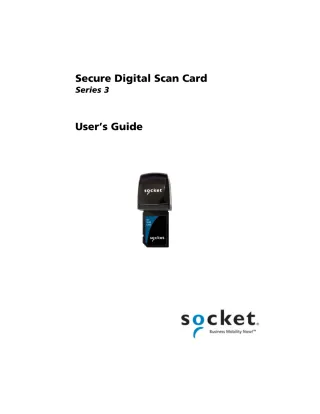
Secure Digital Scan Card Series 3 User's Guide
Manual60 pagesPDF 944 KB
User's guide for the Socket Mobile Secure Digital Scan Card Series 3 (3E, 3M, 3P) bar code scanner for Windows Mobile and Palm OS devices.
Covers · 1 model
The models it covers
Summary
What is in it
Socket Mobile user's guide for the Secure Digital Scan Card (SDSC) Series 3, a bar code scanner card that fits the SDIO slot of a Pocket PC or Palm device. It describes the three versions (3E, 3M, 3P), the SocketScan software and system requirements, then gives step-by-step setup for Windows Mobile and for Palm OS, symbology selection and scanner settings. Appendices cover specifications, label specifications, decode zones, scanning tips, troubleshooting and warranty.
Its parts
- Introduction
- Setup for Windows Mobile
- Setup for Palm OS
From the manual
Key facts from this manual
Some pages are scans or cannot be read; this says only what the readable text supports. Each line names its page in the PDF.
Socket Mobile user's guide (Document # 6410-00206 L, 5/2008) for the Secure Digital Scan Card Series 3, an SDIO bar code scanner card made in three versions: 3E, 3M and 3P. It walks through installing SocketScan and setting up the card on Windows Mobile and Palm OS devices, and gives specifications, decode distances, scanning tips and troubleshooting.
- Device
- Bar code scanner on an SD card for Pocket PC or Palm devices, with no cables or batteries p. 5
- Versions
- 3E: CMOS linear engine; 3M: Class 1 laser; 3P: Class 2 laser p. 5
- Interface
- SDIO slot p. 6, 33
- Operating systems
- Windows Mobile 2003/2003SE (with BSQUARE SDIO Now! in ROM), 5.0 and 6 Classic/Professional; Palm OS 4.1 or greater for 3E, 5.2 or greater for 3M/3P p. 33
- Dimensions
- 3E: 61.5 x 28.0 x 14.6 mm; 3M/3P: 66.5 x 29.4 x 20.0 mm p. 32
- Weight
- 3E: 8 g (0.3 oz); 3M/3P: 17 g (0.6 oz) p. 32
- Power consumption
- 3.3 V supply; standby 4 mA; scanning 3E: 56 mA, 3M/3P: 90 mA p. 32
- Decode distance
- 3M: 1.00 to 35.00 inches; 3P: 1.00 to 45.00 inches, depending on the bar code p. 33
- Scan rate
- 3M/3P: 100 scans/second bi-directional; 3E: frame rate varies with ambient light p. 33
- Symbologies
- 3E: Code 39, UPC/EAN, Code 128, I 2of5, D 2of5, Code 93, Codabar, MSI/Plessey, Code 11, Web Code; 3M/3P add RSS-14/Limited/Expanded but not Web Code p. 32, 33
- Software
- SocketScan with keyboard emulation for Windows Mobile and Palm OS; Socket Floating Trigger for Windows CE p. 33
- Operating temperature
- 0 to 50°C (32 to 122°F) p. 32
- Storage temperature
- 3E: -30 to 70°C; 3M/3P: -40 to 70°C p. 32
- Humidity
- 5% to 95% non-condensing p. 32
What this manual walks you through
- Removing other bar code scanning software before installing p. 8
- Installing SocketScan on a Windows Mobile device from the CD p. 9, 10, 11
- Inserting and safely removing the card p. 11
- Assigning a hardware button to trigger the scanner p. 12
- Enabling or disabling symbologies with Symbology Selector p. 15
- Setting prefix and suffix characters and good-read sounds p. 16, 17
- Using the on-screen SocketScan Trigger instead of a hardware button p. 18, 19
- Setting up the card on a Palm OS device p. 21, 22, 23, 24
- Scanning technique for the 3E imager and the laser versions p. 47, 48, 49
- Troubleshooting no card detected, no data and a dead trigger button p. 50, 51
Good to know
- Push the card fully into the slot before removing it; pulling it out without pushing first can damage the connector. p. 11
- The SDIO slot of some devices draws power from the main battery whenever a card is inserted, even when the device is off. p. 11
- On older Palm m100 and m500 series devices the SDIO slot is reversed, so the card goes in backwards. p. 24
- Hold the laser 3M/3P at least 15° from perpendicular to the bar code, or reflected light can blind it. p. 47
- Soft reset the device after installing the software, or some icons will not appear properly. p. 11
Questions this manual answers
What is the difference between the SD Scan Card 3E, 3M and 3P?
The 3E uses a CMOS linear engine, the 3M a Class 1 laser and the 3P a Class 2 laser. p. 5
Which Palm OS version does the Socket SD Scan Card Series 3 need?
Palm OS 4.1 or greater for the 3E, and Palm OS 5.2 or greater for the 3M and 3P. p. 6
How far away can the SD Scan Card 3P read a bar code?
From 1.00 to 45.00 inches (2.50 to 114.30 cm), depending on symbol size, symbology, label media, ratio and scan angle. p. 33
Why does the SD Scan Card beam turn on but no data appears?
The scanner may be too close or too far, the bar code may be poorly printed, or its symbology may be disabled; enable it in Symbology Selector. p. 50
How do I remove the SD Scan Card from the slot?
Push the card completely into the slot; after it springs back, remove it. p. 11
Contents
Chapters and sections
Each line opens the PDF at its page.
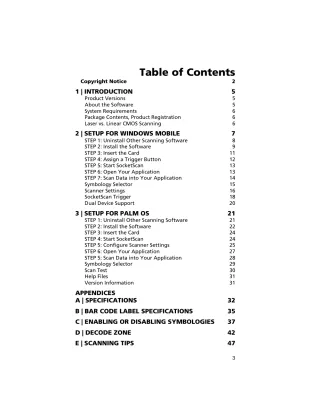
- Copyright Notice2
- 1 | Introduction5
- 2 | Setup for Windows Mobile7
- STEP 1: Uninstall Other Scanning Software8
- STEP 2: Install the Software9
- STEP 3: Insert the Card11
- STEP 4: Assign a Trigger Button12
- STEP 5: Start SocketScan13
- STEP 6: Open Your Application13
- STEP 7: Scan Data into Your Application14
- Symbology Selector15
- Scanner Settings16
- SocketScan Trigger18
- Dual Device Support20
- 3 | Setup for Palm OS21
- Appendix A Specifications32
- Appendix B Bar Code Label Specifications35
- Appendix C Enabling or Disabling Symbologies37
- Appendix D Decode Zone42
- Appendix E Scanning Tips47
- Appendix F Troubleshooting50
4 more lines, from page 52 on
The whole text · 11 parts
Read the manual here as text
Its text as extracted from the PDF, unedited, in parts; each page opens the PDF at that page.
The file