Manual · Socket
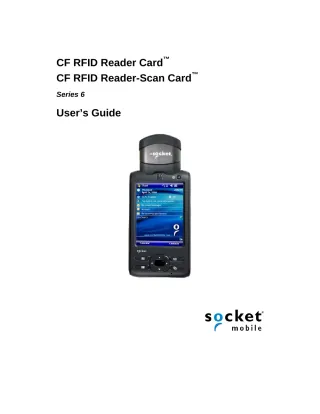
CF RFID Reader Card, CF RFID Reader-Scan Card Series 6 User's Guide
Manual65 pagesPDF 1.5 MB
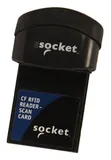
User's guide for the Socket Mobile CF RFID Reader Card Series 6 (6E and Reader-Scan Card 6P) for Windows Mobile handhelds.
Filed with · 1 model
Also filed with these models on the old site
Summary
What is in it
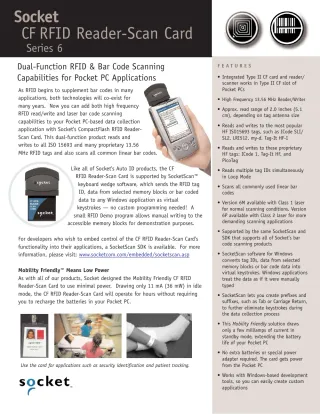
The user's guide for the Socket Mobile CF RFID Reader Card Series 6, CompactFlash cards that add high frequency RFID read/write capability to a Socket SoMo or other Windows Mobile device. It names the CF RFID Reader Card 6E and the CF RFID Reader-Scan Card 6P, which adds a 2D laser barcode scanner. It walks through setup on the SoMo and on other PDAs, the SocketScan Plug-in software and its RFID settings, and the RFID Demo program, with appendices on specifications, supported HF RFID tag types, barcode labels, symbologies and troubleshooting.
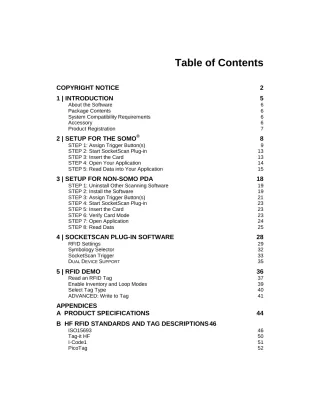
Its parts
- Introduction
- Setup for the SoMo
- Setup for Non-SoMo PDA
- SocketScan Plug-in Software
- RFID Demo
From the manual
Key facts from this manual
Each line names its page in the PDF.
This is the Socket Mobile user's guide (9/2012) for the CF RFID Reader Card Series 6, CompactFlash cards that add 13.56 MHz RFID read and write to a SoMo or other Windows Mobile device. It covers the CF RFID Reader Card 6E and the CF RFID Reader-Scan Card 6P with a Class 2 laser; it does not name the 6M the site files it under. It walks through setup, trigger buttons, the SocketScan Plug-in and RFID Demo software, symbology settings, specifications and troubleshooting.
- Device
- CompactFlash card adding HF RFID read/write; 6E reads RFID only, 6P adds a Class 2 laser barcode scanner p. 5
- RFID frequency
- 13.56 MHz (HF) p. 44
- Tags supported
- ISO15693: ICode SL2, LRI512, my-d, Tag-It HF-I; proprietary: ICode SL1, PicoTag, Tag-It HF; ISO14443A: Mifare (tag ID only), Mifare Ultralight p. 45
- Power
- From the host at 3.3 V (also 5 V): standby 11 mA, RFID read/write 52 mA; 6P: scanning 72 mA p. 44
- Host requirements
- Windows Mobile 2003, 2003SE or 5.0 for Pocket PC, or Windows Mobile 6 Classic/Professional; a CompactFlash slot p. 6, 44
- Software
- SocketScan Plug-in keyboard wedge, RFID Setup utility, Socket RFID Demo, SocketScan Trigger, Trigger Select p. 6
- 6P barcode scanner
- 6P: Class 2 laser, 100 scans/sec, 0.004 in minimum element width, scan angle 47° or 35° p. 5, 45
- 6P symbologies
- 6P: Chinese 2 of 5, Codabar, Code 11, Code 128, Code 39, Code 93, Discrete 2 of 5, GS1-128, GS1 DataBar, Interleaved 2 of 5, MSI, UPC/EAN p. 45
- Weight
- 6E: 1.1 oz. (31 g); 6P: 1.3 oz (37 g) p. 44
- Size
- Card 1.4 x 1.68 x 0.20 in (36 x 42.7 x 5.0 mm); head 1.8 x 1.9 x 0.83 in (45 x 49 x 21 mm) p. 44
- Operating temperature
- -10 to +50°C (-4 to +122°F); storage -40 to +70°C (-40 to +158°F) p. 44
- 6P laser power
- 6P: 1.7 mW (±0.2 mW) p. 44
- Package contents
- CF RFID Reader Card, SocketScan Plug-in Installation CD, booklet p. 6
- Accessory
- FlexGuard protective silicone cover for the SoMo and RFID card p. 6
What this manual walks you through
- Setting up the card on a Socket SoMo handheld p. 8, 9, 10, 11
- Installing SocketScan Plug-in on another Windows Mobile PDA p. 19, 20
- Assigning hardware trigger buttons p. 21, 22
- Inserting the card and switching the 6P between RFID and barcode mode p. 23
- Holding the card correctly for RFID reading and for barcode scanning p. 25
- Setting prefix, suffix, sound, trigger mode and tag type p. 29, 30, 31
- Reading tags with RFID Demo in inventory and loop modes p. 37, 38, 39
- Writing data to an RFID tag p. 41, 42
- Enabling or disabling barcode symbologies and their defaults p. 57, 58
- Troubleshooting card detection, RFID reads and trigger buttons p. 60
Good to know
- On the 6P, scanning a programming barcode that sets communication protocols disables the card until Socket Mobile reprograms it. p. 57
- Other barcode scanning software, including older SocketScan Plug-in versions, must be uninstalled first. p. 19
- Setting the length to Any may cause inaccurate decodes in some symbologies. p. 58
- When writing a tag, the characters entered must equal the bytes per block times the number of blocks. p. 42
- Not all tag types can be read in Inventory Mode. p. 39
Questions this manual answers
Why does no data appear when I read an RFID tag?
The card may be held in the wrong position, the tag antenna may be broken or badly formatted, or the tag type may be disabled. p. 60
Does the CF RFID Reader Card need batteries?
No. The cards have no cables or batteries and draw power from the host device. p. 5
Do I need to install software to use the CF RFID card on a SoMo?
No software installation is needed on the SoMo, though SocketScan Plug-in can be upgraded. p. 8
How do I read a PicoTag with the CF RFID card?
Auto Detect searches tag types 01 to 04, so Pico Tag (06) must be selected to read its tag ID. p. 40
Contents
Chapters and sections
Each line opens the PDF at its page.
The whole text · 10 parts
Read the manual here as text
Its text as extracted from the PDF, unedited, in parts; each page opens the PDF at that page.
The file