


Manual · Renaissance Learning
Renaissance Learning AccelScan Setup Guide
Manual2 pagesPDF 813 KB
Both pages are below, each with its text.
Filed with · 1 model
Also filed with these models on the old site
From the manual · read page by page
Key facts from this manual
Each line names its page in the PDF.
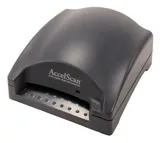
A two-page Renaissance Learning setup sheet for the AccelScan mark recognition scanner. It shows how to connect the scanner by USB, install the AccelScan software from Renaissance Place, set the scanner sensitivity and clean the lens.
- Device
- AccelScan intelligent mark recognition scanner for marked cards, used with Accelerated Math through Renaissance Place p. 1, 2
- Connection
- USB cable to the computer p. 1
- Power
- UL Listed direct plug-in power unit marked Class 2, rated 24 V DC, 250 mA p. 2
- Software
- AccelScan software downloaded from Renaissance Place, for Windows or Macintosh p. 1, 2
- Status light
- Turns green when the scanner is ready p. 1
- Sensitivity
- Adjustable in the software to read marks more or less readily p. 2
- Lens cleaning
- Remove the base and clean the lens area with compressed air duster p. 2
What this manual walks you through
- Plugging in the AccelScan and connecting it to a computer p. 1
- Downloading and installing the software from Renaissance Place p. 1
- Starting the software and choosing the scanner port p. 1
- Removing the base and cleaning the lens p. 2
- Setting the scanner sensitivity on Windows or Macintosh p. 2
Good to know
- Installing the software needs administrative rights on the computer. p. 1
- This software is not used with AccelTest or desktop Renaissance Learning products. p. 1
- Unplug the scanner from the outlet before cleaning. p. 2
Questions this manual answers
How do I connect the AccelScan to my computer?
Connect the power cable, plug the AccelScan in, then connect its USB cable to the computer. p. 1
What power supply does the AccelScan use?
A UL Listed direct plug-in power unit marked Class 2, rated 24 V DC, 250 mA. p. 2
Why is my AccelScan not detected?
Click Scanner Settings and select the port the scanner is on (such as USB); if it has an on/off switch, make sure it is on. p. 1
How do I change AccelScan sensitivity?
On Windows choose Edit, AccelScan Settings; on a Mac choose AccelScan, Preferences. Move the Sensitivity arrow right for more sensitive, left for less. p. 2
How do I clean the AccelScan lens?
Unplug it, slide off the base, and clean the lens area with a compressed air electronic equipment duster. p. 2
The file
Size and text
Every page · 2
Read it here
Each page as it is printed, and its words beside it, so a phone can search and copy them.
Page1of 2
Open in the PDF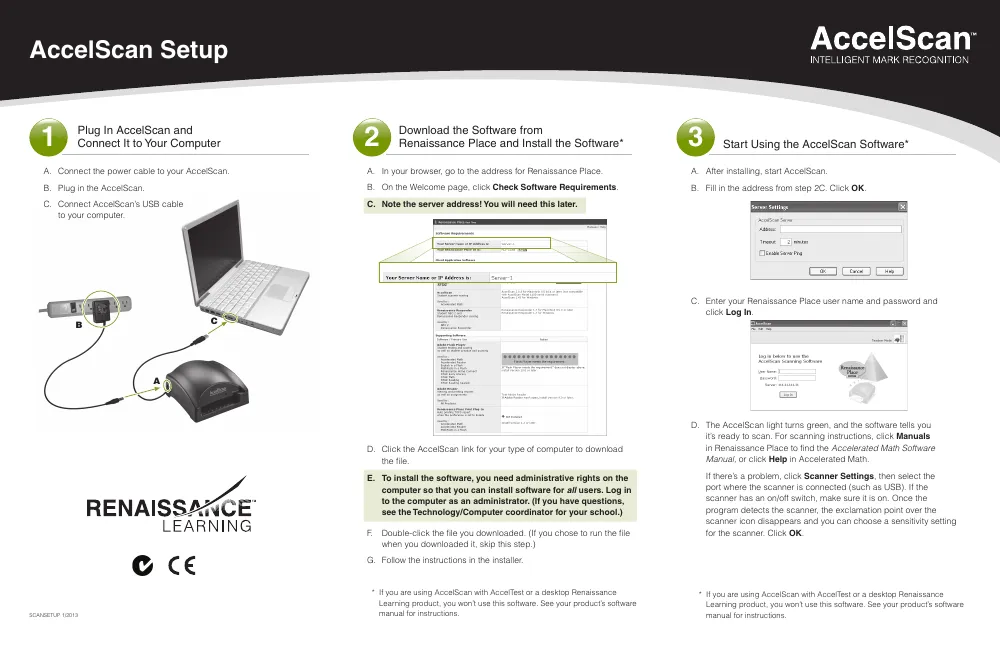
The text of page 1, from the PDF itself
AccelScan Setup
1
the Software from 2 Download Renaissance Place and Install the Software*
3
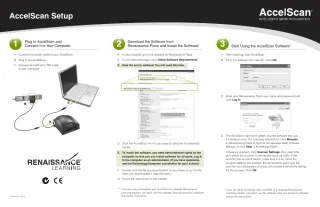
A. Connect the power cable to your AccelScan.
A. In your browser, go to the address for Renaissance Place.
A. After installing, start AccelScan.
B. Plug in the AccelScan.
B. On the Welcome page, click Check Software Requirements.
B. Fill in the address from step 2C. Click OK.
C. Connect AccelScan’s USB cable to your computer.
C. Note the server address! You will need this later.
Plug In AccelScan and Connect It to Your Computer
C. Enter your Renaissance Place user name and password and click Log In.
C
B
Start Using the AccelScan Software*
A
D. Click the AccelScan link for your type of computer to download the file. E. To install the software, you need administrative rights on the computer so that you can install software for all users. Log in to the computer as an administrator. (If you have questions, see the Technology/Computer coordinator for your school.) F.
Double-click the file you downloaded. (If you chose to run the file when you downloaded it, skip this step.)
D. The AccelScan light turns green, and the software tells you it’s ready to scan. For scanning instructions, click Manuals in Renaissance Place to find the Accelerated Math Software Manual, or click Help in Accelerated Math. If there’s a problem, click Scanner Settings, then select the port where the scanner is connected (such as USB). If the scanner has an on/off switch, make sure it is on. Once the program detects the scanner, the exclamation point over the scanner icon disappears and you can choose a sensitivity setting for the scanner. Click OK.
G. Follow the instructions in the installer.
SCANSETUP 1/2013
- If you are using AccelScan with AccelTest or a desktop Renaissance Learning product, you won’t use this software. See your product’s software manual for instructions.
- If you are using AccelScan with AccelTest or a desktop Renaissance Learning product, you won’t use this software. See your product’s software manual for instructions.
Page2of 2
Open in the PDF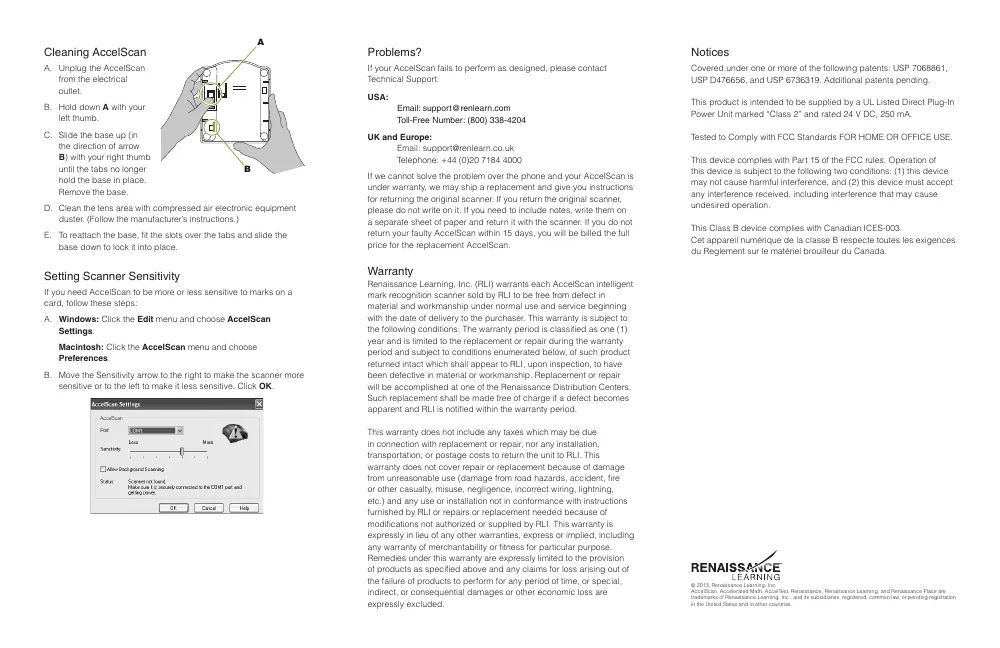
The text of page 2, from the PDF itself
A
Cleaning AccelScan A. Unplug the AccelScan from the electrical outlet.
Notices
If your AccelScan fails to perform as designed, please contact Technical Support:
Covered under one or more of the following patents: USP 7068861, USP D476656, and USP 6736319. Additional patents pending.
- USA
- B. Hold down A with your left thumb. C. Slide the base up (in the direction of arrow B) with your right thumb until the tabs no longer hold the base in place. Remove the base.
Problems?
Email: support@renlearn.com Toll-Free Number: (800) 338-4204
B
D. Clean the lens area with compressed air electronic equipment duster. (Follow the manufacturer’s instructions.) E. To reattach the base, fit the slots over the tabs and slide the base down to lock it into place.
Setting Scanner Sensitivity If you need AccelScan to be more or less sensitive to marks on a card, follow these steps: A. Windows: Click the Edit menu and choose AccelScan Settings. Macintosh: Click the AccelScan menu and choose Preferences. B. Move the Sensitivity arrow to the right to make the scanner more sensitive or to the left to make it less sensitive. Click OK.
UK and Europe: Email: support@renlearn.co.uk Telephone: +44 (0)20 7184 4000 If we cannot solve the problem over the phone and your AccelScan is under warranty, we may ship a replacement and give you instructions for returning the original scanner. If you return the original scanner, please do not write on it. If you need to include notes, write them on a separate sheet of paper and return it with the scanner. If you do not return your faulty AccelScan within 15 days, you will be billed the full price for the replacement AccelScan.
This product is intended to be supplied by a UL Listed Direct Plug-In Power Unit marked “Class 2” and rated 24 V DC, 250 mA. Tested to Comply with FCC Standards FOR HOME OR OFFICE USE. This device complies with Part 15 of the FCC rules. Operation of this device is subject to the following two conditions: (1) this device may not cause harmful interference, and (2) this device must accept any interference received, including interference that may cause undesired operation. This Class B device complies with Canadian ICES-003. Cet appareil numérique de la classe B respecte toutes les exigences du Reglement sur le matériel brouilleur du Canada.
Warranty Renaissance Learning, Inc. (RLI) warrants each AccelScan intelligent mark recognition scanner sold by RLI to be free from defect in material and workmanship under normal use and service beginning with the date of delivery to the purchaser. This warranty is subject to the following conditions: The warranty period is classified as one (1) year and is limited to the replacement or repair during the warranty period and subject to conditions enumerated below, of such product returned intact which shall appear to RLI, upon inspection, to have been defective in material or workmanship. Replacement or repair will be accomplished at one of the Renaissance Distribution Centers. Such replacement shall be made free of charge if a defect becomes apparent and RLI is notified within the warranty period. This warranty does not include any taxes which may be due in connection with replacement or repair, nor any installation, transportation, or postage costs to return the unit to RLI. This warranty does not cover repair or replacement because of damage from unreasonable use (damage from road hazards, accident, fire or other casualty, misuse, negligence, incorrect wiring, lightning, etc.) and any use or installation not in conformance with instructions furnished by RLI or repairs or replacement needed because of modifications not authorized or supplied by RLI. This warranty is expressly in lieu of any other warranties, express or implied, including any warranty of merchantability or fitness for particular purpose. Remedies under this warranty are expressly limited to the provision of products as specified above and any claims for loss arising out of the failure of products to perform for any period of time, or special, indirect, or consequential damages or other economic loss are expressly excluded.
© 2013, Renaissance Learning, Inc. AccelScan, Accelerated Math, AccelTest, Renaissance, Renaissance Learning, and Renaissance Place are trademarks of Renaissance Learning, Inc., and its subsidiaries, registered, common law, or pending registration in the United States and in other countries.