Manual · Proxim
RangeLAN2 Access Point Models 7510 and 752x User's Guide
Manual103 pagesPDF 1.3 MB
User's guide for the Proxim RangeLAN2 7510 and 752x (7520, 7521) wireless Ethernet access points: installation, configuration and troubleshooting.
Names · 3 models
The models it names
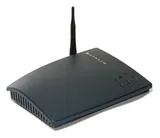 Proxim 7510Universal wireless access point from$795.003 in stock Proxim 7520OpenAir wireless access point from$895.003 in stock Proxim 7521OpenAir wireless access point from$1,095.0016 in stock
Filed with · 3 models
Also filed with these models on the old site
Summary
What is in it
The user's guide for the Proxim RangeLAN2 Access Point models 7510 and 752x (the 7520 and 7521), which connect RangeLAN2 wireless computers to a wired Ethernet LAN. It explains installation with 10BaseT or 10Base2 cabling, antenna and mounting options, wireless topologies and roaming, local and remote configuration, the configuration, statistics and status menus, SNMP and web browser management (752x only), the authorization table, performance hints, the site survey tool and troubleshooting.
Its parts
- Introduction
- Quick Installation
- Installation
- Wireless Topologies
- Configuration
- Configuration Parameters
- Statistics Menu
- Status Menu
- SNMP Management
- Web Browser Management
- Authorization Table
- Performance Hints
- Site Survey and Master Search Tool
- Troubleshooting
From the manual
Key facts from this manual
Each line names its page in the PDF.
Proxim's user's guide for the RangeLAN2 Access Point models 7510 and 752x, where 752x means the 7520 and 7521 Ethernet access points. It walks through installation, configuration by serial port, telnet, modem, SNMP or web browser, diagnostics, the LEDs and the specifications. The Token Ring 753x access points are only mentioned in passing.
- Device
- Wireless access point giving RangeLAN2 computers layer 2 access to a wired Ethernet LAN p. 8
- Network interfaces
- Ethernet 10BaseT (twisted pair) and 10Base2 (thin coax, BNC) p. 96
- Data rate
- 1.6 Mbps radio; 10 Mbps Ethernet p. 96
- Radio
- 2.4-2.5 GHz frequency hopping spread spectrum, 15 independent channels p. 96
- Power
- External power supply; a replacement must be UL listed Class 2, rated min. 1A at 12VDC p. 96
- Operating temperature
- -20 C to +60 C p. 96
- Output power
- 7520: 100 mW; 7521: 500 mW p. 9
- Management
- 7510: telnet or null modem only; 7520 and 7521 add SNMP, web browser, dial-up modem and a site survey tool p. 9, 10
- Serial console
- DB-9 Local Management Port, null modem RS-232 cable, 9600 bps N81 p. 28, 29
- In the box
- Access point, antenna, user's guide, power adapter p. 11
- Antenna
- Standard antenna on a custom connector; higher gain and directional antennas offered p. 14, 16
- Cable limits
- 10BaseT segment up to 100 meters; 10Base2 coax up to 185 meters and 30 devices p. 16
- Range
- Standard antennas: up to 1000' outdoors in line of sight, 500' through cubicles, 300' through office walls p. 66
- LEDs
- Front: Status, Radio and Backbone; back: Master, 10BaseT link, synchronized to Master p. 80, 81
What this manual walks you through
- Quick installation of a single access point p. 14, 15
- Connecting 10BaseT or 10Base2 Ethernet cabling p. 16
- Mounting the unit on a desk or wall p. 16
- Configuring the access point through a null modem cable p. 28, 29
- Configuring the access point remotely by telnet p. 29
- Using the diagnostics menu: versions, ping and AP discovery p. 74, 75, 76
- Solving common connection and throughput problems p. 79
- Reading the front and back panel LEDs p. 80, 81
- Improving range and living with microwave ovens p. 66
Good to know
- The unit has no default IP address; one must be set by null modem cable or a BOOTP server before telnet works. p. 29
- Using a different antenna can damage the custom antenna connector and the unit. p. 14
- In the United States, antennas rated above 9 dBi may not be used with the 7521. p. 66
- There is no power switch: the unit turns on as soon as power is applied. p. 15
Questions this manual answers
Why can't I telnet to my new Proxim 7510 access point?
It has no default IP address. Set one first with a terminal and null modem cable, or with a BOOTP server. p. 79
What terminal settings does the RangeLAN2 access point serial port use?
Use a null modem cable with the terminal set to 9600 N81. p. 79
What power supply does the Proxim 7520 access point need?
An external supply; a replacement must be a UL listed Class 2 supply rated min. 1A at 12VDC. p. 96
What is the difference between the Proxim 7520 and 7521?
They are identical units except for output power: the 7520 has 100 mW and the 7521 has 500 mW. p. 9
What does a red status LED mean on a RangeLAN2 access point?
The Status LED turns red when the unit has a hardware problem, and the guide says to contact Proxim Technical Support. p. 80
Contents
Chapters and sections
Each line opens the PDF at its page.
- 1. Introduction1
- The RangeLAN2 Family2
- System Requirements4
- The Product Package4
- 2. Quick Installation7
- 3. Installation9
- Ethernet Installation9
- 10BaseT Cabling9
- 10Base2 Cabling9
- Antenna Options9
- Mounting Options9
- 4. Wireless Topologies13
- Ad Hoc13
- Infrastructure14
- Guidelines for Roaming18
- Repeating18
- Building to Building Configuration19
- 5. Configuration21
- Locally (Out-of-band)21
- Remotely (In-band)22
- Modem Support (RangeLAN2 752x Only)22
- Main Menu23
- SNMP Management (RangeLAN2 752x Only)24
- Remotely via a Web Browser (RangeLAN2 752x Only)24
- 6. Configuration Parameters25
- TCP/IP Configuration Menu27
- Filter Configuration Menu28
- Bridge Configuration Menu31
- Ethernet Configuration Menu31
- Radio Configuration Menu33
- Authorization Table38
- SNMP Management38
- Upload Configuration to FTP Server38
- Reset Access Point to Factory Defaults38
- Dump Configuration to Screen38
- 7. Statistics Menu39
- Radio Statistics Menu40
- Ethernet Statistics Menu40
- Bridge Statistics Menu40
46 more lines, from page 40 on
- Filter Statistics Menu40
- Reset Statistics40
- 8. Status Menu41
- Radio Status Menu42
- Bridge Status Menu43
- TCP/IP Status Menu43
- Forwarding Database Table43
- 9. SNMP Management45
- SNMP Supported Traps47
- 10. Web Browser Management49
- Supported Web Browsers49
- Establishing a Connection49
- Main Display50
- RangeLAN2 752x Access Point Network Management51
- Discover APs51
- Network Map52
- Traffic Monitor52
- RangeLAN2 752x Access Point Device Management54
- Wireless Node Management54
- 11. Authorization Table57
- 12. Performance Hints59
- Microwave Ovens59
- Range59
- 13. Site Survey and Master Search Tool61
- 14. Troubleshooting67
- How to Obtain Help with Your LAN Installation67
- Diagnostics Menu67
- Versions69
- Technical Support Parameters69
- Ping IP Host69
- Discover APs69
- Display Wireless Network Tree70
- Commonly Asked Technical Support Questions72
- LED Indicators73
- A. Menu Structure75
- B. Download Menu81
- C. Glossary83
- D. Parameters85
- TCP/IP Parameters85
- Filter Parameters86
- Radio Parameters87
- Bridge Parameters88
- Ethernet Parameters88
- E. U.S. Specifications89
- F. How to Reach Technical Support90
- Index91
The whole text · 11 parts
Read the manual here as text
Its text as extracted from the PDF, unedited, in parts; each page opens the PDF at that page.
The file