Manual · Paradyne
Installation Guide for the GPIB-RF
Manual5 pagesPDF 43 KB
Installation guide for the National Instruments GPIB-RF kit: a GPIB-232CT-A controller linked over ProxLink PL2 radio modems.
What this file really is
The old site listed this file as a manual for the Paradyne Comsphere 3610 and Proxim Proxlink PL and PL2. The file is named as a Paradyne Comsphere 3610 user guide, but it is the National Instruments installation guide for the GPIB-RF kit (GPIB-232CT-A controller with ProxLink PL2 radio modems) and does not mention the Comsphere 3610.
Filed with · 2 models
Also filed with these models on the old site
Summary
What is in it
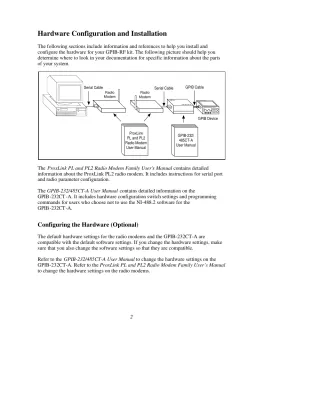
A five-page installation guide from National Instruments for the GPIB-RF kit, which links a computer's serial port to GPIB instruments through a pair of 902-928 MHz radio modems and a GPIB-232CT-A controller. It lists the kit contents, points to the ProxLink PL and PL2 radio modem manual and the GPIB-232/485CT-A manual for hardware settings, gives step-by-step cabling and power-up instructions, and shows which NI-488.2 manuals to use for software installation and development under DOS, Windows 3 and Windows 95.
Its parts
- What You Need to Get Started
- Hardware Configuration and Installation
- Configuring the Hardware (Optional)
- Install the Hardware
- Software Installation and Configuration
- Software Development
From the manual · read page by page
Key facts from this manual
Each line names its page in the PDF.
This file is not a Paradyne Comsphere 3610 manual: it is National Instruments' Installation Guide for the GPIB-RF kit (321049A-01, October 1995). The kit links a computer's serial port to GPIB instruments through a GPIB-232CT-A controller and two 902-928 MHz radio modems, and it refers to the ProxLink PL and PL2 Radio Modem Family User's Manual for the modems. The guide lists the kit contents and walks through cabling, power-up and which manual to use for the NI-488.2 software.
- Kit
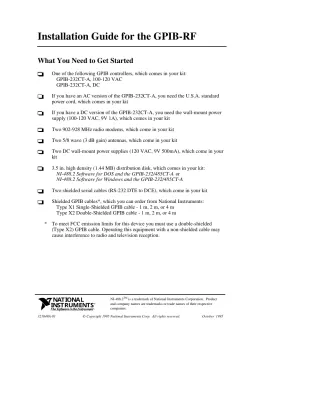
- GPIB-RF: GPIB-232CT-A GPIB controller, two radio modems, two antennas, power supplies, serial cables and NI-488.2 software p. 1
- Radio modems
- Two 902-928 MHz radio modems; ProxLink PL2, per the ProxLink PL and PL2 manual it refers to p. 1, 2
- Antennas
- Two 5/8 wave (3 dB gain), one on the EXR polarized connector at the back of each radio modem p. 1, 3
- Radio modem power
- DC wall-mount supply, 120 VAC, 9V 500mA, one per modem p. 1
- Controller power
- AC version: 100-120 VAC with U.S.A. standard power cord; DC version: wall-mount supply 100-120 VAC, 9V 1A p. 1
- Serial cables
- Two shielded RS-232 DTE to DCE cables p. 1
- GPIB cables
- Ordered separately: Type X1 single-shielded or Type X2 double-shielded, 1 m, 2 m or 4 m p. 1
- Software
- NI-488.2 for DOS or for Windows and the GPIB-232/485CT-A, on a 3.5 in. 1.44 MB disk p. 1
- Indicators
- Red PWR LED on each radio modem; POWER and READY LEDs on the GPIB-232CT-A p. 3, 4
What this manual walks you through
- Checking the GPIB-RF kit contents p. 1
- Changing hardware settings on the controller and radio modems p. 2
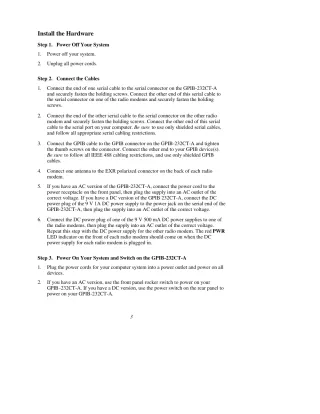
- Cabling the computer, radio modems, controller and GPIB devices p. 3
- Powering on and checking the READY LED p. 3, 4
- Choosing the NI-488.2 manual for DOS, Windows 3 or Windows 95 p. 4, 5
Good to know
- A double-shielded Type X2 GPIB cable is needed to meet FCC emission limits. p. 1
- If you change hardware settings, change the software settings to match. p. 2
- Use only shielded serial and GPIB cables and follow IEEE 488 cabling restrictions. p. 3
- If the READY LED is not on within seven seconds, recheck connections and switch settings. p. 4
Questions this manual answers
What frequency do the GPIB-RF radio modems use?
The kit's two radio modems work at 902-928 MHz. p. 1
What power supply do the GPIB-RF radio modems need?
Each takes a DC wall-mount supply rated 120 VAC in, 9V 500mA out. p. 1
Which GPIB cable should I use with the GPIB-RF kit?
A shielded GPIB cable from National Instruments; the double-shielded Type X2 is needed to meet FCC emission limits. p. 1
The READY light on my GPIB-232CT-A does not come on, what should I do?
If it is not on within seven seconds, recheck all connections and switch settings and power on again; then see the troubleshooting chapter of the Getting Started manual. p. 4
Contents
Chapters and sections
Each line opens the PDF at its page.
- Installation Guide for the GPIB-RF1
- What You Need to Get Started1
- Hardware Configuration and Installation2
- Configuring the Hardware (Optional)2
- Install the Hardware3
- Step 1. Power Off Your System3
- Step 2. Connect the Cables3
- Step 3. Power On Your System and Switch on the GPIB-232CT-A3
- Software Installation and Configuration4
- Software Development5
The whole text · 1 part
Read the manual here as text
Its text as extracted from the PDF, unedited, in parts; each page opens the PDF at that page.
The file