
Manual · Panini
Panini Vision X Manual
Manual2 pagesPDF 563 KB
Both pages are below, each with its text.
Covers · 1 model
The models it covers

From the manual · read page by page
Key facts from this manual
Each line names its page in the PDF.
This is a two-page Panini reference card for the Vision X check scanner. It covers preparing and feeding documents, what the status lights mean, clearing jams, and routine cleaning.
- Device
- Check scanner with a feeder, transport track and exit pocket p. 1
- Feeder capacity
- Batches up to 100 checks, with the pressure plate pushed back p. 1
- Continuous loading
- Checks can be added behind those in the feeder while the scanner is processing p. 1
- Connections
- Power cable and USB cable p. 2
- Imaging
- Contact image sensors behind glass; three pairs of photocell sensors along the track p. 2
- Endorser
- Ink jet endorsement with a nozzle plate p. 2
- Status lights
- Red blinking: jam on the track; red on: cover removed; green on: online, feeder empty; green blinking: documents ready p. 1
- Cleaning kit
- Vision X Cleaning Kit: 25 cleaning cards, 25 pre-moistened ink cleaning wipes, 6 image sensor cleaning swabs p. 2
- Cleaning interval
- Weekly, or as needed for the volume and condition of documents p. 2
What this manual walks you through
- Preparing documents before scanning p. 1
- Feeding documents singly or in batches p. 1
- Reading the red and green status lights p. 1
- Clearing jams and errors from the track p. 2
- Cleaning the track, image sensors and ink jet nozzles p. 2
Good to know
- Unplug the power and USB cables and remove the inner and outer covers before cleaning. p. 2
- Do not overfill the feeder, to prevent misfeeds. p. 1
- Jams occur when the exit pocket is too full; empty it when nearly full. p. 1
- When cleaning the ink jet nozzles, do not wipe the electrical contact area. p. 2
Questions this manual answers
What does a blinking red light on the Panini Vision X mean?
A blinking red LED with the green LED off means a jam on the transport track. p. 1
How do I clear a jam in the Vision X?
Empty the exit pocket and select EJECT in your application; if that fails, pull the document out by hand, and if needed remove the outer cover. p. 2
How many checks does the Vision X feeder hold?
Batches up to 100 checks, with the pressure plate pushed back first. p. 1
How often should the Vision X be cleaned?
Weekly, or as needed depending on how many documents are processed and their condition. p. 2
The file
Size and text
Every page · 2
Read it here
Each page as it is printed, and its words beside it, so a phone can search and copy them.
Page1of 2
Open in the PDF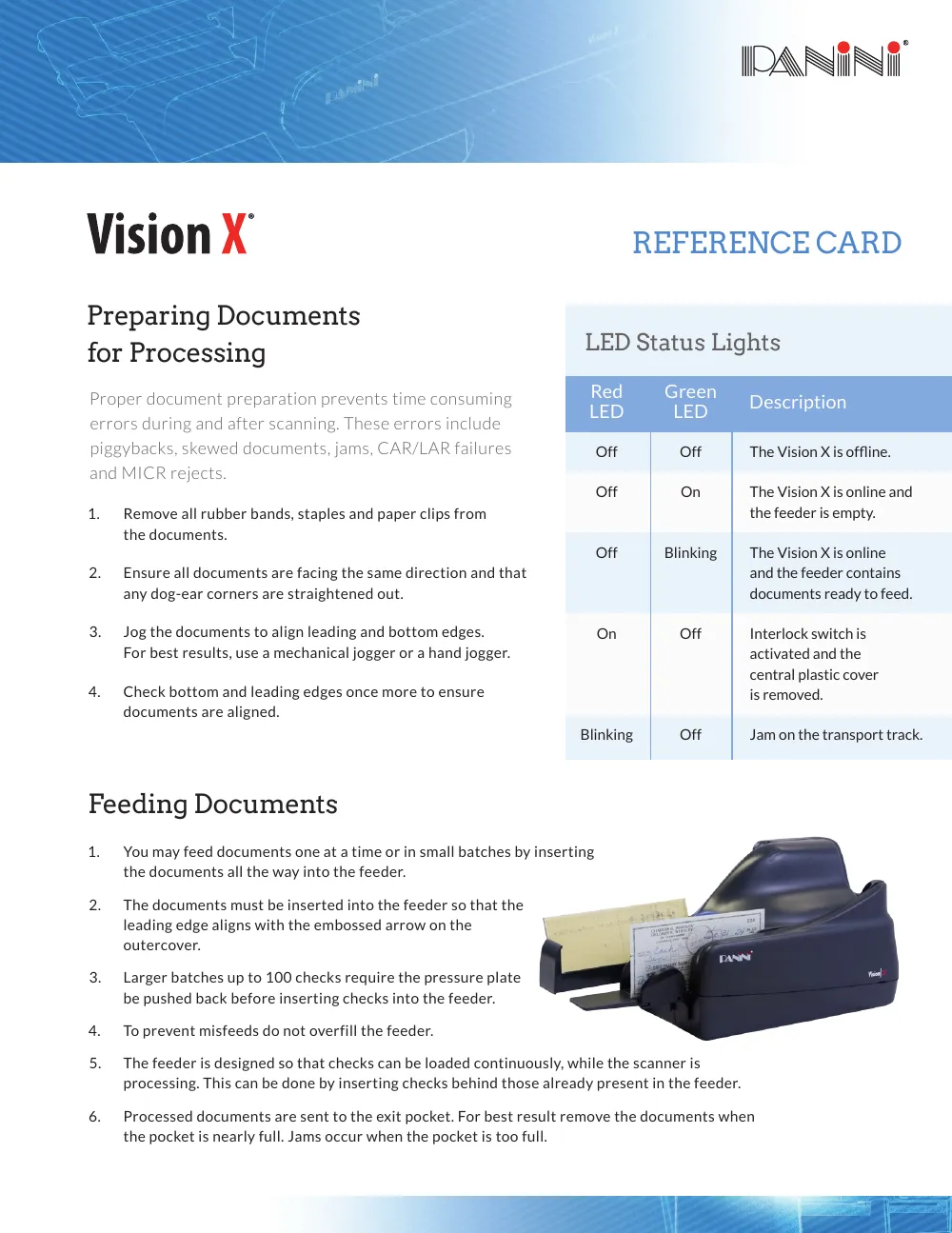
The text of page 1, from the PDF itself
REFERENCE CARD Preparing Documents for Processing Proper document preparation prevents time consuming errors during and after scanning. These errors include piggybacks, skewed documents, jams, CAR/LAR failures and MICR rejects. 1.
LED Status Lights Red LED
Green LEDOffOff
The Vision X is offline.
Off
On
The Vision X is online and the feeder is empty.
Off
Blinking
The Vision X is online and the feeder contains documents ready to feed.
On
Off
Interlock switch is activated and the central plastic cover is removed.
Blinking
Off
Jam on the transport track.
Remove all rubber bands, staples and paper clips from the documents.
2.
Ensure all documents are facing the same direction and that any dog-ear corners are straightened out.
3.
Jog the documents to align leading and bottom edges. For best results, use a mechanical jogger or a hand jogger.
4.
Check bottom and leading edges once more to ensure documents are aligned.
Description
Feeding Documents 1.
You may feed documents one at a time or in small batches by inserting the documents all the way into the feeder.
2.
The documents must be inserted into the feeder so that the leading edge aligns with the embossed arrow on the outercover.
3.
Larger batches up to 100 checks require the pressure plate be pushed back before inserting checks into the feeder.
4.
To prevent misfeeds do not overfill the feeder.
5.
The feeder is designed so that checks can be loaded continuously, while the scanner is processing. This can be done by inserting checks behind those already present in the feeder.
6.
Processed documents are sent to the exit pocket. For best result remove the documents when the pocket is nearly full. Jams occur when the pocket is too full.
Page2of 2
Open in the PDF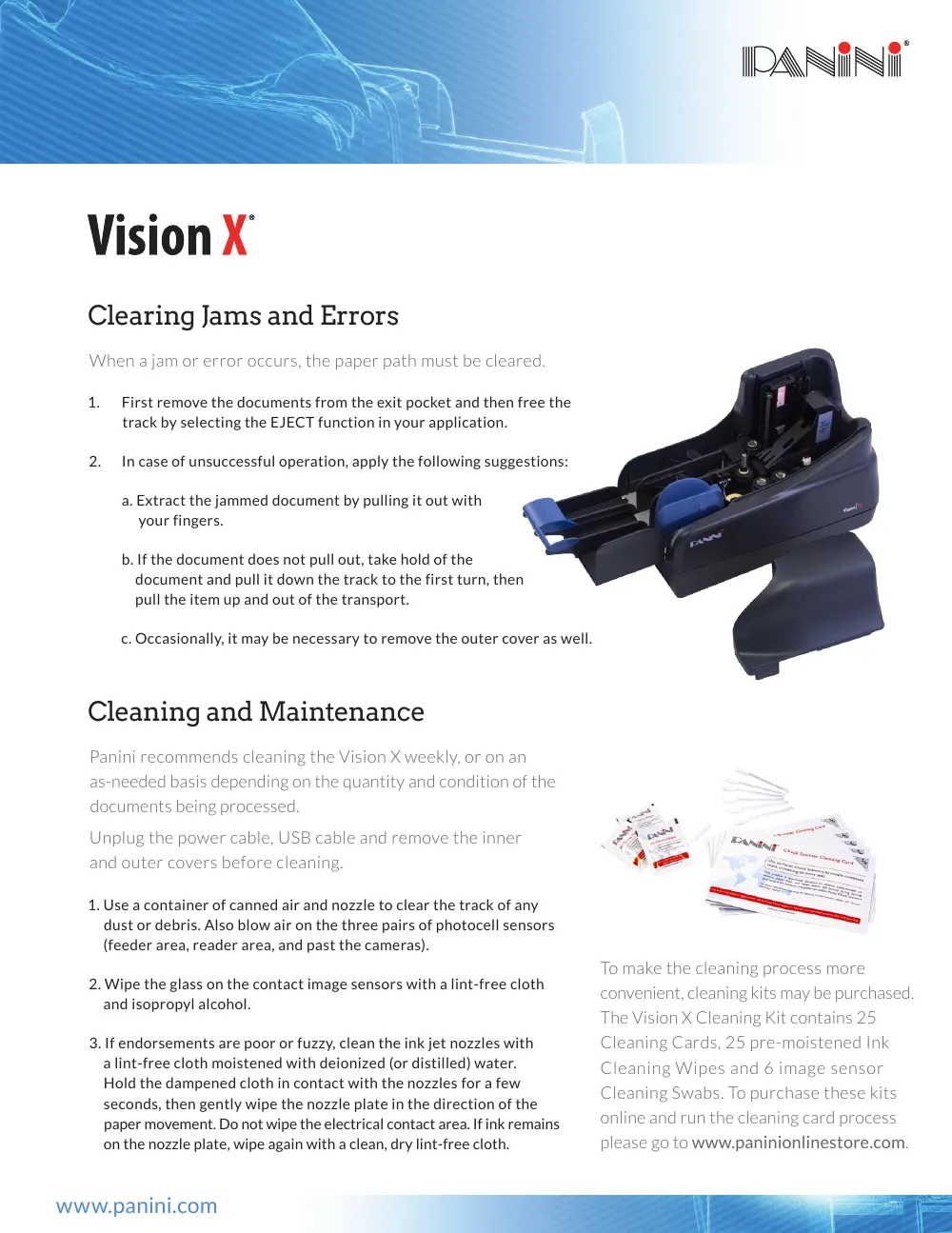
The text of page 2, from the PDF itself
Clearing Jams and Errors When a jam or error occurs, the paper path must be cleared. 1.
First remove the documents from the exit pocket and then free the track by selecting the EJECT function in your application.
2.
In case of unsuccessful operation, apply the following suggestions:
a. Extract the jammed document by pulling it out with your fingers.
b. If the document does not pull out, take hold of the document and pull it down the track to the first turn, then pull the item up and out of the transport. c. Occasionally, it may be necessary to remove the outer cover as well.
Cleaning and Maintenance Panini recommends cleaning the Vision X weekly, or on an as-needed basis depending on the quantity and condition of the documents being processed. Unplug the power cable, USB cable and remove the inner and outer covers before cleaning. 1. Use a container of canned air and nozzle to clear the track of any dust or debris. Also blow air on the three pairs of photocell sensors (feeder area, reader area, and past the cameras). 2. Wipe the glass on the contact image sensors with a lint-free cloth and isopropyl alcohol. 3. If endorsements are poor or fuzzy, clean the ink jet nozzles with a lint-free cloth moistened with deionized (or distilled) water. Hold the dampened cloth in contact with the nozzles for a few seconds, then gently wipe the nozzle plate in the direction of the paper movement. Do not wipe the electrical contact area. If ink remains on the nozzle plate, wipe again with a clean, dry lint-free cloth.
www.panini.com
To make the cleaning process more convenient, cleaning kits may be purchased. The Vision X Cleaning Kit contains 25 Cleaning Cards, 25 pre-moistened Ink Cleaning Wipes and 6 image sensor Cleaning Swabs. To purchase these kits online and run the cleaning card process please go to www.paninionlinestore.com.