Manual · Palm
Read This First: Palm Tungsten T2
Manual19 pagesPDF 541 KB
Getting started guide for the Palm Tungsten T2 handheld: charging, setup, Palm Desktop install, HotSync and troubleshooting.
Covers · 2 models
The models it covers
Summary
What is in it
Palm's "Read This First" getting started guide for the Tungsten T2 handheld. It walks through connecting the USB HotSync cradle, charging, turning on and setting up the handheld, the controls, installing Palm Desktop software on Windows or Mac, scheduling an appointment and synchronizing with the HotSync process. It also introduces the 5-way navigator, Graffiti 2 writing, the Software Essentials CD, Bluetooth, Palm Quick Install, troubleshooting and where to find the full Handbook.
Its parts
- Start Here
- Install Software
- Enter and Synchronize Your Information
- Get More Out of Your Handheld
- Troubleshooting
- Find More Information
From the manual · read page by page
Key facts from this manual
Each line names its page in the PDF.
Palm's Read This First quick start guide (2003) for the Palm Tungsten T2 handheld. It walks through connecting the USB HotSync cradle, charging and setting up the handheld, installing Palm Desktop software and doing a first HotSync. It also introduces the 5-way navigator, Graffiti 2, Bluetooth and the bundled software, and gives basic troubleshooting.
- Device
- Palm Tungsten T2 handheld that slides open to reveal the Graffiti 2 writing area p. 3, 10
- In the box
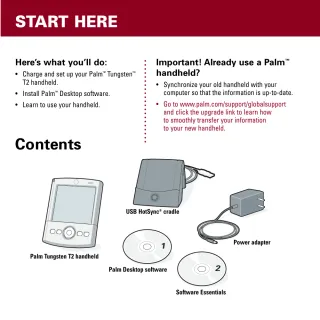
- Handheld, USB HotSync cradle, power adapter, Palm Desktop software and Software Essentials CD-ROMs p. 3
- Cradle
- USB HotSync cradle; Windows NT and computers without USB need a serial cradle, sold separately p. 4
- Wireless
- Integrated Bluetooth for e-mail, web and synchronizing; works with GPRS carriers through Bluetooth phones p. 13
- Ports and controls
- IR port, expansion card slot, headphone jack, speaker, microphone, Voice Memo button, power button, 5-way navigator p. 7
- Text entry
- Graffiti 2 writing with the stylus, or the onscreen keyboard p. 10, 12
- First charge
- At least two full hours in the cradle; indicator light solid green while charging p. 5
- Desktop software
- Palm Desktop for Windows and Mac; Microsoft Outlook is also supported p. 8
- Bundled software
- VersaMail 2.5, DataViz Documents to Go, Palm Photos, Kinoma Video Player and an MP3 player (needs an expansion card) p. 13
- Quick Install
- Palm Quick Install (Windows only) loads applications, MP3 songs, video clips, photos and Office documents p. 14
- Reset button
- Inside a hole on the back panel; press gently with the stylus tip for a soft reset p. 15
- Guide part number
- PN: 406-5247A-IE p. 19
What this manual walks you through
- Connecting the HotSync cradle and power adapter p. 4
- Charging the handheld for the first time p. 5
- Turning on and setting up the handheld p. 6
- Installing Palm Desktop software on Windows or Mac p. 8
- Scheduling an appointment on the computer and on the handheld p. 9, 10
- Synchronizing with a HotSync operation p. 11
- Using the 5-way navigator and learning Graffiti 2 p. 12
- Pairing the handheld with a Bluetooth phone p. 13
- Fixing charging, power and HotSync problems p. 15, 16, 17
Good to know
- Install the version of Palm Desktop software that comes in the package. p. 8
- A HotSync operation is needed before Documents to Go and VersaMail 2.5 can be installed. p. 13
- Some third-party applications may not be compatible with the handheld. p. 16
- Data can be lost through a malfunction, dead battery or repairs, so keep backup copies. p. 19
Questions this manual answers
How long should I charge a Palm Tungsten T2 before first use?
At least two full hours in the cradle, with the indicator light solid green. p. 5
My Tungsten T2 will not turn on. What can I do?
Press an application button, do a soft reset with the stylus tip in the back-panel reset hole, then charge for another two hours. p. 15
Does the Palm Tungsten T2 sync with Microsoft Outlook?
Yes. Date Book, Address Book, To Do List and VersaMail e-mail can synchronize with Microsoft Outlook. p. 14
Does the Tungsten T2 have Bluetooth?
Yes, integrated Bluetooth for e-mail, web browsing and synchronizing, including through Bluetooth phones on GPRS. p. 13
Can I use the Tungsten T2 cradle with Windows NT?
No. Windows NT and computers without USB ports need a serial cradle, sold separately. p. 4
The whole text · 2 parts
Read the manual here as text
Its text as extracted from the PDF, unedited, in parts; each page opens the PDF at that page.
The file