Manual · Palm
PalmPilot Handbook
Manual202 pagesPDF 1.3 MB
User handbook for the PalmPilot connected organizer: controls, built-in applications, Graffiti writing, desktop software and HotSync.
Filed with · 1 model
Also filed with these models on the old site
Summary
What is in it
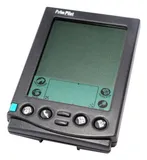
User handbook for the PalmPilot connected organizer. It describes the front and back panel controls, battery installation, the backlight and care tips, then walks through setup, preferences, Graffiti handwriting and the on-screen keyboard. Chapters cover the Date Book, Address Book, To Do List, Memo Pad and Expense applications, installing the PalmPilot Desktop software, HotSync synchronization, installing applications, troubleshooting and resetting.
Its parts
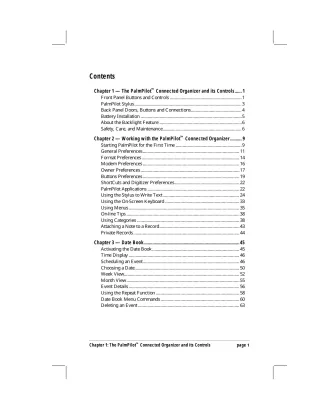
- The PalmPilot Connected Organizer and its Controls
- Working with the PalmPilot Connected Organizer
- Date Book
- Address Book
- To Do List
- Memo Pad
- Expense
- Additional Features
- Installing PalmPilot Desktop Software
- HotSync Technology
- Installing Applications on your PalmPilot Connected Organizer
- Reference
From the manual
Key facts from this manual
Each line names its page in the PDF.
This is the 3Com PalmPilot Handbook for the PalmPilot connected organizer, including the PalmPilot Personal and Professional Edition. It explains the buttons and controls, battery installation, the built-in applications, PalmPilot Desktop software and HotSync, and troubleshooting and resets.
- Device
- PalmPilot connected organizer with a touch-sensitive screen, stylus and Graffiti handwriting writing area p. 7
- Batteries
- Two AAA alkaline batteries; use only alkaline p. 10, 13
- Battery life
- Several months of normal use p. 13
- Memory backup
- Built-in backup power keeps memory data up to one minute with the batteries removed p. 13
- Serial port
- Back-panel serial port that fits the PalmPilot Cradle connector p. 9
- Memory expansion
- Memory door on the back can be removed to install memory expansion units p. 9
- Backlight
- On models with a backlight, hold the green power button about two seconds p. 11
- Applications
- Date Book, Address Book, To Do List, Memo Pad, Expense and Calculator installed p. 157
- Games
- HardBall, MineHunt, Puzzle and SubHunt, installed with the PalmPilot Install Tool p. 158
- Desktop software
- PalmPilot Desktop 2.0 for Windows 95 and Windows NT 4.0; v1.0 for Windows 3.1x p. 138
- PC requirements
- 386 PC or higher, 8 MB RAM minimum (16 MB recommended), CD-ROM drive, mouse, one available serial port p. 138
- Auto-off
- Turns itself off after one, two or three minutes of inactivity p. 160
- Modem HotSync
- Optional modem (such as PalmPilot Modem) connected with the special modem cable to the serial connector p. 138, 156
- Handbook part number
- 423-0210-01B p. 2
What this manual walks you through
- Installing the batteries p. 10, 11
- Turning the backlight on and off p. 11
- Front and back panel buttons, doors and connections p. 6, 7, 8, 9
- Setting up and running a HotSync through a modem p. 153, 154, 155, 156
- Installing applications and games with the PalmPilot Install Tool p. 157, 158
- Troubleshooting power, sound, handwriting, memory and application problems p. 159, 160, 161, 163
- Performing a soft reset or a hard reset p. 164, 165
- Removing the PalmPilot Desktop software p. 164
Good to know
- Use only the stylus or plastic-tipped pens on the screen, never a pen, pencil or sharp object. p. 12
- The PalmPilot is not waterproof and should be kept out of rain and moisture. p. 12
- Turn the unit off before replacing batteries and replace them right away. p. 13
- A hard reset erases all records and entries; use it only if a soft reset does not help. p. 165
- Do not keep the PalmPilot in the Cradle while installing the PalmPilot Desktop software. p. 159
Questions this manual answers
What batteries does the PalmPilot use?
Two AAA alkaline batteries; the handbook says to use only alkaline batteries. p. 10, 13
How do I soft reset a PalmPilot?
Gently press the reset button in the hole on the back panel with an unfolded paper clip; stored records are kept. p. 164
Why does my PalmPilot turn itself off?
It turns off after a set period of inactivity; change the Auto-off after setting in General preferences. p. 160
What PC do I need for PalmPilot Desktop?
At least a 386 IBM compatible PC with Windows 3.1x, 95 or NT 4.0, 8 MB RAM, a CD-ROM drive and one free serial port. p. 138
What happens to data if the PalmPilot batteries run flat?
With drained batteries it stores data for about a month; left longer, all stored data is lost. p. 13
The whole text · 21 parts
Read the manual here as text
Its text as extracted from the PDF, unedited, in parts; each page opens the PDF at that page.
- Pages 1 to 101-10
- Pages 11 to 2011-20
- Pages 21 to 3021-30
- Pages 31 to 4031-40
- Pages 41 to 5041-50
- Pages 51 to 6051-60
- Pages 61 to 7061-70
- Pages 71 to 8071-80
- Pages 81 to 9081-90
- Pages 91 to 10091-100
- Pages 101 to 110101-110
- Pages 111 to 120111-120
- Pages 121 to 130121-130
- Pages 131 to 140131-140
- Pages 141 to 150141-150
- Pages 151 to 160151-160
- Pages 161 to 170161-170
- Pages 171 to 180171-180
- Pages 181 to 190181-190
- Pages 191 to 200191-200
- Pages 201 to 202201-202
The file