Manual · Opticon
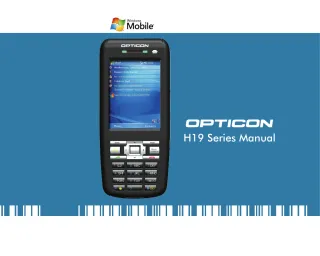
H19 Series Manual
Manual192 pagesPDF 16 MB
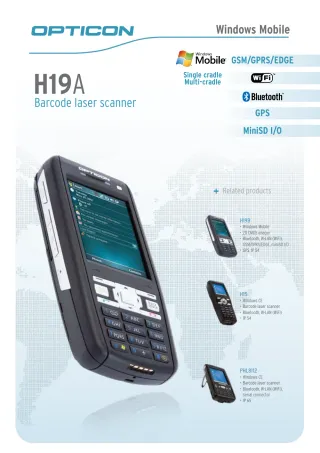
User manual for the Opticon H19 Series Windows Mobile phone with a built-in bar code and 2D code scanner.
Covers · 1 model
The models it covers
Summary
What is in it
User manual for the Opticon H19 Series, a Windows Mobile handheld that combines a phone with a bar code and 2D code scanner. It explains the keys and parts of the device, installing the SIM card, battery and mini-SD card, basic operation, phone features, ActiveSync and Bluetooth synchronizing, file transfer, Internet and Wi-Fi connections, messaging and contacts, setting up and using the barcode reader, other applications such as backup and GPS, and the specifications.
Its parts
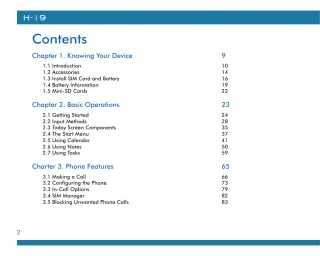
- Knowing Your Device
- Basic Operations
- Phone Features
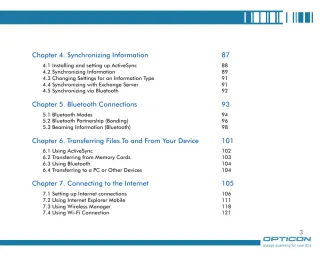
- Synchronizing Information
- Bluetooth Connections
- Transferring Files To and From Your Device
- Connecting to the Internet
- Messaging & Contacts
- Using Barcode Reader
- Other Applications
From the manual
Key facts from this manual
Some pages are scans or cannot be read; this says only what the readable text supports. Each line names its page in the PDF.
User manual for the Opticon H19 Series, Windows Mobile 6 handheld computers with a bar code or 2D code reader, a GSM/GPRS/EDGE phone, Wi-Fi, Bluetooth and GPS, made as the H-19A and H-19B. It covers setup, the battery, phone, synchronizing, wireless connections, the bar code reader settings and the specifications. The scanner part of its specifications is printed under the labels H-16A and H-16B.
- Device
- Windows Mobile 6 Professional handheld computer with a built-in bar code/2D code reader p. 144, 188
- Processor and memory
- Samsung S3C2440A, 400MHz; 64 MB RAM, 512 MB ROM p. 188
- Display
- 2.8", 240x320, 65K colors; transflective TFT LCD with touch panel and backlight p. 189
- Connectivity
- Bluetooth 1.2, IEEE 802.11 b/g, GSM/GPRS/EDGE 850/900/1800/1900, mini USB (ver.1.1 client) p. 190
- Battery
- Li-Ion Polymer 4.2V 1440mAh; talk time 4 hours, standby 150 hours p. 19, 191
- Charging
- 4 hours with the AC charger via mini USB, 6 hours by USB cable from a PC; optional H-19 cradle p. 21, 191
- GPS
- Built-in SiRF Star III GPS receiver; GPS hardware port COM4 p. 178, 191
- Memory card
- Mini-SD up to 2GB; mini HCSD not supported p. 22
- Keys
- 12 key numeric dial pad, 5-way navigation, 2 scan keys, 2 soft keys, Fn and Backspace, Talk and End p. 189
- Weight
- H-19A: 193±5g with battery; H-19B: 199±5g with battery p. 188
- Dimensions
- 140.8 x 62.3 x 24.5 (25.5) mm p. 188
- Reader settings
- Keyboard hook, single or multiple read mode, good-read sound, extra trigger key; menu codes from the Universal Menu Book p. 144, 145, 146, 147
- Backup battery
- Keeps the clock 5 minutes with the main battery removed, up to 168 hours while it is low p. 20
What this manual walks you through
- Swapping the battery without turning the device off p. 18
- Charging the battery from the AC adapter, a PC or a cradle p. 21
- Checking battery power and handling a low battery p. 19, 21
- Inserting and removing a mini-SD card p. 22
- Turning on the bar code reader and keyboard hook p. 144
- Setting read mode, good-read sound and trigger key p. 145, 146
- Choosing which bar code types to read p. 146
- Configuring the reader with menu codes and returning to defaults p. 147, 149
- Updating the bar code reader firmware p. 150, 151
- Scanning a bar code into an application p. 154, 155
Good to know
- The battery ships uncharged; charge it at least 8 hours before first use and do not remove it while charging. p. 6
- The bar code reader is disabled by default and must be turned on before scanning. p. 144
- Connect the AC adapter before updating the reader firmware. p. 150
- Do not leave the battery anywhere above 60˚C (140˚F). p. 21
- The manual states the laser complies with JIS C6802, IEC60825-1 and 21CFR 1040.10 Class 1. p. 7
Questions this manual answers
What battery does the Opticon H19 use?
A Li-Ion Polymer 4.2V 1440mAh battery, rated for about 4 hours talk time and 150 hours standby. p. 19, 191
How do I turn on the scanner on the H19?
Go to Settings > System tab > Barcode settings > Options tab and check Barcode reader, plus Keyboard hook to type scans into applications. p. 144
How long does the H19 take to charge?
About 4 hours with the AC charger via mini USB, or 6 hours by USB cable from a PC; charge at least 8 hours before first use. p. 6, 191
What memory card does the H19 take?
A mini-SD card of up to 2GB; mini HCSD (High Capacity SD) cards are not supported. p. 22
How do I set up GPS on the H19?
Install mapping software, then in Settings > System tab > External GPS > Hardware tab select COM4 as the GPS hardware port. p. 178
The whole text · 20 parts
Read the manual here as text
Its text as extracted from the PDF, unedited, in parts; each page opens the PDF at that page.
- Pages 1 to 101-10
- Pages 11 to 2011-20
- Pages 21 to 3021-30
- Pages 31 to 4031-40
- Pages 41 to 5041-50
- Pages 51 to 6051-60
- Pages 61 to 7061-70
- Pages 71 to 8071-80
- Pages 81 to 9081-90
- Pages 91 to 10091-100
- Pages 101 to 110101-110
- Pages 111 to 120111-120
- Pages 121 to 130121-130
- Pages 131 to 140131-140
- Pages 141 to 150141-150
- Pages 151 to 160151-160
- Pages 161 to 170161-170
- Pages 171 to 180171-180
- Pages 181 to 190181-190
- Pages 191 to 192191-192
The file