Manual · Norand
6950 Enterprise Gateway Server User's Guide
Manual144 pagesPDF 617 KB
User's guide for the Norand 6950 Enterprise Gateway Server (EGS): installation, network and RF setup, monitoring and host programming.
Covers · 1 model
The models it covers
Summary
What is in it
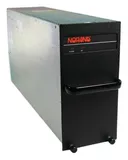
The user's guide for the 6950 Enterprise Gateway Server (EGS), a gateway between host applications and an Intermec (Norand) Enterprise Wireless LAN. It covers installation with access points, radio bases and controllers such as the RC3250, RCB4030 and RC4030E, Ethernet cabling and power, connecting by telnet, monitor or terminal, IP and RF configuration, halting and rebooting, logs and system monitoring, software updates, and writing host applications with native sockets.
Its parts
- Read This First
- Introduction
- Installation
- Connecting to the 6950 EGS
- Configuring Network Options
- Configuring Radio Frequency Communication
- Halting, Rebooting, or Restarting the 6950 EGS
- Monitoring the System
- Updating the 6950 EGS Software
- Host Application Program
From the manual
Key facts from this manual
Each line names its page in the PDF.
This is the Intermec user's guide for the Norand 6950 Enterprise Gateway Server (EGS), a gateway that links hand-held wireless stations on an Enterprise Wireless LAN to host applications over TCP/IP telnet. It covers installing the current and early models, connecting to the unit for setup, configuring network and radio options, monitoring logs, and updating the software.
- Device
- Gateway between host applications and an Intermec Enterprise Wireless LAN, linking hand-held wireless stations to the host by TCP/IP telnet p. 11
- Terminal emulation
- 3270, 5250, and VT220 at the same time p. 12
- Ethernet
- Current model: RJ45 for 10BASE-T or 100BASE-T. Early model: RJ45 10BASE-T, AUI 10BASE5, and BNC 10BASE2, one at a time p. 25, 26, 27, 28
- Serial ports
- Two 9-pin RS-232 ports; COM1 for an RF controller, COM2 reserved for a dumb terminal p. 25, 28
- RF equipment
- 2100 UAP, 6710 Access Point, or RB4030 Base Radio over Ethernet; RCB4030, RC4030E, or RC3250 over RS-232 p. 17, 20
- Power
- Switchable 110, 220, or 240 V ac power supply; 7 foot ac power cable supplied p. 14, 25
- Other connectors
- 25-pin external disk drive (updates only), 15-pin video, PS/2 keyboard, optional V.32 and V.42 internal modem p. 25
- Indicators
- Power light and HD (hard disk) light on the front panel p. 24
- Mounting brackets
- Wall mount 850-529-102; shelf mount, single 850-529-101; shelf mount, double width 850-529-103 p. 29
- Controller cable
- RC3250 host port to COM1: P/N 216-772-0xx, xx being the length p. 30
- Dumb terminal
- COM2 with a null modem cable; 9600 bps, no parity, 8 data bits, 1 stop bit p. 43
- Factory IP address
- 198.70.37.28, subnet mask 255.255.255.0 p. 40
- Station firmware
- Wireless station firmware 6.02 or greater for VT220, TN3270, TN5250, and Native sockets p. 39
- Software update
- Update kit and an external disk drive on the 25-pin Service Only port p. 113
What this manual walks you through
- Quick start for Ethernet, SST, and UHF or RS-232 systems p. 12, 13
- Attaching access points, radio bases, or controllers p. 19, 20
- Installing a wall or shelf mounting bracket p. 29
- Connecting to 10BASE2, 10BASE-T, or 100BASE-T Ethernet p. 32
- Applying power p. 36
- Connecting for setup by telnet, video monitor and keyboard, or dumb terminal p. 39
- Configuring IP addresses, host names, RF parameters, and wireless stations p. 42
- Halting, rebooting, or restarting the unit p. 42
- Viewing logs and testing RF link throughput p. 42
- Recording settings before a software update p. 113
Good to know
- Electrical and environmental specifications are not in this guide; it points to the specifications shipped with the unit. p. 16
- Updating the software through System Menu option 4 is stated as unavailable. p. 42
- After a power loss the unit restarts on its own when power returns. p. 36
- Place the unit indoors within 7 running feet of an electrical outlet. p. 28
- A repeated access point search message in the log means no root access point has been found yet. p. 110
Questions this manual answers
What terminal emulation does the 6950 EGS support?
It supports 3270, 5250, and VT220 terminal emulation by the wireless stations at the same time. p. 12
What is the factory IP address of the 6950 EGS?
198.70.37.28, with subnet mask 255.255.255.0, used for the first telnet session. p. 40
How do I connect a dumb terminal to the 6950 EGS?
Use a null modem cable to COM2 at 9600 bps, no parity, 8 data bits, and 1 stop bit. p. 43
Which controllers connect to the 6950 EGS serial port?
An RC3250 Network Controller, RCB4030 Base/Controller, or RC4030E Gateway, on COM1 over RS-232. p. 28
How is the 6950 EGS software updated?
With an update kit and an external disk drive attached to the 25-pin Service Only port, after recording the current settings. p. 113
Contents
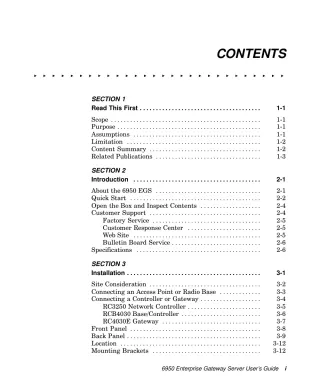
Chapters and sections
Each line opens the PDF at its page.
The whole text · 18 parts
Read the manual here as text
Its text as extracted from the PDF, unedited, in parts; each page opens the PDF at that page.
- Pages 1 to 61-6
- Section 1: Read This First7-10
- Section 2: Introduction11-16
- Section 3: Installation, pages 17 to 2417-24
- Section 3: Installation, pages 25 to 3225-32
- Section 3: Installation, pages 33 to 3833-38
- Section 4: Connecting to the 6950 EGS39-44
- Section 5: Configuring Network Options, pages 45 to 5445-54
- Section 5: Configuring Network Options, pages 55 to 6455-64
- Section 5: Configuring Network Options, pages 65 to 7465-74
- Section 6: Configuring Radio Frequency Communication75-86
- Section 7: Halting, Rebooting, or Restarting the 6950 EGS87-96
- Section 8: Monitoring the System, pages 97 to 10497-104
- Section 8: Monitoring the System, pages 105 to 112105-112
- Pages 113 to 121113-121
- Pages 122 to 130122-130
- Pages 131 to 138131-138
- Index139-144
The file