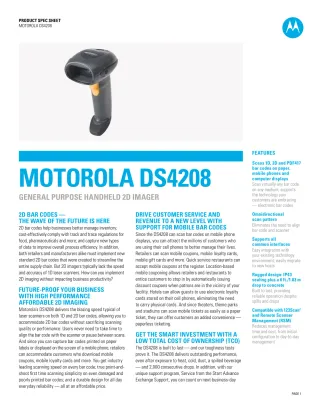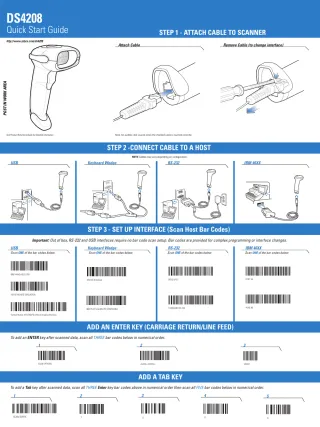
Spec sheet · Motorola
Motorola DS-4208 Quick Start
Spec sheet2 pagesPDF 2.6 MB
Both pages are below, each with its text.
Covers · 1 model
The models it covers
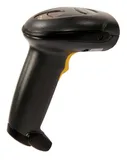
From the sheet · read page by page
Key facts from this sheet
Each line names its page in the PDF.
This is the two-page Quick Start Guide for the DS4208 scanner, printed under the Zebra and Symbol names in 2015. It shows how to attach the cable, connect to a host, pick the host interface by scanning bar codes, add an Enter or Tab suffix, return to defaults and read the troubleshooting chart.
- Host interfaces
- USB, Keyboard Wedge, RS-232 and IBM 46XX p. 1
- Default setup
- RS-232 and USB work out of the box with no setup bar codes p. 1
- Power supply
- PWRS-14000, 5.2Vdc, 850mA minimum, direct plug-in p. 2
- Cable
- Removable shielded cable that clicks when seated; remove it to change interface p. 1
- Setup software
- 123Scan2, a PC-based tool for setup via a bar code or USB cable p. 2
- Host bar codes
- IBM AT Notebook, IBM PC/AT and compatible, Standard RS-232, Port 5B, Port 9B, OPOS/JPOS, IBM hand-held USB, HID keyboard emulation, SNAPI without imaging p. 1
- Document
- 72-139230-02 Revision A, March 2015 p. 2
What this sheet walks you through
- Attaching or removing the scanner cable p. 1
- Connecting the cable to a host p. 1
- Setting the host interface by scanning bar codes p. 1
- Adding an Enter key after scanned data p. 1
- Adding a Tab key after scanned data p. 1
- Returning the scanner to factory defaults p. 2
- Troubleshooting a scanner that does not decode or transmit p. 2
- Ergonomic recommendations for scanning work p. 2
Good to know
- Only the listed PWRS-14000 power supply should be used; another supply voids the unit's approvals and may be dangerous. p. 2
- The cable needed depends on the configuration. p. 1
- Adding a Tab key requires scanning the three Enter key bar codes first, then five more. p. 1
Questions this sheet answers
Does the DS4208 need programming for USB?
No. Out of the box, the USB and RS-232 interfaces need no setup bar codes. p. 1
How do I make the DS4208 add Enter after each scan?
Scan all three Enter key bar codes on the guide in numerical order. p. 1
What power supply does the DS4208 use?
A listed PWRS-14000 direct plug-in supply rated 5.2Vdc, 850mA minimum, when a supply is needed. p. 2
Why does my DS4208 scan but send nothing to the computer?
The scanner may not be set for the right host interface, or the interface cable is loose: scan the host bar codes and check the cable connections. p. 2
How do I reset the DS4208 to factory defaults?
Scan the Set Defaults bar code in the guide. p. 2
The file
Size and text
Every page · 2
Read it here
Each page as it is printed, and its words beside it, so a phone can search and copy them.
Page1of 2
Open in the PDF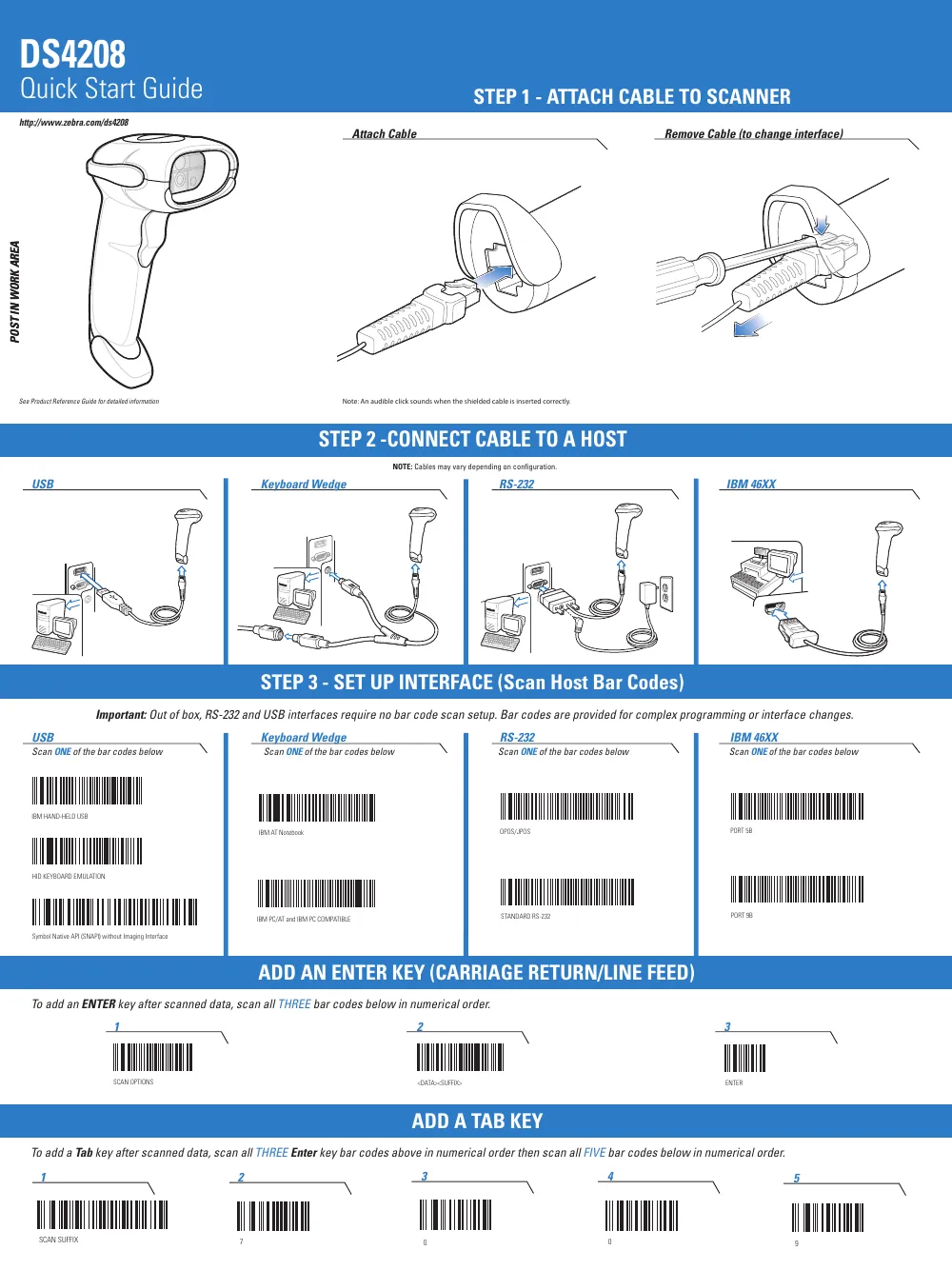
The text of page 1, from the PDF itself
DS4208
Quick Start Guide
STEP 1 - ATTACH CABLE TO SCANNER
http://www.zebra.com/ds4208
Remove Cable (to change interface)
POST IN WORK AREA
Attach Cable
Note: An audible click sounds when the shielded cable is inserted correctly.
See Product Reference Guide for detailed information
STEP 2 -CONNECT CABLE TO A HOST NOTE: Cables may vary depending on configuration.
USBKeyboard WedgeRS-232IBM 46XX
STEP 3 - SET UP INTERFACE (Scan Host Bar Codes) Important: Out of box, RS-232 and USB interfaces require no bar code scan setup. Bar codes are provided for complex programming or interface changes.
USBKeyboard WedgeRS-232IBM 46XX
Scan ONE of the bar codes below
Scan ONE of the bar codes below
Scan ONE of the bar codes below
Scan ONE of the bar codes below
IBM AT NotebookOPOS/JPOSPORT 5B
IBM PC/AT and IBM PC COMPATIBLE
STANDARD RS-232PORT 9BIBM HAND-HELD USBHID KEYBOARD EMULATION
Symbol Native API (SNAPI) without Imaging Interface
ADD AN ENTER KEY (CARRIAGE RETURN/LINE FEED) To add an ENTER key after scanned data, scan all THREE bar codes below in numerical order. 1
23SCAN OPTIONS<DATA><SUFFIX>ENTER
ADD A TAB KEY To add a Tab key after scanned data, scan all THREE Enter key bar codes above in numerical order then scan all FIVE bar codes below in numerical order. 1
2345SCAN SUFFIX7009
Page2of 2
Open in the PDF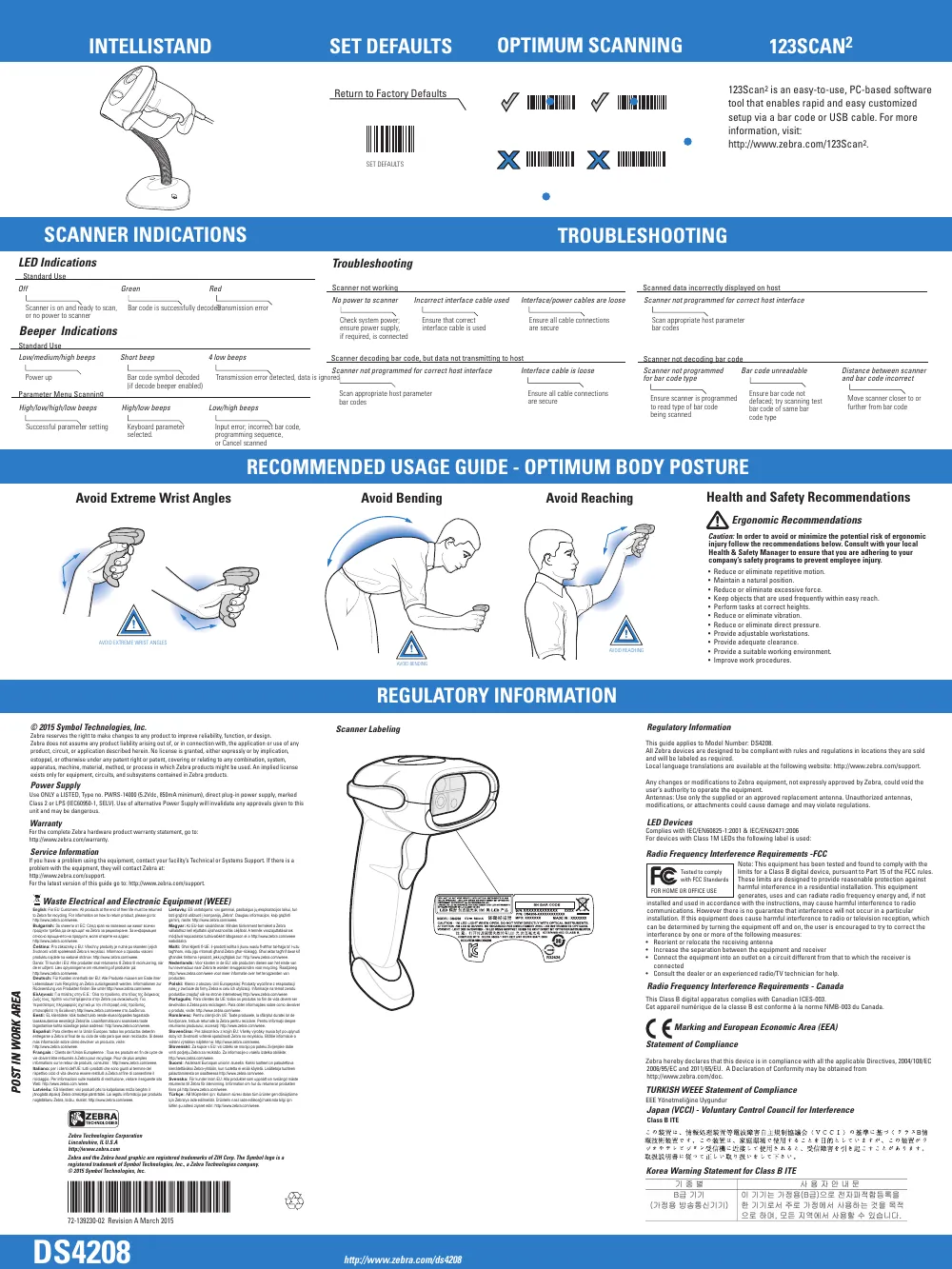
The text of page 2, from the PDF itself
INTELLISTANDSET DEFAULTSOPTIMUM SCANNING
123SCAN2 123Scan2 is an easy-to-use, PC-based software tool that enables rapid and easy customized setup via a bar code or USB cable. For more information, visit: http://www.zebra.com/123Scan2.
Return to Factory Defaults
SET DEFAULTS
SCANNER INDICATIONS LED Indications
TROUBLESHOOTING Troubleshooting
Standard Use Off
Green
Scanner is on and ready to scan, or no power to scanner
Scanner not working
Red
Bar code is successfully decoded Transmission error
Check system power; ensure power supply, if required, is connected
Beeper Indications Standard Use Low/medium/high beeps
Short beep
Power up
Parameter Menu Scanning
Successful parameter setting
Scanned data incorrectly displayed on host Incorrect interface cable used Ensure that correct interface cable is used
Interface/power cables are loose
Bar code symbol decoded (if decode beeper enabled)
Keyboard parameter selected.
Scanner decoding bar code, but data not transmitting to host Scanner not programmed for correct host interface Interface cable is loose Transmission error detected, data is ignored
Low/high beeps
Scan appropriate host parameter bar codes
Scanner not programmed for correct host interface
Ensure all cable connections are secure
4 low beeps
High/low beeps
High/low/high/low beeps
No power to scanner
Scan appropriate host parameter bar codes
Scanner not decoding bar code Scanner not programmed Bar code unreadable for bar code type
Ensure all cable connections are secure
Ensure scanner is programmed to read type of bar code being scanned
Distance between scanner and bar code incorrect
Ensure bar code not defaced; try scanning test bar code of same bar code type
Move scanner closer to or further from bar code
Input error; incorrect bar code, programming sequence, or Cancel scanned
RECOMMENDED USAGE GUIDE - OPTIMUM BODY POSTURE Avoid Extreme Wrist Angles
Avoid Bending
Health and Safety Recommendations
Avoid Reaching
Ergonomic Recommendations Caution: In order to avoid or minimize the potential risk of ergonomic injury follow the recommendations below. Consult with your local Health & Safety Manager to ensure that you are adhering to your company’s safety programs to prevent employee injury.
- Reduce or eliminate repetitive motion.
- Maintain a natural position.
- Reduce or eliminate excessive force.
- Keep objects that are used frequently within easy reach.
- Perform tasks at correct heights.
- Reduce or eliminate vibration.
- Reduce or eliminate direct pressure.
- Provide adjustable workstations.
- Provide adequate clearance.
- Provide a suitable working environment.
- Improve work procedures.
AVOID EXTREME WRIST ANGLES AVOID REACHING AVOID BENDING
REGULATORY INFORMATION © 2015 Symbol Technologies, Inc.
Zebra reserves the right to make changes to any product to improve reliability, function, or design. Zebra does not assume any product liability arising out of, or in connection with, the application or use of any product, circuit, or application described herein. No license is granted, either expressly or by implication, estoppel, or otherwise under any patent right or patent, covering or relating to any combination, system, apparatus, machine, material, method, or process in which Zebra products might be used. An implied license exists only for equipment, circuits, and subsystems contained in Zebra products.
Scanner Labeling
This guide applies to Model Number: DS4208. All Zebra devices are designed to be compliant with rules and regulations in locations they are sold and will be labeled as required. Local language translations are available at the following website: http://www.zebra.com/support. Any changes or modifications to Zebra equipment, not expressly approved by Zebra, could void the user’s authority to operate the equipment. Antennas: Use only the supplied or an approved replacement antenna. Unauthorized antennas, modifications, or attachments could cause damage and may violate regulations.
Power Supply Use ONLY a LISTED, Type no. PWRS-14000 (5.2Vdc, 850mA minimum), direct plug-in power supply, marked Class 2 or LPS (IEC60950-1, SELV). Use of alternative Power Supply will invalidate any approvals given to this unit and may be dangerous.
LED Devices
Warranty
For the complete Zebra hardware product warranty statement, go to: http://www.zebra.com/warranty.
Complies with IEC/EN60825-1:2001 & IEC/EN62471:2006 For devices with Class 1M LEDs the following label is used:
Service Information
Radio Frequency Interference Requirements -FCC
If you have a problem using the equipment, contact your facility’s Technical or Systems Support. If there is a problem with the equipment, they will contact Zebra at: http://www.zebra.com/support. For the latest version of this guide go to: http://www.zebra.com/support.
Note: This equipment has been tested and found to comply with the limits for a Class B digital device, pursuant to Part 15 of the FCC rules. These limits are designed to provide reasonable protection against harmful interference in a residential installation. This equipment FOR HOME OR OFFICE USE generates, uses and can radiate radio frequency energy and, if not installed and used in accordance with the instructions, may cause harmful interference to radio communications. However there is no guarantee that interference will not occur in a particular installation. If this equipment does cause harmful interference to radio or television reception, which can be determined by turning the equipment off and on, the user is encouraged to try to correct the interference by one or more of the following measures:
- Reorient or relocate the receiving antenna
- Increase the separation between the equipment and receiver
- Connect the equipment into an outlet on a circuit different from that to which the receiver is connected
- Consult the dealer or an experienced radio/TV technician for help. Tested to comply with FCC Standards
Waste Electrical and Electronic Equipment (WEEE)
POST IN WORK AREA
Regulatory Information
English: For EU Customers: All products at the end of their life must be returned to Zebra for recycling. For information on how to return product, please go to: http://www.zebra.com/weee. Bulgarish: За клиенти от ЕС: След края на полезния им живот всички продукти трябва да се връщат на Zebra за рециклиране. За информация относно връщането на продукти, моля отидете на адрес: http://www.zebra.com/weee. Čeština: Pro zákazníky z EU: Všechny produkty je nutné po skonèení jejich životnosti vrátit spoleènosti Zebra k recyklaci. Informace o zpùsobu vrácení produktu najdete na webové stránce: http://www.zebra.com/weee. Dansk: Til kunder i EU: Alle produkter skal returneres til Zebra til recirkulering, når de er udtjent. Læs oplysningerne om returnering af produkter på: http://www.zebra.com/weee. Deutsch: Für Kunden innerhalb der EU: Alle Produkte müssen am Ende ihrer Lebensdauer zum Recycling an Zebra zurückgesandt werden. Informationen zur Rücksendung von Produkten finden Sie unter http://www.zebra.com/weee. Ελληνικά: Για πελάτες στην Ε.Ε.: Όλα τα προϊόντα, στο τέλος της διάρκειας ζωής τους, πρέπει να επιστρέφονται στην Zebra για ανακύκλωση. Για περισσότερες πληροφορίες σχετικά με την επιστροφή ενός προϊόντος, επισκεφθείτε τη διεύθυνση http://www.zebra.com/weee στο Διαδίκτυο. Eesti: EL klientidele: kõik tooted tuleb nende eluea lõppedes tagastada taaskasutamise eesmärgil Zebra'ile. Lisainformatsiooni saamiseks toote tagastamise kohta külastage palun aadressi: http://www.zebra.com/weee. Español: Para clientes en la Unión Europea: todos los productos deberán entregarse a Zebra al final de su ciclo de vida para que sean reciclados. Si desea más información sobre cómo devolver un producto, visite: http://www.zebra.com/weee. Français : Clients de l'Union Européenne : Tous les produits en fin de cycle de vie doivent être retournés à Zebra pour recyclage. Pour de plus amples informations sur le retour de produits, consultez : http://www.zebra.com/weee. Italiano: per i clienti dell'UE: tutti i prodotti che sono giunti al termine del rispettivo ciclo di vita devono essere restituiti a Zebra al fine di consentirne il riciclaggio. Per informazioni sulle modalità di restituzione, visitare il seguente sito Web: http://www.zebra.com /weee. Latviešu: ES klientiem: visi produkti pēc to kalpošanas mūža beigām ir jānogādā atpakaļ Zebra otrreizējai pārstrādei. Lai iegūtu informāciju par produktu nogādāšanu Zebra, lūdzu, skatiet: http://www.zebra.com/weee.
Lietuvių: ES vartotojams: visi gaminiai, pasibaigus jų eksploatacijos laikui, turi būti grąžinti utilizuoti į kompaniją „Zebra“. Daugiau informacijos, kaip grąžinti gaminį, rasite: http://www.zebra.com/weee. Magyar: Az EU-ban vásárlóknak: Minden tönkrement terméket a Zebra vállalathoz kell eljuttatni újrahasznosítás céljából. A termék visszajuttatásának módjával kapcsolatos tudnivalókért látogasson el a http://www.zebra.com/weee weboldalra. Malti: Għal klijenti fl-UE: il-prodotti kollha li jkunu waslu fl-aħħar tal-ħajja ta' l-użu tagħhom, iridu jiġu rritornati għand Zebra għar-riċiklaġġ. Għal aktar tagħrif dwar kif għandek tirritorna l-prodott, jekk jogħġbok żur: http://www.zebra.com/weee. Nederlands: Voor klanten in de EU: alle producten dienen aan het einde van hun levensduur naar Zebra te worden teruggezonden voor recycling. Raadpleeg http://www.zebra.com/weee voor meer informatie over het terugzenden van producten. Polski: Klienci z obszaru Unii Europejskiej: Produkty wycofane z eksploatacji nale¿y zwróciæ do firmy Zebra w celu ich utylizacji. Informacje na temat zwrotu produktów znajduj¹ siê na stronie internetowej http://www.zebra.com/weee. Português: Para clientes da UE: todos os produtos no fim de vida devem ser devolvidos à Zebra para reciclagem. Para obter informações sobre como devolver o produto, visite: http://www.zebra.com/weee. Românesc: Pentru clienţii din UE: Toate produsele, la sfârşitul duratei lor de funcţionare, trebuie returnate la Zebra pentru reciclare. Pentru informaţii despre returnarea produsului, accesaţi: http://www.zebra.com/weee. Slovenčina: Pre zákazníkov z krajín EU: Všetky výrobky musia byť po uplynutí doby ich životnosti vrátené spoločnosti Zebra na recykláciu. Bližšie informácie o vrátení výrobkov nájdete na: http://www.zebra.com/weee. Slovenski: Za kupce v EU: vsi izdelki se morajo po poteku življenjske dobe vrniti podjetju Zebra za reciklažo. Za informacije o vraèilu izdelka obišèite: http://www.zebra.com/weee. Suomi: Asiakkaat Euroopan unionin alueella: Kaikki tuotteet on palautettava kierrätettäväksi Zebra-yhtiöön, kun tuotetta ei enää käytetä. Lisätietoja tuotteen palauttamisesta on osoitteessa http://www.zebra.com/weee. Svenska: För kunder inom EU: Alla produkter som uppnått sin livslängd måste returneras till Zebra för återvinning. Information om hur du returnerar produkten finns på http://www.zebra.com/weee. Türkçe: AB Müşterileri için: Kullanım süresi dolan tüm ürünler geri dönüştürme için Zebra'ya iade edilmelidir. Ürünlerin nasıl iade edileceği hakkında bilgi için lütfen şu adresi ziyaret edin: http://www.zebra.com/weee.
Radio Frequency Interference Requirements - Canada This Class B digital apparatus complies with Canadian ICES-003. Cet appareil numérique de la classe B est conforme à la norme NMB-003 du Canada.
Marking and European Economic Area (EEA) Statement of Compliance Zebra hereby declares that this device is in compliance with all the applicable Directives, 2004/108/EC 2006/95/EC and 2011/65/EU. A Declaration of Conformity may be obtained from http://www.zebra.com/doc.
TURKISH WEEE Statement of Compliance EEE Yönetmeliğine Uygundur
Japan (VCCI) - Voluntary Control Council for Interference Class B ITE B
Zebra Technologies Corporation Lincolnshire, IL U.S.A http://www.zebra.com
Zebra and the Zebra head graphic are registered trademarks of ZIH Corp. The Symbol logo is a registered trademark of Symbol Technologies, Inc., a Zebra Technologies company. © 2015 Symbol Technologies, Inc.
Korea Warning Statement for Class B ITE
72-139230-02 Revision A March 2015
DS4208
http://www.zebra.com/ds4208