Manual · Mobility Electronics
InVision USB/Ethernet Charging Cradle User Guide
Manual16 pagesPDF 1.9 MB
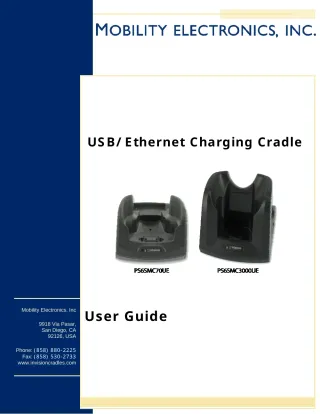
User guide for the Mobility Electronics PS6SMC3000UE and PS6SMC70UE USB/Ethernet charging cradles for Symbol MC3000 and MC70 terminals.
Covers · 1 model
The models it covers
Summary
What is in it
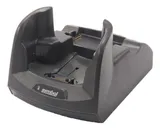
Mobility Electronics' user guide for the InVision PS6SMC3000UE and PS6SMC70UE single-slot USB/Ethernet charging cradles, which connect Symbol MC3000 or MC70 series terminals to a host computer or network while charging the terminal and a spare battery. It covers the rear ports, connecting power, setting the Network/USB switch, connecting by USB or Ethernet, confirming the link with ActiveSync, charging batteries, troubleshooting, regulatory information and the warranty.
Its parts
- Introduction
- Setting up the PS6SMC3000/70UE
- Operating the Cradle
- Product/Technical Support
From the manual · read page by page
Key facts from this manual
Each line names its page in the PDF.
The user guide for the Mobility Electronics InVision USB/Ethernet Charging Cradle, covering both the PS6SMC3000UE and PS6SMC70UE single-slot cradles for Symbol MC3000 and MC70 series terminals. It shows how to power the cradle, set it for USB or network use, charge the terminal and a spare battery, and fix common connection problems.
- Device
- Single-slot Ethernet and USB charging cradle for Symbol MC3000 or MC70 series terminals; also charges a spare battery p. 4
- Rear ports
- USB Mini-AB, RJ45 Network, 12VDC 3.33A power barrel port p. 4
- Power
- 12VDC 3.33A adapter, sold separately; adapters used by Symbol's cradles also fit p. 4, 5
- Network/USB switch
- Recessed switch on the side: left for NETWORK, right for USB p. 6
- USB cable
- USB Mini-B plug at the cradle, Standard-A plug at the computer p. 7
- Network
- Standard Ethernet cable to a hub, router, switch or wall data port; DHCP, or a static IP set on the handheld p. 8
- Charge times
- Terminal about 4 hours; spare battery under 4 hours (standard) or under 6 hours (Extended Life) p. 9
- Terminal charge LED
- Amber: slow blink charging, solid when charged, fast blink on a charging error p. 9
- Spare battery LED
- Red: slow blink charging, solid when charged, fast blink on a charging problem p. 9
- Sync software
- ActiveSync, supplied with the Symbol handheld terminal p. 7
- Guide part number
- 190132-001 Rev A, first edition August 2006 p. 2, 16
What this manual walks you through
- Connecting power to the cradle p. 5
- Setting the communication switch for network or USB p. 6
- Connecting the cradle to a host computer or USB device p. 7
- Connecting the cradle to a network and checking the IP address p. 8
- Charging the terminal and a spare battery p. 9
- Troubleshooting USB communication and failed synchronization p. 10, 11
- Troubleshooting network communication p. 12
Good to know
- The switch is recessed; the terminal's stylus may be needed to move it. p. 6
- Without a DHCP server on the network, the handheld needs a static IP address. p. 8
- With a dead terminal battery, wait two minutes before trying to synchronize again. p. 11
- The power cord plugs into a US standard AC outlet. p. 5
Questions this manual answers
How long does the PS6SMC70UE cradle take to charge an MC70?
About 4 hours for the terminal; a spare standard battery takes under 4 hours and an Extended Life battery under 6 hours. p. 9
What does a fast blinking amber light on the cradle mean?
There is an error charging the terminal; reseat the terminal in the cradle. p. 9
What power adapter does the PS6SMC70UE use?
A 12VDC 3.33A adapter with a barrel plug; the power adapters used by Symbol's cradles also work. p. 4, 5
How do I set the cradle for Ethernet instead of USB?
Slide the Network/USB switch on the side of the cradle to the left, to NETWORK. p. 8
Why can my terminal not communicate through the cradle's network port?
The guide lists a loose Ethernet cable, no power to the cradle, a terminal not fully seated, the switch not fully left, unconfigured software, or a network fault. p. 12
Contents
Chapters and sections
Each line opens the PDF at its page.
The whole text · 2 parts
Read the manual here as text
Its text as extracted from the PDF, unedited, in parts; each page opens the PDF at that page.
The file