


Manual · Magpix
Magpix LUP200A Manual
Manual3 pagesPDF 3.3 MB
All 3 pages are below, each with its text.
Covers · 1 model
The models it covers
From the manual · read page by page
Key facts from this manual
Each line names its page in the PDF.
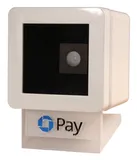
Three-page user's guide for the LevelUp Scanner LUP200A, a QR code scanner for the LevelUp mobile payments system. It explains setting the scanner up over USB or Bluetooth, pairing and unpairing it, and how it reads a customer's code and sends it to the point-of-sale device.
- What it is
- Scanner for the LevelUp mobile payments system that reads a QR code shown on a customer's phone and passes it to the POS device p. 2
- Connections
- USB or Bluetooth to the point-of-sale device p. 1
- Output modes
- USB keyboard wedge, USB serial (ASCII bytes), or Bluetooth HID keyboard p. 2, 3
- In the box
- Scanner, button and scanner cable p. 1
- Bluetooth power
- Scanner cable's USB jack into a 500mA or higher USB power adapter, not included p. 1
- Button
- When connected, holds the scanned code until the button is pressed p. 2
- Status light
- Breathing white when idle and ready; flashing blue in Bluetooth pairing mode; glows a color set in the QR code on a read p. 1, 2
- Bluetooth name
- LevelUpScanner plus the last four digits of the serial number on the back p. 1, 2
- FCC
- The manual states it complies with part 15 of the FCC Rules p. 3
What this manual walks you through
- Setting the scanner up on a POS device's USB port p. 1
- Pairing the scanner with a tablet over Bluetooth p. 1, 2
- Unpairing the scanner to switch back to USB p. 2
- How a customer scans a LevelUp code during a transaction p. 2
- How the code reaches the host in each output mode p. 2, 3
Good to know
- Bluetooth pairing mode lasts one minute; if it times out before pairing, unplug and replug the scanner. p. 2
- For Bluetooth pairing the scanner lies face down so the scanning window is fully covered. p. 1
Questions this manual answers
How do I connect the LevelUp LUP200A scanner by USB?
Connect the scanner cable to the back of the scanner and the other end to a USB port on the POS device; it lights green, then breathes white when ready. p. 1
How do I pair the LUP200A over Bluetooth?
Power it from a 500mA or higher USB adapter while face down, then pick LevelUpScanner plus the last four serial number digits on the tablet's pairing screen. p. 1, 2
Does the LUP200A need a pairing code?
No; if pairing fails, try again. p. 2
The file
Size and text
Every page · 3
Read it here
Each page as it is printed, and its words beside it, so a phone can search and copy them.
Page1of 3
Open in the PDF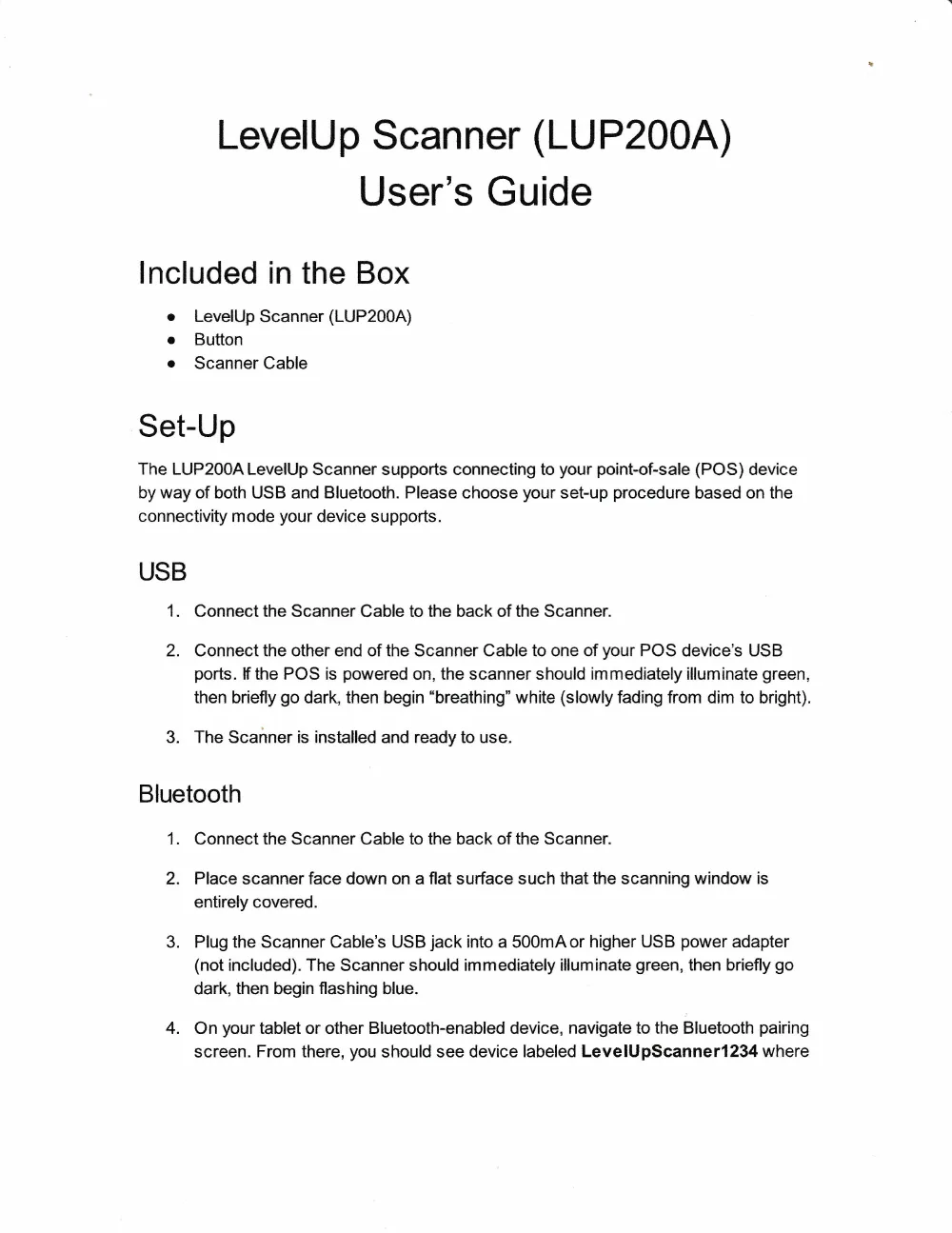
The text of page 1, from the PDF itself
LevelUp Scanner (LUP200A) User's Guide lncluded in the Box r LevelUp Scanner (LUP200A) o Button o Scanner Cable
Set-Up The LUP200A LevelUp Scanner supports connecting to your point-of-sale (POS) device by way of both USB and Bluetooth. Please choose your set-up procedure based on the connectivity mode your device supports.
USB
1. Connect the Scanner Cable to the back of the Scanner.
2. Connect the other end of the Scanner Cable to one of your POS device's USB ports. tf the POS is powered on, the scanner should immediately illuminate green, then briefly go dark, then begin "breathing" whrte (slowly fading from dim to bright).
3. The Scanner is installed and ready to use. Bluetooth 1. Connect the Scanner Cable to the back of the Scanner.
2. Place scanner face down on a flat surface such that the scanning window is entirely covered.
3. Plug the Scanner Cable's USB jack into a 500mA or higher USB power adapter (not included). The Scanner should immediately illuminate green, then briefly go dark, then begin flashing blue.
4. On your tablet or other Bluetooth-enabled device, navigate to the Bluetooth pairing screen. From there, you should see device labeled LevelUpScannerl234 where
Page2of 3
Open in the PDF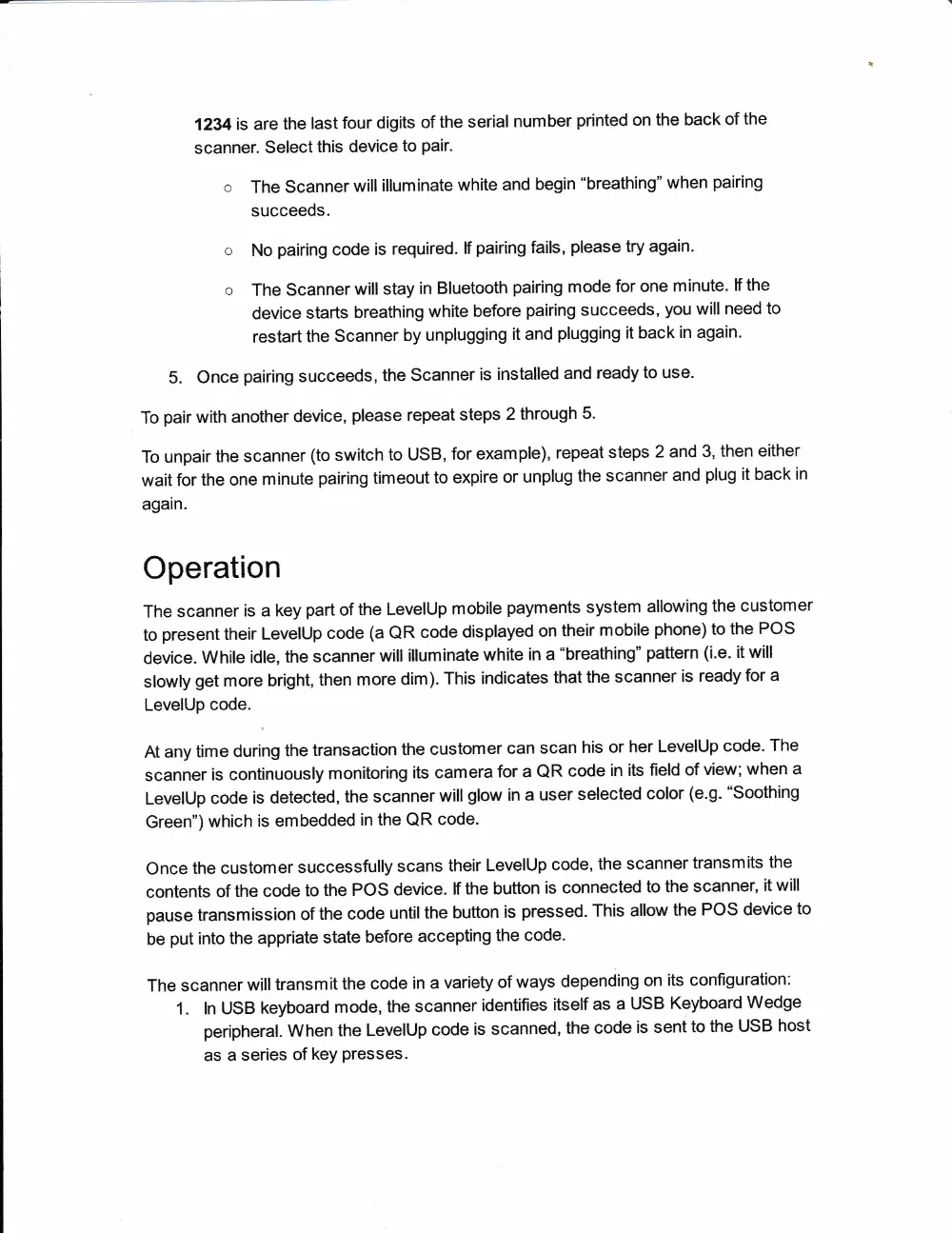
The text of page 2, from the PDF itself
1234 is are the last four digits of the serial number printed on the back of the scanner. Select this device to pair.
o The Scanner will illuminate white and begin "breathing" when pairing succeeds.
o No pairing code is required. tf pairing fails, please try again' o The Scanner witl stay in Bluetooth pairing mode for one minute. tf the device starts breathing white before pairing succeeds, you will need to restart the Scanner by unplugging it and plugging it back in again.
5. Once pairing succeeds, the Scanner is installed and ready to use. To pair with another device, please repeat steps 2 through 5' To unpair the scanner (to switch to USB, for example), repeat steps 2 and 3, then either wait for the one minute pairing timeout to expire or unplug the scanner and plug it back in again.
Operation The scanner is a key part of the LevelUp mobile payments system allowing the customer to present their LevelUp code (a QR code displayed on their mobile phone) to the POS device. While idle, the scanner will illuminate white in a "breathing" pattern (i.e. it will slowly get more bright, then more dim). This indicates that the scanner is ready for a LevelUp code. At any time during the transaction the customer can scan his or her LevelUp code. The scanner is continuously monitoring its camera for a QR code in its field of view; when a
"Soothing LevelUp code is detected, the scanner will glow in a user selected color (e.9. Green") which is embedded in the QR code.
Once the customer successfully scans their LevelUp code, the scanner transmits the contents of the code to the POS device. lf the button is connected to the scanner, it will pause transmission of the code until the button is pressed. This allow the POS device to be put into the appriate state before accepting the code. The scanner will transmit the code in a variety of ways depending on its configuration: 1. ln USB keyboard mode, the scanner identifies itself as a USB Keyboard Wedge peripheral. When the LevelUp code is scanned, the code is sent to the USB host
as a series of keY Presses.
Page3of 3
Open in the PDF
The text of page 3, from the PDF itself
2. ln USB serial mode, the scanner identifies itself as a USB serial device. When the LevelUp code is scanned, the scanner sends the code as a series of ASCllbytes.
3. ln Bluetooth mode, the scanner identifies itself using the Bluetooth HtD protocol as a keyboard. When the code is scanned, the QR code is sent over the Bluetooth interface to the host device. Once the QR code has been transferred from the scanner to the POS device, the scanner resumes looking for LevelUp codes, and once again glows in its breathing pattern.
FCC Warning This device complies with part 't5 of the FCC Rules Operation is strbject to the following two conditions: (1) This device may not cause harmful interference, and (2) this device mu$ accept any interference received, including interference that may cause undesired
operation. NOTE 'l: This equipment has been tesied and found to comply with the limits for a Class Class BC
digital device, pursuant to part 15 of the FCC Rules These limits are designed to provide reasonable protection against harmful interference in a residential in*allation. This equipment generateg uses and can radiate radio frequency energy and, if not in$alled and u*d in accordance with the indructiong may cause harmfu! interference to radio communications. However, there is no guarantee that interference will not occur in a particular ins*allation. lf this equipment does cause harmful interference to radio or television reception, which can be determined by turning the equipment off and on, the user is encouraged to try to correct the interference by one or more of the following measures:
-
Reorient or relocate the receiving antenna. lncrease the separation between the equipment and receiver. Connect the equipment into an ouflet on a circuit difierent from that to which the receiver is connected. Consult the dealer or an experienced radio/TV technician for help.
NOTE 2: Any changes or modifications to this unit not expresdy approved by the party
responsible for compliance could void the user's authority to operate the equipment.