Manual · Kronos
Kronos 4500 Terminal Employee Training
Manual30 pagesPDF 486 KB
Employee training slides for the Kronos 4500 time clock terminal: badges, navigation keys, soft keys and rejected punches.
Covers · 1 model
The models it covers
Summary
What is in it
A slide-style employee training guide for the Kronos 4500 time and attendance terminal. It explains what the terminal does, the display, soft keys, navigation keys, keypad, status lights and badge reader, how to punch with a proximity badge, how to move the cursor, enter data and pick from lists, and how to use soft key transactions such as transfers, time off requests, accruals, timecards and messages. It ends with what to do when a punch is rejected.
Its parts
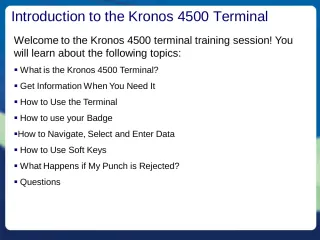
- What is the Kronos 4500 Terminal?
- Get Information When You Need It
- How to Use the Terminal
- How to Use a Proximity Reader Badge
- How to Navigate, Select and Enter Data
- How to Use Soft Keys
- What Happens if My Punch is Rejected?
- Questions?
From the manual · read page by page
Key facts from this manual
Some pages are scans or cannot be read; this says only what the readable text supports. Each line names its page in the PDF.
An employee training slide set for the Kronos 4500 time clock terminal. It shows how to punch with a badge, move around the screen, enter data, and use the soft keys for time off, accruals, timecards and messages. It closes with the punch rejection error codes and their likely causes.
- What it is
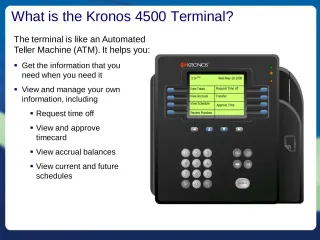
- Employee time clock terminal that works much like an ATM for punches and self-service p. 3
- Badge reader
- Bar code, magnetic stripe, or proximity reader p. 6
- Proximity range
- Hold the badge within 2 inches of the target area p. 7
- Controls
- Display, soft keys, navigation keys, keypad and ENTER key p. 6
- Display
- Shows the current date, time and soft key labels p. 6
- Status lights
- Top green flashes on a good badge read; middle orange flashes on a failed read; bottom orange shows power p. 6
- Sign-in
- Swipe the badge or enter a PIN p. 20
- Editing keys
- CLR clears a field; Backspace removes a character; ESC cancels without saving p. 15, 18
- Error 01-1
- Error reading badge p. 27
- Error 06-2
- Unknown home employee p. 28
- Punch reject codes
- 109 too early; 110 too late; 102 punch rule not sent; 108 unscheduled IN punch p. 29
- Entry formats
- Dates mm.dd.yyyy; hours hh:mm p. 21
What this manual walks you through
- Punching with a proximity badge p. 7
- Moving the cursor, entering data and picking from a list p. 13, 14, 15, 16, 17
- Canceling a transaction p. 18
- Making a job transfer with a comment code p. 20
- Requesting time off p. 21
- Viewing accrual balances and projections p. 22
- Viewing a timecard p. 23
- Approving a timecard or removing approval p. 24
- Reading and deleting messages p. 25
- Understanding rejected punches p. 27, 28, 29
Good to know
- Changing the comment code on a transfer requires knowing the correct code number. p. 20
- Hours requested off should not exceed the balance shown at the top of the form. p. 21
- An accruals date cannot be later than the projections-through date. p. 22
- ENTER moves to the next field only when the cursor is not on the last field. p. 14
- A new employee or a replaced badge may be rejected until the data reaches the terminal. p. 28
Questions this manual answers
What does Error 01-1 mean on a Kronos 4500?
It means the badge was not read. Swipe again from top to bottom; if it keeps happening, the badge quality may be the problem. p. 27
What does Kronos punch reject error 109 mean?
The punch was earlier than the employee's schedule permits. Code 110 means later than the schedule permits. p. 29
How close does a proximity badge need to be to the Kronos 4500?
Within 2 inches of the target area. A good punch gives one beep and a green flash. p. 7
What badge readers does the Kronos 4500 terminal use?
The badge reader may be bar code, magnetic stripe, or proximity. p. 6
What do the status lights on the Kronos 4500 mean?
The top green light flashes on a good badge read, the middle orange light flashes on a failed read, and the bottom orange light shows power. p. 6
Contents
Chapters and sections
Each line opens the PDF at its page.
- Slide Number 11
- Introduction to the Kronos 4500 Terminal2
- What is the Kronos 4500 Terminal?3
- Get Information When You Need It4
- Get Information (con’t)5
- How to Use the Terminal6
- How to Use a Proximity Reader Badge7
- How to Navigate, Select and Enter Data8
- Using the Navigation Keys9
- Using the Navigation Keys (con’t)10
- Using the Navigation Keys (con’t)11
- Locating the Cursor12
- Moving the Cursor in a Field13
- Moving the Cursor From Field to Field14
- Entering Data15
- To Pick from a List16
- To Pick from a List (con’t)17
- Canceling a Transaction18
- How to Use Soft Keys19
- Transfer with Comment20
- Request Time Off21
- View Accruals Online22
- View Timecard Online23
- Approve Timecard Online24
- View Messages25
- What Happens if My Punch is Rejected?26
- Error Reading Badge27
- Unknown Home Employee28
- Punch reject (xxx)29
- Questions?30
The whole text · 3 parts
Read the manual here as text
Its text as extracted from the PDF, unedited, in parts; each page opens the PDF at that page.
The file