Manual · KoamTac
KDC User Manual
Manual231 pagesPDF 5.2 MB
User manual for the KOAMTAC KDC barcode data collectors, including the KDC200: Bluetooth pairing, menus, KTSync and setup barcodes.
Covers · 1 model
The models it covers
Summary
What is in it
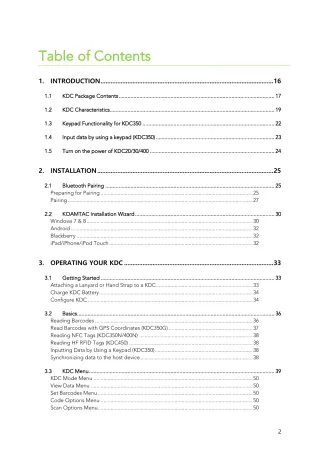
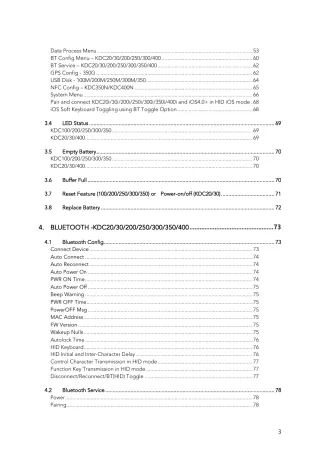
KOAMTAC's user manual for its KDC family of barcode scanners and data collectors (KDC20, KDC30, KDC100, KDC200, KDC250, KDC300, KDC350, KDC400 and KDC450). It covers package contents, Bluetooth pairing, the KDC menus, LED status, batteries, synchronizing data with KTSync on Windows, Android, BlackBerry, iOS and Mac OS X, generating applications, troubleshooting, and appendices of barcode options, an FAQ and special setup barcodes.
Its parts
- Introduction
- Installation
- Operating Your KDC
- Bluetooth
- Synchronization
- Application Generation
- Troubleshooting
- Warranty
- Contact Information
From the manual
Key facts from this manual
Some pages are scans or cannot be read; this says only what the readable text supports. Each line names its page in the PDF.
This is the KoamTac KDC User Manual for the whole KDC family of barcode data collectors: the KDC20, KDC30, KDC100, KDC200, KDC250, KDC300, KDC350, KDC400 and KDC450. It explains Bluetooth pairing, charging, the device menus and settings, syncing data with KTSync, the inventory application and troubleshooting, and it includes special configuration barcodes.
- What it is
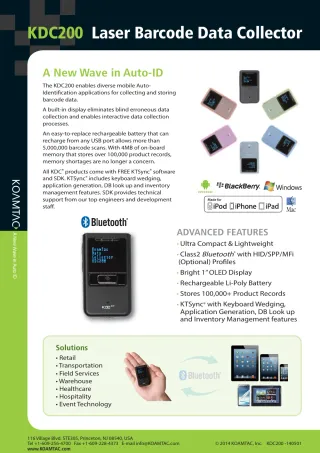
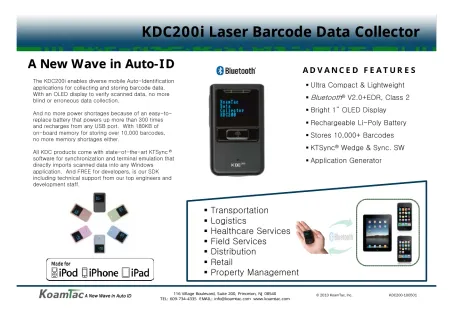
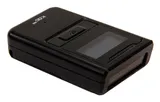
- KDC200: barcode reader and data collector with OLED display, green/red/orange LEDs, SCAN, UP and DOWN buttons p. 20
- Interfaces
- KDC200: one ultra mini USB port (USB to Serial) and Bluetooth with HID/SPP/MFi profiles p. 136
- Battery
- KDC200: rechargeable Lithium-polymer; charges from any USB port or a KDC charging cradle p. 72
- Charge time
- KDC200: about 2 hours p. 136
- Scans per charge
- KDC200: more than 7,500 barcodes, scanning one per second p. 136
- In the box
- KDC200: the data collector, 8pin Ultra mini USB cable, lanyard, protective rubber boot p. 17
- Memory
- KDC200M: 4MB data memory, up to 204,800 barcodes p. 137
- Sleep battery life
- KDC200: more than 2 days while connected in Bluetooth, 60 days when not connected p. 136
- Bluetooth profiles
- KDC200: SPP, SPP2.0, HID iOS, HID normal or MFi, set by programming barcode or from the menu p. 25, 26
- Software
- KDC200: KTSync bundled (keyboard wedging, application generation, DB look up, inventory) for Android, iPhone/iPad/iPod touch, Blackberry, Windows XP/Vista/7/Mobile5.0+ p. 137
- Accessories
- KDC200: SmartSled cases, charging cradles, finger trigger gloves and glove adaptor, KDC batteries p. 17
- Configuration
- KDC200: KDC menu (UP and DOWN together), KTSync software, or special barcodes p. 34
- Inventory application
- Up to 800 items; records up to 128 bytes with up to 4 fields p. 122
What this manual walks you through
- Pairing a KDC with a PC or smart device over Bluetooth p. 25, 26, 27, 28
- Pairing by scanning a Bluetooth MAC address barcode p. 28, 29
- Charging the battery p. 34
- Opening the KDC menu to change settings p. 34
- Reading barcodes and what to try after a failed read p. 36, 37
- Reading the LED status p. 69
- Empty Battery and Buffer Full messages p. 70
- Resetting the KDC without losing data p. 71
- Replacing the battery p. 72
- Troubleshooting charging, reading and connection problems p. 123, 124
Good to know
- Laser models such as the KDC200 read only printed barcodes, not barcodes on an LCD screen. p. 29
- The KDC loses collected data if the battery runs empty. p. 124
- When Buffer Full appears, synchronize the data and then reset the memory to avoid losing data. p. 70
- The Dell Quickset utility interferes with KTSync and should be disabled first. p. 124
- The manual advises leaving the settings unchanged until you are familiar with them. p. 34
Questions this manual answers
How do I reset a KDC200 without losing data?
Hold the DOWN and SCAN buttons together for 5 seconds and release when the LEDs turn orange. Stored data and settings are kept. p. 71
How long does a KDC200 take to charge?
About 2 hours. The LEDs glow orange while charging and turn green when the battery is full. p. 34, 136
KDC200 not charging
A USB port may not supply enough current, so charge from a different USB port; a bad battery needs replacing. p. 123
Can the KDC200 scan a barcode on a phone screen?
No. Laser models such as the KDC200 are not designed to read barcodes from an LCD screen and read only printed barcodes. p. 29
How many barcodes can a KDC200 store?
The KDC200M has 4MB of data memory, which stores up to 204,800 barcodes. p. 137
The whole text · 24 parts
Read the manual here as text
Its text as extracted from the PDF, unedited, in parts; each page opens the PDF at that page.
- Pages 1 to 101-10
- Pages 11 to 2011-20
- Pages 21 to 3021-30
- Pages 31 to 4031-40
- Pages 41 to 5041-50
- Pages 51 to 6051-60
- Pages 61 to 7061-70
- Pages 71 to 8071-80
- Pages 81 to 9081-90
- Pages 91 to 10091-100
- Pages 101 to 110101-110
- Pages 111 to 120111-120
- Pages 121 to 130121-130
- Pages 131 to 140131-140
- Pages 141 to 150141-150
- Pages 151 to 160151-160
- Pages 161 to 170161-170
- Pages 171 to 180171-180
- Pages 181 to 190181-190
- Pages 191 to 200191-200
- Pages 201 to 210201-210
- Pages 211 to 220211-220
- Pages 221 to 230221-230
- Page 231231
The file