


Manual · KKMO
Barcode Scanner Quick Start Guide
Manual2 pagesPDF 2.8 MB
Both pages are below, each with its text.
What this file really is
The old site listed this file as a manual for the KKMO 2887. The guide names no maker or model; KKMO 2887 is not named.
Filed with · 1 model
Also filed with these models on the old site
From the manual · read page by page
Key facts from this manual
Each line names its page in the PDF.
Two-page quick start guide for a Bluetooth handheld barcode scanner; the guide itself prints no brand name or model number. It lists the scanner's parameters and box contents, shows how to pair it with Windows, Android and iOS, and explains the LED and beep signals. It also carries setup barcodes and a short FAQ.
- Type
- Bluetooth wireless barcode scanner, bi-directional single line scan p. 1
- Bluetooth
- Bluetooth 3.0 module; 10 m visual range, 80 m effective open distance p. 1
- Works with
- iOS, Android and Windows p. 1
- Battery
- 1000mAh lithium, built in p. 1
- Memory
- 512KB, stores thousands of barcodes offline p. 1
- Scan speed
- 500 scans per second p. 1
- Light source
- Visible red LED, 632nm p. 1
- Symbologies
- CODEBAR, CODE11, CODE93, Full ASCII, UPC/EAN, Code128, UCC/EAN128, Code39, MSI, ISBN, ISSN, Postal code, Interleaved 2 of 5 p. 1
- Processor
- ARM Cortex-M3, 32-bit p. 1
- In the box
- Scanner, USB charging cable, quick start guide, USB dongle p. 1
- Dongle connections
- One USB dongle can connect up to 7 scanners p. 2
What this manual walks you through
- Pairing with Windows XP, Windows 7 and Windows 8 p. 1
- Pairing with Android and iOS devices p. 1
- Changing settings by scanning setup barcodes p. 1
- Setting sleep time, inventory mode and SPP or HID mode p. 1
- Reading the LED and beep signals p. 2
- Enabling or disabling barcode types and choosing the data suffix p. 2
- Troubleshooting pairing, uploading and unread barcodes p. 2
Good to know
- Some barcode types are disabled at the factory and must be enabled by scanning their setup barcode. p. 2
- In inventory mode, scanned barcodes must be uploaded manually or by reading the upload barcode. p. 2
- Remove the power and USB cable during thunderstorms, keep the scanner away from heat, and use a matching power adapter. p. 2
Questions this manual answers
How do I put the Bluetooth barcode scanner into pairing mode?
Turn it on and hold the trigger for 8 seconds, or scan the pairing setup barcode, until the blue LED flashes. p. 1
What does three long beeps mean on the scanner?
Low battery. Two long beeps signal a Bluetooth module error or full memory. p. 2
Why won't the scanner read some barcode types?
Some types are disabled at the factory; scan the matching enable barcode to turn them on. p. 2
Why don't my scans reach the PC after pairing?
Check that the scanner's indicator is blue (paired) and that inventory mode is off, since that mode holds scans until uploaded. p. 2
What do the red LEDs mean?
A steady red LED means charging; a flashing red LED means poor battery contact. p. 2
The file
Size and text
Every page · 2
Read it here
Each page as it is printed, and its words beside it, so a phone can search and copy them.
Page1of 2
Open in the PDF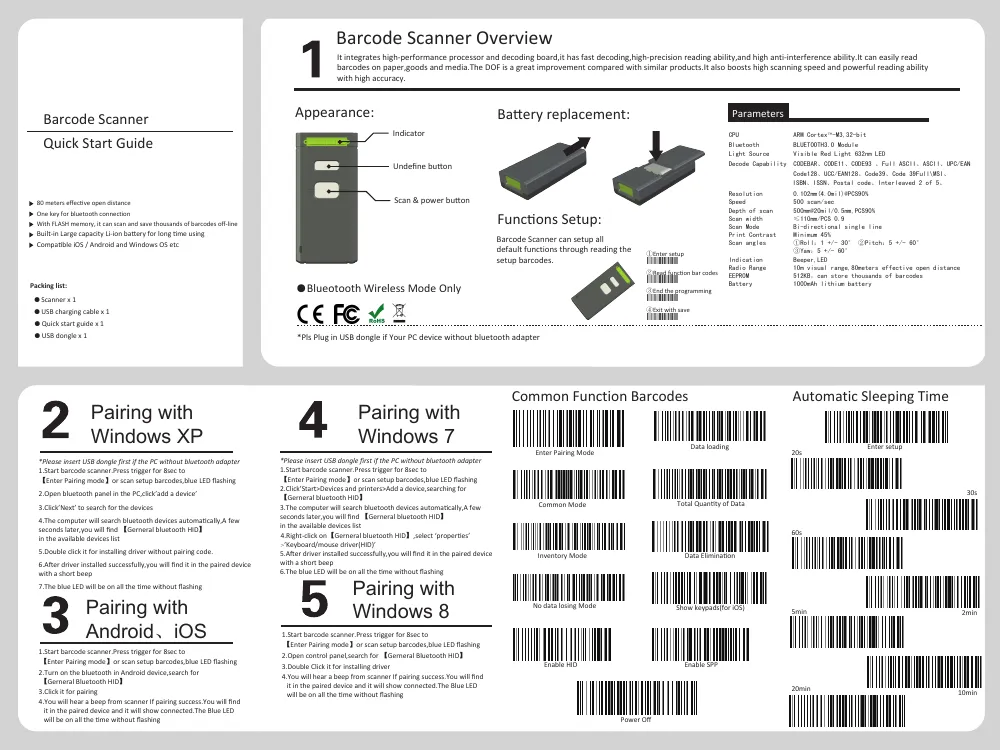
The text of page 1, from the PDF itself
Barcode Scanner Overview It integrates high-performance processor and decoding board,it has fast decoding,high-precision reading ability,and high anti-interference ability.It can easily read barcodes on paper,goods and media.The DOF is a great improvement compared with similar products.It also boosts high scanning speed and powerful reading ability with high accuracy.
Barcode Scanner Quick Start Guide
Appearance:
- Battery replacement
- Parameters
Indicator
Undefine button
80 meters effective open distance
Scan & power button
One key for bluetooth connection
- Functions Setup
- With FLASH memory, it can scan and save thousands of barcodes off-line
Built-in Large capacity Li-ion battery for long time using Compatible iOS / Android and Windows OS etc
Barcode Scanner can setup all default functions through reading the setup barcodes.
①Enter setup ②Read function bar codes
- Blueotooth Wireless Mode Only
- Packing list
- ③End the programming
CPU Bluetooth Light Source Decode Capability
ARM Cortex™-M3,32-bit BLUETOOTH3.0 Module Visible Red Light 632nm LED CODEBAR、CODE11、CODE93 、Full ASCII、ASCII、UPC/EAN Code128、UCC/EAN128、Code39、Code 39Full\MSI、 ISBN、ISSN、Postal code、Interleaved 2 of 5、
Resolution Speed Depth of scan Scan width Scan Mode Print Contrast Scan angles
0.102mm(4.0mil)@PCS90% 500 scan/sec 500mm@20mil/0.5mm,PCS90% ≤110mm/PCS 0.9 Bi-directional single line Minimum 45% ①Roll:1 +/- 30° ②Pitch:5 +/- 60° ③Yaw:5 +/- 60° Beeper,LED 10m visual range,80meters effective open distance 512KB,can store thousands of barcodes 1000mAh lithium battery
Indication Radio Range EEPROM Battery
- Scanner x 1 ④Exit with save
- USB charging cable x 1
- Quick start guide x 1
- USB dongle x 1
*Pls Plug in USB dongle if Your PC device without bluetooth adapter
Pairing with Windows XP *Please insert USB dongle first if the PC without bluetooth adapter 1.Start barcode scanner.Press trigger for 8sec to 【Enter Pairing mode】or scan setup barcodes,blue LED flashing 2.Open bluetooth panel in the PC,click’add a device’ 3.Click’Next’ to search for the devices 4.The computer will search bluetooth devices automatically,A few seconds later,you will find 【Gerneral bluetooth HID】 in the available devices list 5.Double click it for installing driver without pairing code. 6.After driver installed successfully,you will find it in the paired device with a short beep 7.The blue LED will be on all the time without flashing
Pairing with Android、iOS 1.Start barcode scanner.Press trigger for 8sec to 【Enter Pairing mode】or scan setup barcodes,blue LED flashing 2.Turn on the bluetooth in Android device,search for 【Gerneral Bluetooth HID】 3.Click it for pairing 4.You will hear a beep from scanner If pairing success.You will find it in the paired device and it will show connected.The Blue LED will be on all the time without flashing
Pairing with Windows 7 *Please insert USB dongle first if the PC without bluetooth adapter 1.Start barcode scanner.Press trigger for 8sec to 【Enter Pairing mode】or scan setup barcodes,blue LED flashing 2.Click’Start>Devices and printers>Add a device,searching for 【Gerneral bluetooth HID】 3.The computer will search bluetooth devices automatically,A few seconds later,you will find 【Gerneral bluetooth HID】 in the available devices list 4.Right-click on【Gerneral bluetooth HID】,select ‘properties’ >’Keyboard/mouse driver(HID)’ 5.After driver installed successfully,you will find it in the paired device with a short beep 6.The blue LED will be on all the time without flashing
Pairing with Windows 8
Common Function Barcodes
Automatic Sleeping Time Data loading
Enter Pairing Mode20sEnter setup
30s Total Quantity of Data
Common Mode60s Inventory ModeData EliminationNo data losing ModeShow keypads(for iOS)5min2min20min10min
1.Start barcode scanner.Press trigger for 8sec to 【Enter Pairing mode】or scan setup barcodes,blue LED flashing 2.Open control panel,search for 【Gerneral Bluetooth HID】 3.Double Click it for installing driver 4.You will hear a beep from scanner If pairing success.You will find it in the paired device and it will show connected.The Blue LED will be on all the time without flashing
Enable SPPEnable HIDPower Off
Page2of 2
Open in the PDF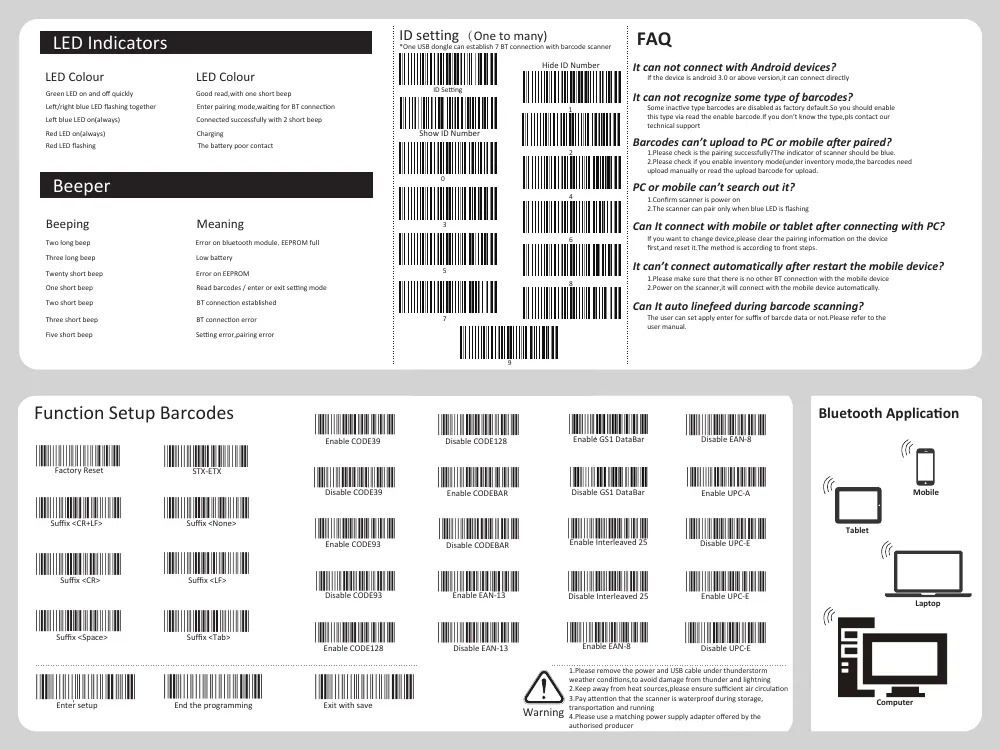
The text of page 2, from the PDF itself
ID setting (One to many)
LED Indicators
*One USB dongle can establish 7 BT connection with barcode scanner
Hide ID NumberLED ColourLED Colour
Green LED on and off quickly
Good read,with one short beep
Left/right blue LED flashing together
Enter pairing mode,waiting for BT connection
Left blue LED on(always)
Connected successfully with 2 short beep
Red LED on(always)ChargingRed LED flashing
The battery poor contact
It can not recognize some type of barcodes?
Some inactive type barcodes are disabled as factory default.So you should enable this type via read the enable barcode.If you don’t know the type,pls contact our technical support
1
Show ID Number
Barcodes can’t upload to PC or mobile after paired?
2
1.Please check is the pairing successfully?The indicator of scanner should be blue. 2.Please check if you enable inventory mode(under inventory mode,the barcodes need upload manually or read the upload barcode for upload.
0
PC or mobile can’t search out it?
4MeaningTwo long beep
Error on bluetooth module,EEPROM full
Three long beepLow batteryTwenty short beepError on EEPROM
It can not connect with Android devices? If the device is android 3.0 or above version,it can connect directly
ID SettingBeeper BeepingFAQ
1.Confirm scanner is power on 2.The scanner can pair only when blue LED is flashing
Can It connect with mobile or tablet after connecting with PC?
3
If you want to change device,please clear the pairing information on the device first,and reset it.The method is according to front steps.
6
It can’t connect automatically after restart the mobile device?
5
One short beep
Read barcodes / enter or exit setting mode
Two short beep
BT connection established
Three short beepBT connection errorFive short beep
Setting error,pairing error
1.Please make sure that there is no other BT connection with the mobile device 2.Power on the scanner,it will connect with the mobile device automatically.
8
Can It auto linefeed during barcode scanning? The user can set apply enter for suffix of barcde data or not.Please refer to the user manual.
7
9
Function Setup Barcodes Factory Reset
Suffix <CR+LF>Suffix <CR>Suffix <Space>Enter setup
Bluetooth Application Enable CODE39
Disable CODE128Enable GS1 DataBarDisable EAN-8Disable CODE39Enable CODEBARDisable GS1 DataBarEnable UPC-AEnable CODE93Disable CODEBAREnable Interleaved 25Disable UPC-EDisable CODE93Enable EAN-13Disable Interleaved 25Enable UPC-EEnable CODE128Disable EAN-13Enable EAN-8Disable UPC-ESTX-ETXSuffix <None>MobileTabletSuffix <LF>Suffix <Tab>End the programmingExit with save
1.Please remove the power and USB cable under thunderstorm weather conditions,to avoid damage from thunder and lightning 2.Keep away from heat sources,please ensure sufficient air circulation 3.Pay attention that the scanner is waterproof during storage, and running Warning transportation 4.Please use a matching power supply adapter offered by the authorised producer
Laptop
Computer