Manual · Janam
XM66 User Guide
Manual65 pagesPDF 1.9 MB
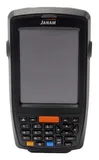
User guide for the Janam XM66 rugged Windows Mobile handheld computer with barcode scanning, WLAN and Bluetooth.
Covers · 1 model
The models it covers
Summary
What is in it
Janam user guide for the XM66, a rugged handheld computer running Microsoft Windows Mobile 6.1 with integrated barcode scanning. It gives a feature summary and hardware overview, then covers unpacking, installing and charging the battery, setup of the today screen and system preferences, soft and hard resets, barcode scanning (ScanWedge, 2D unlock, ScanCapture), data entry, ActiveSync, WLAN 802.11 configuration, Bluetooth, and regulatory and care information.
Its parts
- Introduction
- Get Started
- Set Up Your Janam XM66
- Reset the XM66
- Barcode Scanning
- Enter Data
- Exchange and Update Data Using ActiveSync
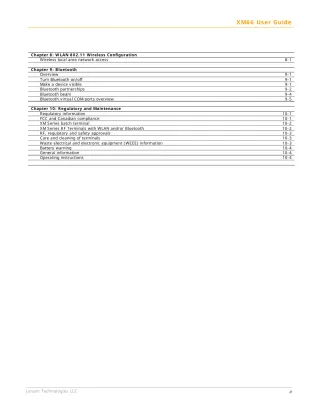
- WLAN 802.11 Wireless Configuration
- Bluetooth
- Regulatory and Maintenance
From the manual
Key facts from this manual
Some pages are scans or cannot be read; this says only what the readable text supports. Each line names its page in the PDF.
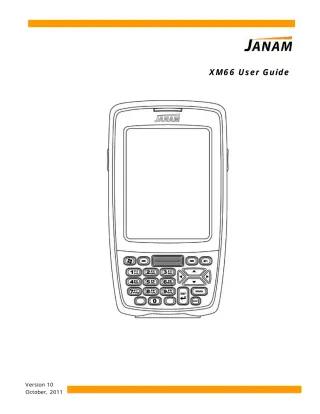
The Janam XM66 User Guide (version 10, October 2011) for the XM66 rugged Windows Mobile handheld computer. It shows the hardware, how to fit the handstrap and install and charge the battery, set the device up, reset it, scan bar codes, and use ActiveSync, Wi-Fi and Bluetooth, with regulatory and care information.
- Device
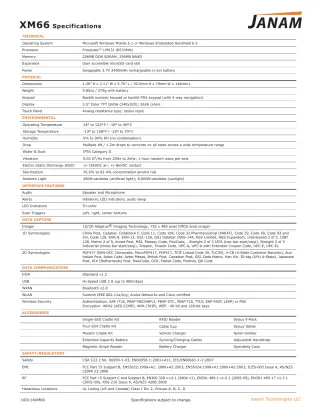
- Rugged Microsoft Windows Mobile 6.1 handheld computer with a 3.5" color display and integrated bar code scanning p. 6
- Radios
- WLAN 802.11b/g or a/b/g options, Cisco CCX certified; Bluetooth p. 6
- Ports
- Hi-Speed USB 2.0 and serial output; syncing/charging connector on the bottom; IrDA window; microSD card slot p. 5, 6
- Battery
- Janam lithium-ion rechargeable battery such as the BA-XP-1; full charge in about two hours p. 8, 65
- Charging options
- Single-slot cradle kit, four-slot cradle kit, USB cable with AC adapter, or serial cable with AC adapter p. 7
- Charge LED
- Orange means charging, green fully charged, red a fault p. 8
- 2D upgrade
- Firmware upgrade Part Number 2D-XP-1 unlocks 2D scanning with a key code p. 27
- Keypads
- Numeric keypad or PDA keypad versions, each with left, right and scan triggers p. 4
- Scan software
- ScanDemo, ScanWedge (scans into any open application) and ScanCapture image capture p. 26, 27, 28
- Drop and sealing
- Repeated 4 foot/1.2 meter drops to concrete; sealed to IP54 p. 6
- Weight
- Under 10 ounces p. 6
- Development kit
- XM Series Development Kit for eMbedded Visual C++ 4.0 (SP4 or above) or Visual Studio 2005 p. 7
- Wi-Fi utility
- Summit client utility (scu) under Start > Programs > Summit p. 53
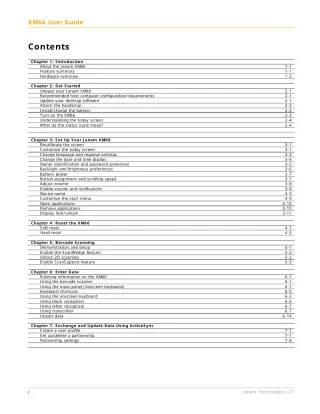
What this manual walks you through
- Unpacking, fitting the handstrap, and installing and charging the battery p. 7, 8
- Calibrating the screen and customizing the Today screen p. 11, 12
- Setting a password and backlight preferences p. 16
- Soft and hard reset on numeric and PDA keypad units p. 22, 23, 24, 25
- Running the scan demo and enabling ScanWedge p. 26, 27
- Unlocking 2D scanning with a key code p. 27
- Capturing images and signatures with ScanCapture p. 28, 29
- Turning Wi-Fi on and off p. 53
- Setting up Bluetooth virtual COM ports p. 60
- Care, cleaning and battery and charger warnings p. 64, 65
Good to know
- After the main battery is fully charged, leave it in the unit for 24 hours so the backup battery can keep user data. p. 8
- The unit powers down while the battery door is open and resumes when the door is closed. p. 23
- Use only Janam-approved batteries; the wrong type risks explosion. p. 8
- The 2D unlock code survives a soft or hard reset but must be entered again after a clean reset. p. 27
- XM66 Panel settings return to defaults after a cold boot. p. 23
Questions this manual answers
How do I hard reset a Janam XM66?
On a numeric keypad unit hold the yellow key and the power button for five seconds until the Janam logo appears; on a PDA keypad unit use F2 and power. All applications and data are removed. p. 24
How long does the XM66 battery take to charge?
About two hours, by USB or serial cable with the power supply or in a single-slot or four-slot cradle. p. 8
What battery does the Janam XM66 take?
A Janam-approved lithium-ion battery such as the BA-XP-1. p. 65
How do I enable 2D scanning on the XM66?
Buy the 2D-XP-1 upgrade, give the dealer the Scanner ID from the XM66 Panel Info tab, then enter the key code on the Scanner tab. p. 27
What does a red charging light on the XM66 mean?
Red indicates a fault; orange means charging and green means fully charged. p. 8
The whole text · 7 parts
Read the manual here as text
Its text as extracted from the PDF, unedited, in parts; each page opens the PDF at that page.
The file