Manual · Itronix
HUSKY FS3 User Leaflet
Manual12 pagesPDF 78 KB
User leaflet for the HUSKY FS3 rugged hand-held computer: battery setup, first start, controls, charging, cleaning and peripherals.
Covers · 1 model
The models it covers
Summary
What is in it
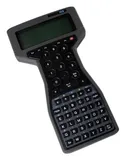
The user leaflet for the HUSKY FS3, a rugged, waterproof MS-DOS hand-held computer. It identifies the keys and connectors, walks through first-time setup (fitting and choosing the battery type, resetting, starting MS-DOS, setting time and date and power management), explains the controls, loading software with the HCOM file transfer utility, charging and replacing the battery, cleaning, connecting peripherals, simple problem checks and the AC power adaptor precautions.
Its parts
- Using Your FS3
- Setting Up
- Controls
- Loading Software
- The Battery
- Cleaning
- Peripherals
- Problems
- AC Power Adaptor
From the manual · read page by page
Key facts from this manual
Each line names its page in the PDF.
The user leaflet for the HUSKY FS3 rugged hand-held computer. It explains the keys and connectors, first-time setup with the battery, clock and power management, charging and replacing the battery, loading software, cleaning, connecting peripherals and basic problem checks.
- Device
- Rugged, waterproof hand-held computer that starts MS-DOS p. 2, 4
- Batteries
- HUSKY NiCd rechargeable pack (coded black) or NiMH high capacity pack (coded green); non-rechargeable alkaline for light duty p. 1
- NiMH requirement
- NiMH pack only in units with BIOS version 1.071 or higher p. 1
- Battery capacity setting
- 1600 mAh for a NiCd battery, 2100 mAh for a NiMH battery p. 6
- Ports
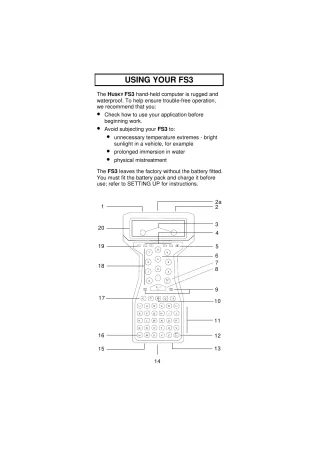
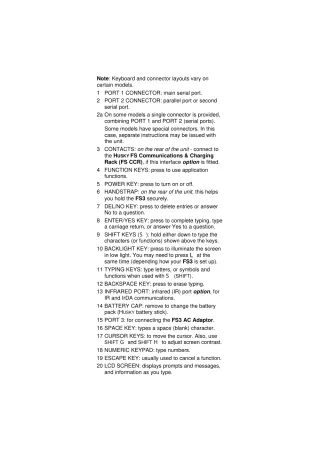
- Port 1 main serial; Port 2 parallel or second serial (one combined connector on some models); Port 3 for the AC adaptor p. 3
- Other interfaces
- Rear contacts for the HUSKY FS Communications & Charging Rack (FS CCR); optional infrared port for IR and IrDA p. 3
- Charging
- FS3 AC Adaptor on Port 3, or the FS Communications & Charging Rack; at least 8 hours (APM or FPM) or overnight (SPM) p. 6, 8, 9
- Power management
- Standard (SPM, the usual setting), Advanced (APM) or Fast (FPM) p. 5
- Emergency power
- Three new AA size alkaline batteries as a temporary measure p. 8
- Keyboard and screen
- Function keys, numeric keypad, letter keys, cursor keys, two SHIFT keys; LCD screen with backlight and contrast control p. 3
- Software transfer
- Files downloaded from a PC over a HUSKY approved cable with the HCOM file transfer utility p. 7
- Infrared range
- No more than 1m between the FS3 IR port and the peripheral p. 10
- Cables
- High quality shielded cables, normally no longer than 2 metres p. 12
What this manual walks you through
- Setting up a new FS3: fitting the battery, connecting power, resetting and starting MS-DOS p. 4
- Setting the time and date in the FS3 Utility menu p. 4, 5
- Setting the battery type and power management mode p. 5, 6
- Using the keys, screen contrast and backlight p. 6, 7
- Resetting an FS3 that locks up p. 7
- Loading software from a PC p. 7
- Charging and replacing the battery pack p. 8, 9
- Cleaning the unit p. 10
- Connecting peripherals and using the infrared port p. 10
- Checking common problems p. 11
Good to know
- Never charge non-rechargeable alkaline batteries in the FS3: the leaflet says damage will result. p. 8
- Do not fit lithium batteries, and do not mix fresh with used or rechargeable with non-rechargeable batteries. p. 9
- There are no user serviceable parts inside and high voltages can be present: do not open the unit. p. 11
- Use only the FS (or FS CCR) AC Adaptor, indoors only. p. 11
- Do not expose the unit to temperatures above 55°C or clean it with organic solvents or harsh detergents. p. 10
Questions this manual answers
How do I reset a Husky FS3?
Hold down both SHIFT keys and the POWER key together for at least 5 seconds, then release them. p. 4
What battery does the Husky FS3 use?
A HUSKY rechargeable pack: NiCd (coded black) or NiMH (coded green, needs BIOS 1.071 or higher); alkalines suit only light duty. p. 1
How long does the Husky FS3 battery take to charge?
At least 8 hours in APM or FPM mode, or overnight in SPM mode, on the AC adaptor or the rack. p. 6
How do I load software onto a Husky FS3?
Connect it to a PC with a HUSKY approved cable and transfer the files with the HCOM utility. p. 7
How do I adjust the Husky FS3 screen contrast?
Hold a SHIFT key and press the cursor keys marked for contrast. p. 3
The whole text · 2 parts
Read the manual here as text
Its text as extracted from the PDF, unedited, in parts; each page opens the PDF at that page.
The file