Manual · Intermec
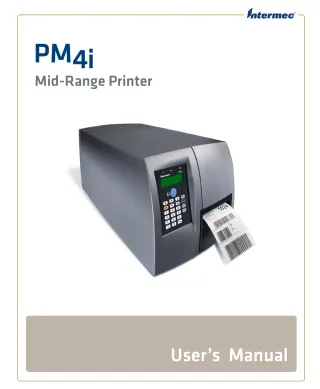
PM4i Mid-Range Printer User's Manual
Manual180 pagesPDF 13 MB
User's manual for the Intermec PM4i mid-range label printer: loading media and ribbon, connecting, configuring and maintenance.
Covers · 1 model
The models it covers
Summary
What is in it
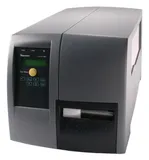
The user's manual for the Intermec PM4i Mid-Range Printer, covering both the Fingerprint and IPL printer languages. It explains the control panel, loading media for tear-off, peel-off and cut-off printing, loading ribbon and printing on RFID media, then connecting by serial, USB, IEEE 1284, Ethernet or 802.11 radio. Later chapters cover configuration from the screen, home page or PrintSet, firmware upgrades, troubleshooting, adjustments, cleaning and printhead replacement, plus specifications and default settings.
Its parts
- Before You Begin
- Using the Printer
- Connecting the Printer
- Configuring the Printer
- Troubleshooting and Maintaining the Printer
From the manual
Key facts from this manual
Each line names its page in the PDF.
User's manual for the Intermec PM4i mid-range label printer. It explains choosing a printer language, printing test labels, reading Fingerprint and IPL error messages and solving print, network and RFID problems, and gives the specifications, interface pinouts, media limits and the accessories and interface boards for the printer.
- Device
- Rugged label printer that can also run as a smart client without a host PC p. 16
- Printer languages
- Fingerprint, IPL, ZSim (interprets ZPL II) and DSim (runs Datamax programs), chosen at first start p. 17
- Interfaces
- RS-232 serial (DB9), USB device, USB full speed host, 10/100 Mbps Ethernet (RJ-45); 802.11b/g optional; IPv6 p. 128, 130, 132
- Power
- 100-240 V, 2-1A, 50/60Hz p. 128
- Memory
- 32MB RAM, 16MB Flash; optional CompactFlash card and USB memory device p. 128
- Print speed
- 4 to 8 in/sec at 203 dpi, 4 to 6 in/sec at 300 and 406 dpi p. 129
- Print size
- Width up to 104 mm (4.095 in) at 203 and 406 dpi, 105.7 mm (4.161 in) at 300 dpi; length up to 409.5 cm (161.25 in) p. 129
- Media
- 25 to 114.3 mm (1 to 4.5 in) wide; roll up to 213 mm (8.38 in); core 38 to 40 mm (1.5 in), or 76.2 mm (3 in) with adapter p. 129, 134
- Ribbon
- 25 to 110 mm (1 to 4.33 in) wide; roll up to 82 mm (3.2 in), 450 m (1475 ft); 25.4 mm core p. 129
- Serial defaults
- 9600 baud, 8 data bits, no parity, 1 stop bit; handshaking none (Fingerprint) or XON/XOFF (IPL) p. 130
- Size and weight
- 54.3 x 26.1 x 29.8 cm (21.38 x 10.28 x 11.73 in); 13.5 kg (29.76 lbs.) p. 128
- Environment
- Operating 5°C to 40°C (41°F to 104°F); storage -20°C to 70°C; 20 to 80% humidity non-condensing p. 128
- Accessories
- Liner takeup unit, paper cutter, media supply hub, paper sensor, 76 mm adapter, Label Taken Sensor, fanfold guide, tear-off bar, real time clock, PS2 keyboard converter, font card, locking side door p. 143, 144
- Interface boards
- 802.11 radio, parallel (IEEE 1284), double serial, serial/industrial, RFID/serial p. 145
What this manual walks you through
- Selecting and changing the printer language p. 17, 18
- Printing a test label for setup, hardware, network or RFID information p. 51, 52
- Reading Fingerprint and IPL error messages p. 101, 102, 103, 104, 105
- Fixing print quality and media feed problems p. 105, 106, 107, 108
- Solving Ethernet or 802.11 network connection problems p. 108
- Solving RFID problems and reading RFID error codes 1320 to 1329 p. 108, 109, 110
- Resetting the printer to factory default settings p. 110
- Serial, USB, Ethernet and parallel interface pinouts p. 130, 131, 132, 133
Good to know
- After a reset, wireless settings such as SSID and keys keep their old values until the next reboot. p. 110
- Connect only one printer to each USB port on the PC. p. 131
- The Label Taken Sensor cannot be used with a paper cutter. p. 144
- With the media roll retainer installed, media can be at most 100 mm (3.9 in) wide. p. 143
Questions this manual answers
Why does the ribbon spill out of the front of my PM4i?
Paper Type must be set to Thermal Transfer Ribbon: Media > Paper Type > Transfer in Fingerprint, or Media > Paper Type > TTR in IPL. p. 107
My PM4i is not writing to RFID tags. What do I do?
After loading RFID media, restart the printer or run a TESTFEED so it can identify the RFID media type. p. 108
What does PM4i error 1326 mean?
In Fingerprint, error code 1326 means the RFID module is too hot. p. 110
Why is my PM4i printout weak?
Check the media setting, then try more contrast, more printhead pressure, and finally a new printhead. p. 105
I cannot open the PM4i home page over a crossover cable. Why?
With a crossover network cable you may need to turn off the web browser's proxy settings to reach the printer home page. p. 108
Contents
Chapters and sections
Each line opens the PDF at its page.
- Before You Begin11
- Chapter 1 - Using the Printer15
- Chapter 2 -Connecting the Printer55
- Chapter 3 -Configuring the Printer75
- Chapter 4 -Troubleshooting and Maintaining the Printer99
- Appendix A - Specifications127
- Appendix B - Default Settings147
- Appendix C - Fingerprint and IPL Setup Menus155
- Appendix D - Advanced Configuration163
- Index171
The whole text · 20 parts
Read the manual here as text
Its text as extracted from the PDF, unedited, in parts; each page opens the PDF at that page.
- Pages 1 to 101-10
- Before You Begin11-14
- Chapter 1 - Using the Printer, pages 15 to 2415-24
- Chapter 1 - Using the Printer, pages 25 to 3425-34
- Chapter 1 - Using the Printer, pages 35 to 4435-44
- Chapter 1 - Using the Printer, pages 45 to 5445-54
- Chapter 2 -Connecting the Printer, pages 55 to 6455-64
- Chapter 2 -Connecting the Printer, pages 65 to 7465-74
- Chapter 3 -Configuring the Printer, pages 75 to 8275-82
- Chapter 3 -Configuring the Printer, pages 83 to 9083-90
- Chapter 3 -Configuring the Printer, pages 91 to 9891-98
- Chapter 4 -Troubleshooting and Maintaining the Printer, pages 99 to 10899-108
- Chapter 4 -Troubleshooting and Maintaining the Printer, pages 109 to 118109-118
- Chapter 4 -Troubleshooting and Maintaining the Printer, pages 119 to 126119-126
- Appendix A - Specifications, pages 127 to 136127-136
- Appendix A - Specifications, pages 137 to 146137-146
- Appendix B - Default Settings147-154
- Appendix C - Fingerprint and IPL Setup Menus155-162
- Appendix D - Advanced Configuration163-170
- Index171-180
The file