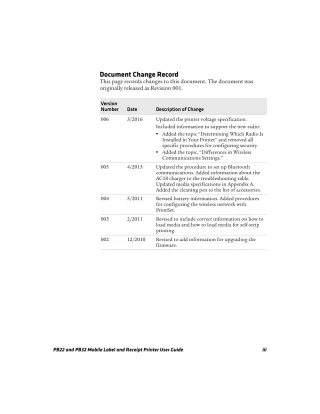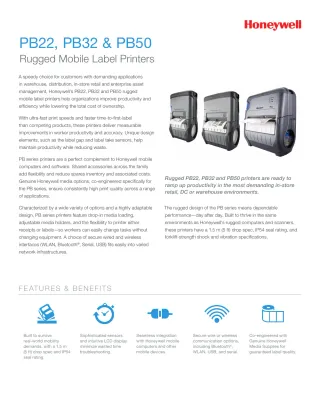
Manual · Intermec
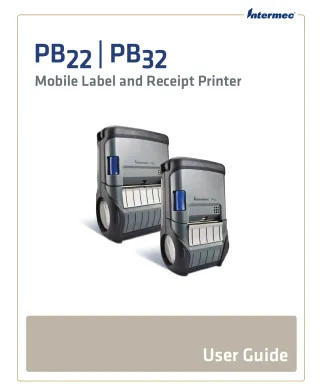
PB22 | PB32 Mobile Label and Receipt Printer User Guide
Manual98 pagesPDF 3.7 MB
User guide for the Intermec PB22 and PB32 rugged mobile label and receipt printers: setup, batteries, media, wireless, firmware and care.
Covers · 1 model
The models it covers
Summary
What is in it
Intermec's user guide for the PB22 and PB32 rugged mobile label and receipt printers. It covers the parts, control panel and printer languages, batteries, loading media and the display modes, then connecting by USB, serial, Bluetooth or 802.11, configuring settings, upgrading firmware and downloading fonts. It also covers troubleshooting, cleaning, specifications, interfaces, accessories, factory defaults for Fingerprint, IPL and ESC/P printers, and the setup menus.
Its parts
- Before You Begin
- Using the PB22 and PB32 Mobile Label and Receipt Printer
- Configuring the PB22 and PB32
- Troubleshooting and Maintaining the PB22 and PB32
From the manual
Key facts from this manual
Each line names its page in the PDF.
This is the user guide for the Intermec PB22 and PB32 mobile label and receipt printers. It explains the batteries, control panel, printer languages, error messages and troubleshooting. It also lists specifications, serial and USB interfaces, and accessories.
- Media width
- PB32: 76.2 mm (3 in) media; PB22: 50.8 mm (2 in) p. 12
- Printing
- Direct thermal, 203 dpi (8 dots/mm), 4 ips (100 mm/s) p. 73
- Radio
- 802.11 b/g or Bluetooth radio options p. 12
- Interfaces
- RS-232 serial (8-pin DIN to DB9 cable) and USB (Type B at the printer) p. 76, 77
- Battery
- Model AB27 rechargeable 7.4 V 2300 mAh lithium-ion p. 21
- Charging
- In the printer with the AE19 12 VDC power supply (about 3 hours) or in the AC18 4-bay charger (about 4 hours) p. 23
- Labels per charge
- PB32: usually over 300 6-inch labels at 25% print density p. 21
- Power
- AC adapter 100 to 240 V, 47 to 63 Hz; printer 12 VDC, 4.0 A p. 72
- Memory
- 16 MB RAM, 64 MB flash p. 73
- Size and weight
- PB32: 81.6 mm deep, 127.6 mm wide, 182.2 mm high; 828 g (1.8 lb) with battery p. 72
- Operating temperature
- -15 °C to 50 °C (-5 °F to 122 °F); charging 0 °C to 45 °C p. 72
- Printer languages
- IPL, Fingerprint, ESC/P and ZSim p. 16
- Accessories
- AV14 vehicle dock, cart mount, belt clip, handstrap, shoulder strap, protective case p. 81, 82
- Cleaning supplies
- Cleaning swab P/N AE26034; cleaning pen P/N 757150 p. 82
What this manual walks you through
- Installing and charging the battery p. 22, 23
- Using the control panel buttons and soft keys p. 14, 15
- Choosing and changing the printer language p. 16, 17, 18, 19
- Reading the Ready-to-Work indicator and printer sounds p. 16, 20
- Understanding error messages on the screen p. 60, 61, 62
- Solving printing, battery and connection problems p. 62, 63, 64
- Checking incoming data with Dump mode p. 64
- Wiring a serial cable (printer and PC pinouts) p. 76, 77
- Choosing media and media sensitivity settings p. 73, 74, 75
- Wireless settings that differ between the two 802.11 radios p. 78, 79, 80
Good to know
- Use only the Intermec Model AB27 battery; another battery may present a risk of fire or explosion. p. 21
- Do not take the AB27 battery apart, heat it above 100 °C (212 °F), or burn it. p. 21
- To extend battery life, do not run the printer at -20 °C (-4 °F) or lower. p. 24
- Setting the backlight to always on turns off the automatic power saving modes. p. 24
- The manual states IP54 sealing, with the paper path and card reader slots excluded. p. 72
Questions this manual answers
What battery does the PB32 printer use?
An Intermec Model AB27 rechargeable 7.4 V 2300 mAh lithium-ion battery. p. 21
How long does the PB32 battery take to charge?
About 3 hours inside the printer on a 12 VDC power supply, or about 4 hours in the AC18 4-bay battery charger. p. 23
What are the PB32 default serial port settings?
115200 baud, 8 data bits, no parity and 1 stop bit. Handshaking is none in Fingerprint and XON/XOFF in IPL. p. 76
What does Testfeed not done mean on a PB32?
The printer did not run a test feed before printing, and the test feed calibrates the sensor. In Fingerprint and ESC/P, press the Feed button for more than 1 second. p. 61
Which printer languages does the PB32 run?
IPL, Fingerprint, ESC/P and ZSim. You choose the language the first time you turn the printer on. p. 16
Contents
Chapters and sections
Each line opens the PDF at its page.
- Send Feedback10
- Before You Begin9
- Chapter 1 - Using the PB22 and PB32 Mobile Label and Receipt Printer11
- Chapter 2 - Configuring the PB22 and PB3239
- Chapter 3 - Troubleshooting and Maintaining the PB22 and PB3259
- Appendix A - Specifications71
- Appendix B - Default Settings83
- Appendix C - IPL and Fingerprint Setup Menus89
- Index93
The whole text · 11 parts
Read the manual here as text
Its text as extracted from the PDF, unedited, in parts; each page opens the PDF at that page.
- Pages 1 to 91-9
- Pages 10 to 1910-19
- Pages 20 to 2920-29
- Pages 30 to 3830-38
- Chapter 2 - Configuring the PB22 and PB32, pages 39 to 4839-48
- Chapter 2 - Configuring the PB22 and PB32, pages 49 to 5849-58
- Chapter 3 - Troubleshooting and Maintaining the PB22 and PB3259-70
- Appendix A - Specifications71-82
- Appendix B - Default Settings83-88
- Appendix C - IPL and Fingerprint Setup Menus89-92
- Index93-98
The file