Manual · Intermec
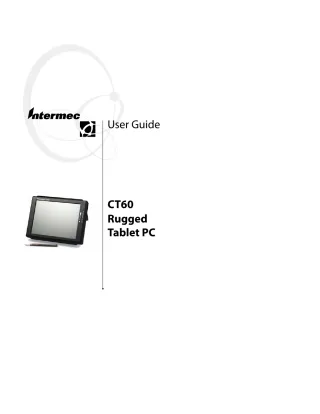
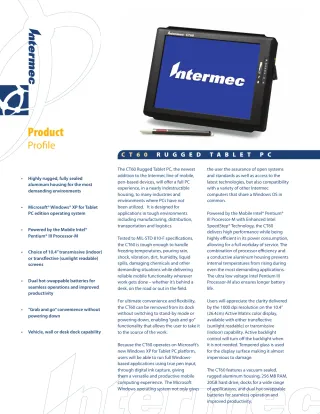
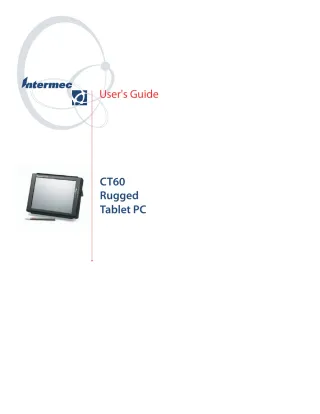
CT60 Rugged Tablet PC User's Guide
Manual60 pagesPDF 1.0 MB
User's guide for the Intermec CT60 Rugged Tablet PC: features, batteries, docking, pen and handwriting software, utilities and FAQs.
Covers · 1 model
The models it covers
Summary
What is in it
The user's guide for the Intermec CT60, a rugged pen-based tablet PC running Windows XP Tablet PC Edition. It lists the standard features, options and exterior controls, then explains hardware operation (power, batteries, the removable hard drive, port replicators, desktop and vehicle docking, Cardbus/PC cards) and software operation (pen settings, screen brightness, handwriting input, Windows Journal, speech recognition and the CT60 utilities). It ends with frequently asked questions such as aligning the pen.
Its parts
- Before You Begin
- Introduction
- Hardware Operation
- Software Operation
- FAQs
From the manual
Key facts from this manual
Each line names its page in the PDF.
This is the Intermec CT60 Rugged Tablet PC User's Guide (June 2004). It describes the tablet's features and connectors, using the pen, batteries and charging, port replicators, desk and vehicle docks and PC cards, the Windows XP Tablet PC Edition settings and CT60 utilities, and answers common questions.
- What it is
- Rugged pen tablet PC in a sealed aluminum housing, for use on foot, in a vehicle or in an office p. 13, 14
- Processor and memory
- 933 MHz Mobile Intel Pentium III processor-M; 256 MB main memory; 512 KB L2 cache; 4 MB video memory p. 14
- Display
- 10.4 in 800 x 600 TFT active matrix color; light sensor for automatic backlight control p. 14
- Storage
- Removable shock-mounted 20 GB or larger hard disk drive p. 14
- Operating system
- Windows XP Tablet PC Edition (Windows 98, 2000, XP Professional optional); Phoenix BIOS p. 14
- Expansion
- Type III Cardbus/PCMCIA slot (one Type III or two Type II cards); internal flex space for optional GPS and GSM modules p. 38, 58
- USB
- One USB port on the side, 12 Mbps maximum, up to 0.5 amps; USB 2.0 not supported p. 17, 18, 59
- Power input
- External power connector, 15 VDC input; at least 14.5 v DC needed for fast charging p. 19, 26
- Batteries
- Li-Ion Smart Batteries; runs on one or two, hot swappable; five-LED gauge, about 20% each p. 25
- Port replicator
- 5 DIN PS2 keyboard, COM 1 DB-9, COM 2 DB-9 (subset of signals), LPT1 25-pin parallel p. 32
- Desk dock ports
- Two RS-232 serial, parallel/floppy, keyboard, power, one USB, one SVGA video p. 35
- Vehicle dock
- Tilt swivel, keyboard tray, key lock; break-out box on 3 or 6 ft cable with keyboard, 2 COM, USB and parallel p. 36
- Pen
- Proximity-sensing electromagnetic digitizer; pen tip and barrel switches act as left and right mouse buttons p. 23, 24
- Accessories
- Carrying case, universal AC adapter 110-250 volts, port replicator, vehicle cradle, desktop dock, batteries, charger, external CD ROM (USB), 1.44 MB floppy drive, keyboard p. 15
What this manual walks you through
- Turning the tablet on and off and forcing a shutdown p. 17, 23
- Using and calibrating the pen p. 23, 24, 56
- Installing and hot-swapping batteries p. 25
- Reading the battery gauge and recharging p. 25, 26, 27
- Attaching a port replicator p. 32, 33, 34
- Using the desktop and vehicle docks p. 35, 36
- Inserting Cardbus and PC cards behind the hatch plate p. 37
- Tablet settings, handwriting input, power schemes and backlight utilities p. 6
- Recovering a frozen screen or a missing Start button p. 56, 57
Good to know
- Do not connect more than one power source at a time when charging, or the battery or computer may be damaged. p. 26
- Use only the AC or DC adapters provided with the CT60. p. 26
- Do not leave the computer in temperatures below -25 F (-31.7 C). p. 21
- Connect the port replicator to the computer first, then attach its power. p. 34
- The hard drive compartment should not be opened without service training from Intermec. p. 20
Questions this manual answers
How do I force a frozen CT60 to shut down?
Press the on/off switch twice for CTRL ALT DEL, or hold the side power button for 4 to 5 seconds. p. 56
Does the CT60 support USB 2.0?
No. It has a single USB connection on the side, plus another USB port through the desk, vehicle and wall docks. p. 59
Why will my CT60 battery not charge?
The CT60 has fused circuits; if the unit will not start a charge cycle, a fuse may have blown. p. 58
How do I recalibrate the CT60 pen?
In Windows XP Tablet PC Edition go to Control Panel, Tablet and Pen Settings, Settings tab, and calibrate each screen orientation separately. p. 56
How charged are new CT60 batteries?
They arrive partially charged, typically 30% at most, and should be fully charged before use. p. 25
Contents
Chapters and sections
Each line opens the PDF at its page.
The whole text · 6 parts
Read the manual here as text
Its text as extracted from the PDF, unedited, in parts; each page opens the PDF at that page.
The file