Manual · Intermec
7422 Thermal Printer User's Guide
Manual112 pagesPDF 5.0 MB
User's guide for the Intermec 7422 desktop thermal label printer: installation, operation, troubleshooting and Windows drivers.
Covers · 1 model
The models it covers
Summary
What is in it
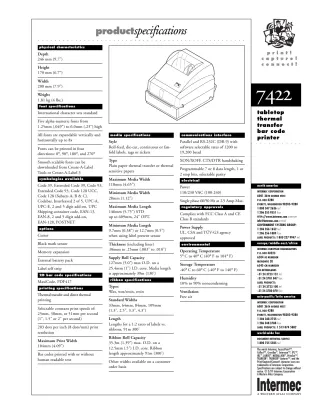
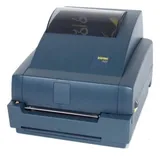
Intermec's user's guide for the 7422, a desktop direct thermal and thermal transfer printer for labels, tags and continuous receipts. Printed in English, French, German and Spanish, it walks through unpacking, connecting the parallel or serial interface and installing the software, then covers printer operation, troubleshooting with serial cable wiring, and the Windows 95 and Windows 3.1 printer drivers. It points to the separate EPL2 Programming Manual for programming.
Its parts
- Installation
- Operation
- Appendix A Troubleshooting
- Appendix B Windows 95 Printer Driver
- Appendix C Windows 3.1 Printer Drive
From the manual
Key facts from this manual
Each line names its page in the PDF.
User's guide (1997) for the Intermec 7422 thermal printer, printed in English, French, German and Spanish. It walks through installation, the controls and power indicator, label and ribbon handling, sensor adjustment, cleaning, battery replacement, troubleshooting and serial cable wiring.
- What it is
- Desktop direct thermal and thermal transfer printer for labels, tags or continuous receipts p. 18
- Host computers
- Any DOS, Windows or ASCII based compatible computer p. 18
- Interfaces
- Parallel and serial p. 22, 23
- Serial cables
- Female DB-9 to Male DB-9, or Female DB-25 to Male DB-9 p. 87
- Serial port power
- +5 volts at 150 mA for an external device such as a scanner p. 87
- Power indicator
- Green: ready; red: out of labels or ribbon; orange: error; dark: power off p. 37
- Backup battery
- P/N 586370S-001, keeps memory when power is off p. 71, 72
- Memory
- Stores operating parameters, forms, graphics and soft fonts; optional memory cartridge p. 24, 71
- Label sensing
- Gap sensor; optional black line sensor p. 60
- Options
- Dispenser bar, black line sensor, memory cartridge, battery pack, cutter p. 6, 24, 30
- Drivers
- Windows 95 and Windows 3.1 printer drivers p. 15
- Programming manual
- EPL2 Programming Manual p. 6
- In the box
- Printer, power supply, user's manual, sample roll and spool, software p. 19
What this manual walks you through
- Unpacking and installing the printer, interface cable and software p. 19, 20, 21, 22, 23, 26, 27
- Installing the optional memory cartridge p. 24, 25
- Using the FEED control for form feed and line feed p. 33
- Reading the POWER indicator p. 37
- Adjusting the gap sensor with AutoSense p. 60, 64
- Cleaning the print head p. 69, 70
- Replacing the memory backup battery p. 71, 72
- Troubleshooting by symptom p. 79, 80
- Serial interface cable wiring p. 87
Good to know
- Never run the printer or its power supply where either can get wet. p. 10
- Do not switch the power off while reloading labels or ribbon during a job; data may be lost. p. 10
- Labels that do not lie flat on the liner can peel off and jam the printer. p. 10
- Wrong battery replacement risks explosion; use only the listed battery type. p. 72
- After cleaning, let the print head dry 1 minute before loading ribbon or labels. p. 70
Questions this manual answers
What does an orange light on the Intermec 7422 mean?
An error condition. Possible causes include the label gap sensor (run AutoSense), the label stock, a jam or software. p. 37, 80
How do I calibrate the 7422 label sensor?
With power off and labels loaded, hold FEED while switching on and release when labels feed. It prints a status label; tap FEED once to return to normal. p. 64
My 7422 prints LOST INTERNAL INFO. What does that mean?
The memory backup battery is exhausted. Replace it with battery P/N 586370S-001. p. 71, 72
The 7422 seems to work but prints nothing. What should I check?
Check the label type (direct thermal or thermal transfer), that the roll is loaded direct thermal side up, and clean the print head. p. 79
Can the 7422 serial port power a scanner?
The serial wiring shows +5 volts at 150 mA for an external device such as a scanner. p. 87
Contents
Chapters and sections
Each line opens the PDF at its page.
The whole text · 12 parts
Read the manual here as text
Its text as extracted from the PDF, unedited, in parts; each page opens the PDF at that page.
The file