Manual · Intermec
EasyCoder 4420 and 4440 Bar Code Label Printer User's Manual
Manual131 pagesPDF 1.4 MB
User's manual for the Intermec EasyCoder 4420 and 4440 bar code label printers: setup, connection, maintenance, troubleshooting and specs.
Covers · 2 models
The models it covers
Summary
What is in it
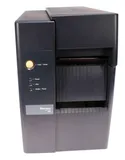
The user's manual for the Intermec EasyCoder 4420 and 4440 bar code label printers. It explains the front panel, loading roll and fanfold media and thermal transfer ribbon, setting the media sensitivity number, connecting to a PC, network, AS/400 or mainframe, cleaning and maintenance, troubleshooting, tuning print quality and throughput, and test and service mode. Appendices give specifications, options such as EasyLAN and cutters, character sets and communications protocols.
Its parts
- Getting Started
- Installing the Printer
- Maintaining the Printer
- Troubleshooting the Printer
- Optimizing Printer Performance
- Using Test and Service Mode
From the manual
Key facts from this manual
Each line names its page in the PDF.
Intermec user's manual for the EasyCoder 4420 and 4440 direct thermal and thermal transfer bar code label printers. It covers preparing and loading the printer, connecting it to a PC, a network, an AS/400 or a mainframe, setting the serial port with DIP switches, maintenance, troubleshooting, test and service mode, and the specifications and options.
- Device type
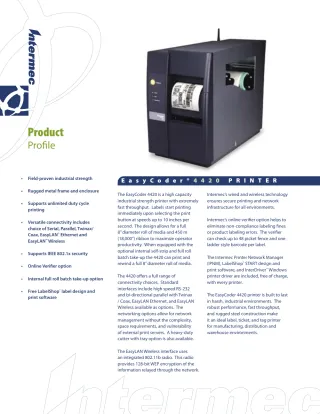
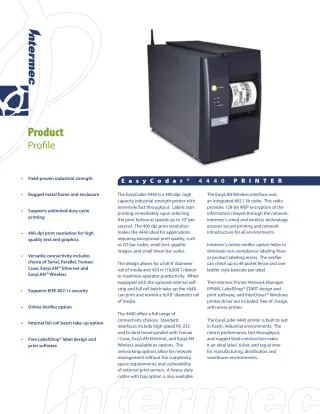
- Direct thermal and thermal transfer bar code label printer, up to 10 inches per second with selected media p. 14
- Resolution
- 4420: 8 dots per mm (203 dots per in); 4440: 16 dots per mm (406 dots per in) p. 90
- Interfaces
- Serial port (RS-232, RS-422 or RS-485, 25-pin D connector), IEEE 1284 parallel port, optional I/O board port p. 14, 34, 35
- PC cables
- Serial 9F-25M null modem cable P/N 048693; IEEE 1284 parallel cable P/N 590124 p. 35
- Power
- 100, 115, 200, or 230 VAC ± 10%; 50-60 Hz; 2 or 1A p. 88
- Print speed
- 51 mm (2 inches) to 254 mm (10 inches) per second in 1 ips steps; 10 ips on specified media only p. 90
- Memory
- 1MB of DRAM and 128K of flash standard; 8 or 16 MB DRAM SIMM modules optional p. 89, 91
- Media
- Label width 16.5 mm (0.65 in) to 111.8 mm (4.4 in); thickness 0.08 mm to 0.30 mm; roll diameter 213 mm (8.38 in) p. 89
- Ribbon
- 450 m (18,000 linear inches); widths 54, 76, 104 and 114 mm; 81 mm (3.2 inches) maximum diameter p. 90
- Network options
- EasyLAN 10i (10BaseT); EasyLAN 10i2 adapter, external P/N 072885 or internal P/N 072884; EasyLAN Wireless 802.11b p. 91, 92
- IBM host adapters
- Twinax adapter card P/N 067879 for AS/400; coax adapter card P/N 067880 for IBM mainframes p. 36
- Size and weight
- 41.9 cm (16.5 in) high, 24.8 cm (9.75 in) wide, 43.8 cm (17.25 in) long; 19.35 kg (43 lbs) p. 88
- Operating temperature
- 4°C to 40°C (40°F to 104°F); humidity 10% to 90% p. 88
- Fonts
- 21 resident bitmap fonts including OCR A and B, plus three outline fonts p. 88
What this manual walks you through
- Reading the front panel LEDs to monitor and troubleshoot the printer p. 16
- Using the Feed/Pause button to feed, pause, cancel or print a test label p. 17
- Preparing the printer: power, media, ribbon and a hardware configuration test label p. 17
- Connecting the printer to a PC serial or parallel port p. 35
- Connecting the printer to an AS/400 or an IBM mainframe p. 36
- Reducing electrical noise on data cables p. 37
- Setting the serial port with the DIP switches p. 37, 38
- Troubleshooting printer operation and communication problems p. 52, 53, 56
- Preventing data loss with hardware and XON/XOFF handshaking p. 56
Good to know
- If the printer overheats, the Alert LED flashes and it stops; it resumes on its own once cool. p. 16
- With the EasyLAN 10i2 adapter installed, the printer's parallel port cannot be used. p. 92
- The serial port must be set for 8 data bits to print code pages or 8-bit ASCII character sets. p. 37
- The printer cannot print at 9 ips. p. 90
- The self-strip and full roll batch takeup option is factory-installed only. p. 92
Questions this manual answers
What is the difference between the Intermec 4420 and 4440?
The 4420 prints at 8 dots per mm (203 dpi) and the 4440 at 16 dots per mm (406 dpi); both have a 112 mm maximum print width. p. 90
Which cable connects the 4420 or 4440 to a PC serial port?
The Intermec serial 9F-25M null modem cable, P/N 048693, or a compatible cable. p. 35
Why is the Alert LED flashing and printing stopped?
The printhead has overheated. Leave the printer alone to cool down and it resumes printing on its own. p. 53
Where is the list of 4420 error messages?
The manual refers to the IPL Programming Reference Manual (P/N 066396) for the complete list of error messages and solutions. p. 52
How long can the twinax cable to an AS/400 be?
Up to 1,525 meters (5,000 feet). p. 36
Contents
Chapters and sections
Each line opens the PDF at its page.
- Before You Begin9
- Chapter 1 - Getting Started13
- Chapter 2 - Installing the Printer33
- Chapter 3 - Maintaining the Printer41
- Chapter 4 - Troubleshooting the Printer51
- Chapter 5 - Optimizing Printer Performance59
- Chapter 6 - Using Test and Service Mode73
- Appendix A - Specifications87
- Appendix B - Character Sets97
The whole text · 14 parts
Read the manual here as text
Its text as extracted from the PDF, unedited, in parts; each page opens the PDF at that page.
- Pages 1 to 81-8
- Before You Begin9-12
- Chapter 1 - Getting Started, pages 13 to 2213-22
- Chapter 1 - Getting Started, pages 23 to 3223-32
- Chapter 2 - Installing the Printer33-40
- Chapter 3 - Maintaining the Printer41-50
- Chapter 4 - Troubleshooting the Printer51-58
- Chapter 5 - Optimizing Printer Performance59-72
- Chapter 6 - Using Test and Service Mode73-86
- Appendix A - Specifications87-96
- Appendix B - Character Sets97-104
- Appendix C - Communications Reference105-114
- Glossary115-122
- Index123-131
The file