Manual · Intermec
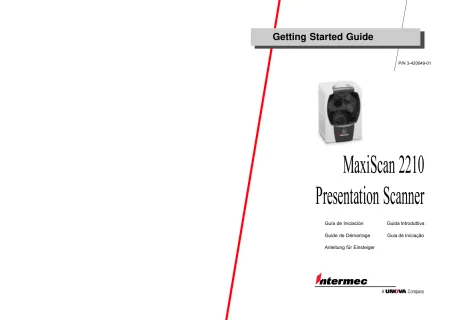
MaxiScan 2210 Presentation Scanner Getting Started Guide
Manual7 pagesPDF 170 KB
Getting started guide for the Intermec MaxiScan 2210 presentation scanner: keyboard wedge and RS-232 setup with setup codes.
Covers · 1 model
The models it covers
Summary
What is in it
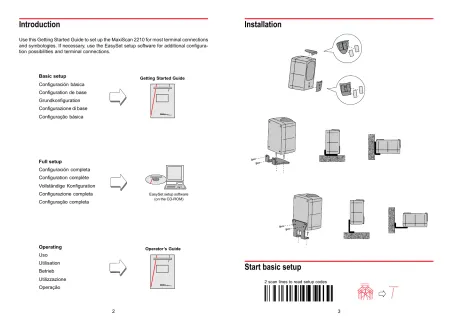
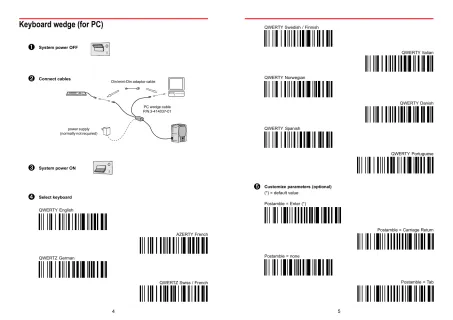
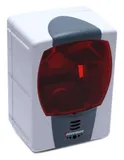
Intermec's multilingual getting started guide for the MaxiScan 2210 presentation scanner. It gives the basic setup for most terminal connections and symbologies using printed setup bar codes: connecting as a PC keyboard wedge and choosing the keyboard layout and postamble, connecting by RS-232 C and setting baud rate, data bits and parity, enabling symbologies such as Code 39, Code 128 and UPC/EAN, and starting a full setup with the EasySet software. It ends with laser warnings and regulatory statements.
From the manual · read page by page
Key facts from this manual
Each line names its page in the PDF.
Intermec's multilingual Getting Started Guide (part 3-420049-01, 2001) for the MaxiScan 2210 presentation scanner. It sets the scanner up for a PC keyboard wedge or an RS-232 C connection and selects bar code symbologies by scanning setup codes printed in the guide. For other settings it points to the EasySet setup software.
- Device
- MaxiScan 2210 presentation scanner, set up by scanning codes in the guide p. 1, 2
- Interfaces
- Keyboard wedge (for PC) and RS-232 C p. 3, 4
- Wedge cable
- PC wedge cable P/N 3-414037-01, with Din/mini-Din adaptor cable; power supply normally not required p. 3
- RS-232 cables
- Standard RS-232 C cable P/N 3-414032-00; dual RS-232 C cable P/N 3-414032-01 p. 4
- RS-232 defaults
- 9600 baud, 7 data bits, even parity, postamble carriage return + line feed p. 4
- RS-232 options
- 9600 or 19200 baud; 7 or 8 data bits; even, odd or no parity p. 4
- Keyboard layouts
- QWERTY English, Swedish/Finnish, Italian, Norwegian, Danish, Spanish, Portuguese; AZERTY French; QWERTZ German, Swiss/French p. 3
- Wedge postamble
- Enter (default), carriage return, none or tab p. 3
- Symbologies
- Code 39; Code 128 / EAN 128; UPC-A, UPC-E, EAN-8, EAN-13 p. 5
- Setup software
- EasySet, on the CD-ROM, connected over the standard RS-232 C cable (P/N 3-414032-00) p. 2, 6
- Scan pattern
- 2 scan lines to read setup codes; multi-scan pattern for normal operation p. 2, 5
What this manual walks you through
- Setting up the scanner as a PC keyboard wedge p. 3
- Setting up the scanner for an RS-232 C connection p. 4
- Selecting which bar code symbologies to read p. 5
- Full setup with the EasySet software p. 6
Good to know
- Switch the system power off before connecting the cables. p. 3, 4
- The guide states Class IIa (USA) and Class 1 (IEC/EN) laser classes and warns against long viewing of direct laser light. p. 6
- Controls, adjustments or procedures other than those in the guide can give hazardous laser light. p. 6
- The equipment must not be connected by its RJ connectors to telecommunications circuits. p. 7
Questions this manual answers
What are the default serial settings of the Intermec MaxiScan 2210?
9600 baud, 7 data bits, even parity, with a carriage return + line feed postamble. p. 4
Which cable connects the MaxiScan 2210 to a PC keyboard port?
The PC wedge cable, P/N 3-414037-01, with a Din/mini-Din adaptor cable if needed. p. 3
What is the RS-232 cable part number for the 2210?
Standard RS-232 C cable P/N 3-414032-00, or the dual RS-232 C cable P/N 3-414032-01. p. 4
How do I set options that are not in the 2210 Getting Started Guide?
Use the EasySet setup software from the CD-ROM over an RS-232 C cable. p. 2
The whole text · 1 part
Read the manual here as text
Its text as extracted from the PDF, unedited, in parts; each page opens the PDF at that page.
The file