


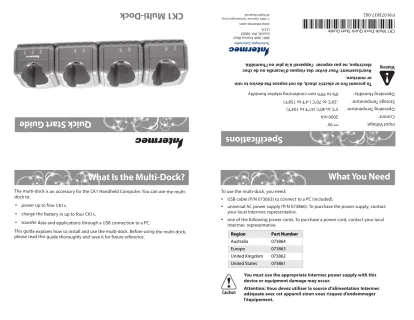
Spec sheet · Intermec
Intermec 073667 CK1 Spec Sheet
Spec sheet2 pagesPDF 128 KB
Both pages are below, each with its text.
Filed with · 1 model
Also filed with these models on the old site
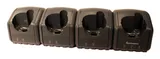
From the sheet · read page by page
Key facts from this sheet
Each line names its page in the PDF.
A 2004 Intermec quick start guide for the CK1 Multi-Dock, an accessory that charges, powers and links up to four CK1 Handheld Computers to a PC over USB. It lists what is needed, how to install the dock and what its lights mean; it does not print the number 073667.
- Device
- Multi-dock for the CK1 Handheld Computer: charges and powers up to four CK1s and transfers data and applications to a PC over USB p. 1
- Charge time
- Fully charges the batteries in 4 hours p. 2
- Power supply
- Universal AC power supply P/N 073860 p. 1
- Power cords
- Australia 073864, Europe 073863, United Kingdom 073862, United States 073861 p. 1
- PC connection
- USB cable P/N 073663 (included); a COM port is created for each bay p. 1, 2
- Chaining
- USB connectors to other CK1 docks; up to 25 multi-docks connected together p. 2
- Driver
- BM-series driver from ftdichip.com installed on the PC p. 2
- Humidity
- 0% to 95% non-condensing relative humidity p. 1
What this sheet walks you through
- What the multi-dock does p. 1
- What is needed to use the multi-dock p. 1
- Installing the multi-dock: driver, placement, power and USB p. 2
- Creating a COM port for each bay on the PC p. 2
- Reading the Communications, Charge and Power lights p. 2
Good to know
- Only the appropriate Intermec power supply may be used, or the equipment may be damaged. p. 1
- Keep the dock away from rain and moisture to prevent fire or electric shock. p. 1
- Place the dock within 1.5 m (5 ft) of an AC outlet. p. 2
Questions this sheet answers
How long does the Intermec CK1 multi-dock take to charge a battery?
It fully charges the batteries in 4 hours. p. 2
Which power supply does the CK1 multi-dock need?
The universal AC power supply P/N 073860, with a regional power cord such as 073861 for the United States. p. 1
How many CK1 multi-docks can be linked together?
A maximum of 25 multi-docks. p. 2
CK1 multi-dock Power light is off
The dock is not receiving power. Make sure the AC power supply is connected properly. p. 2
The file
Size and text
Every page · 2
Read it here
Each page as it is printed, and its words beside it, so a phone can search and copy them.
Page1of 2
Open in the PDF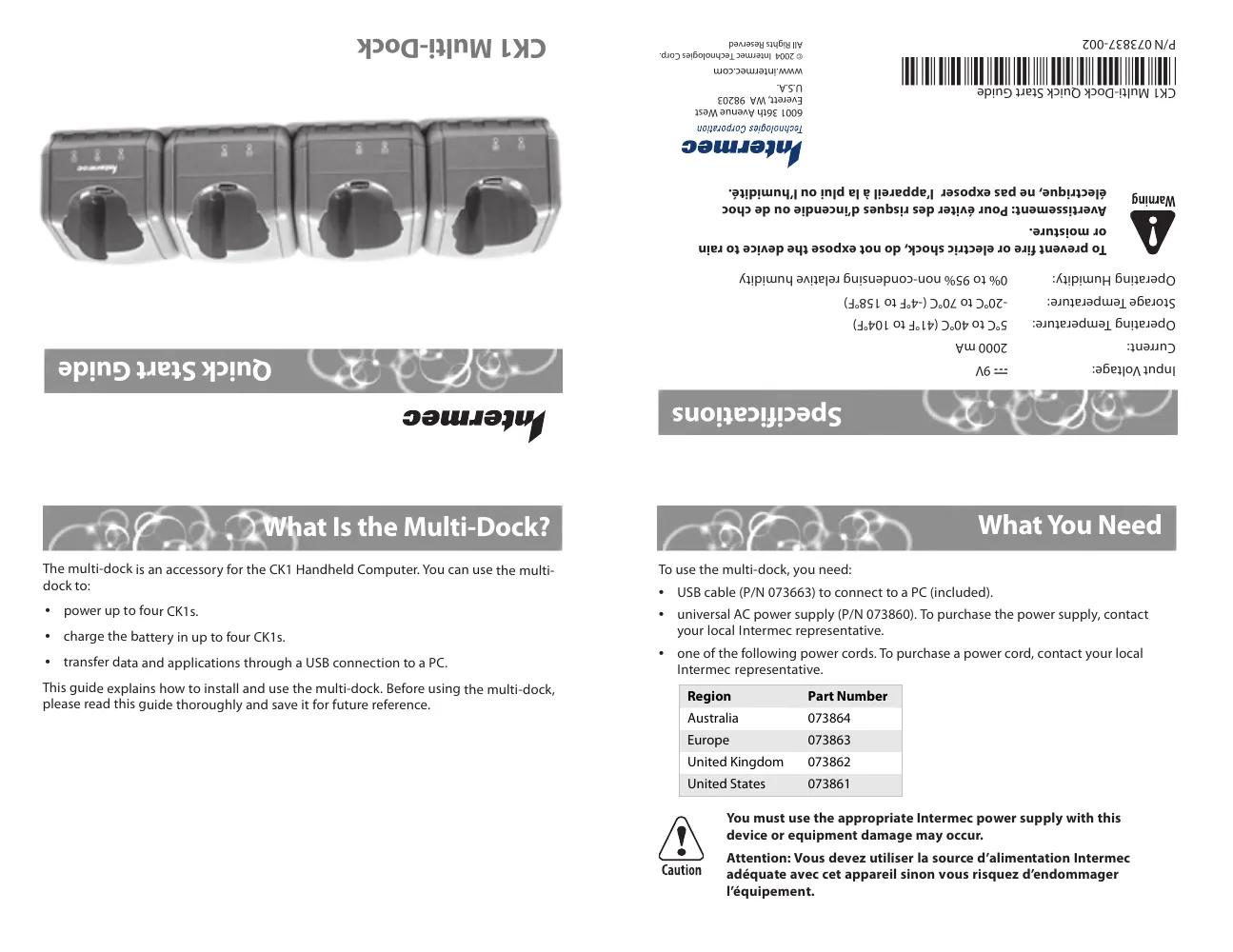
The text of page 1, from the PDF itself
P/N 073837-002
© 2004 Intermec Technologies Corp. All Rights Reserved
*073837-002*
CK1 Multi-Dock
6001 36th Avenue West Everett, WA 98203 U.S.A. www.intermec.com
CK1 Multi-Dock Quick Start Guide
Avertissement: Pour éviter des risques d’incendie ou de choc électrique, ne pas exposer l’appareil à la plui ou l’humidité. To prevent fire or electric shock, do not expose the device to rain or moisture. 0% to 95% non-condensing relative humidity
- Operating Humidity
- -20°C to 70°C (-4°F to 158°F)
- Storage Temperature
- 5°C to 40°C (41°F to 104°F)
- Operating Temperature
- 2000 mA
- Current
- x 9V
- Input Voltage
- Quick Start Guide Specifications
What You Need
What Is the Multi-Dock? The multi-dock is an accessory for the CK1 Handheld Computer. You can use the multidock to:
power up to four CK1s.
- To use the multi-dock, you need
- • •
USB cable (P/N 073663) to connect to a PC (included).
one of the following power cords. To purchase a power cord, contact your local Intermec representative.
charge the battery in up to four CK1s. transfer data and applications through a USB connection to a PC.
This guide explains how to install and use the multi-dock. Before using the multi-dock, please read this guide thoroughly and save it for future reference.
universal AC power supply (P/N 073860). To purchase the power supply, contact your local Intermec representative.
RegionPart NumberAustralia073864Europe073863United Kingdom073862United States073861
You must use the appropriate Intermec power supply with this device or equipment damage may occur. Attention: Vous devez utiliser la source d’alimentation Intermec adéquate avec cet appareil sinon vous risquez d’endommager l’équipement.
Page2of 2
Open in the PDF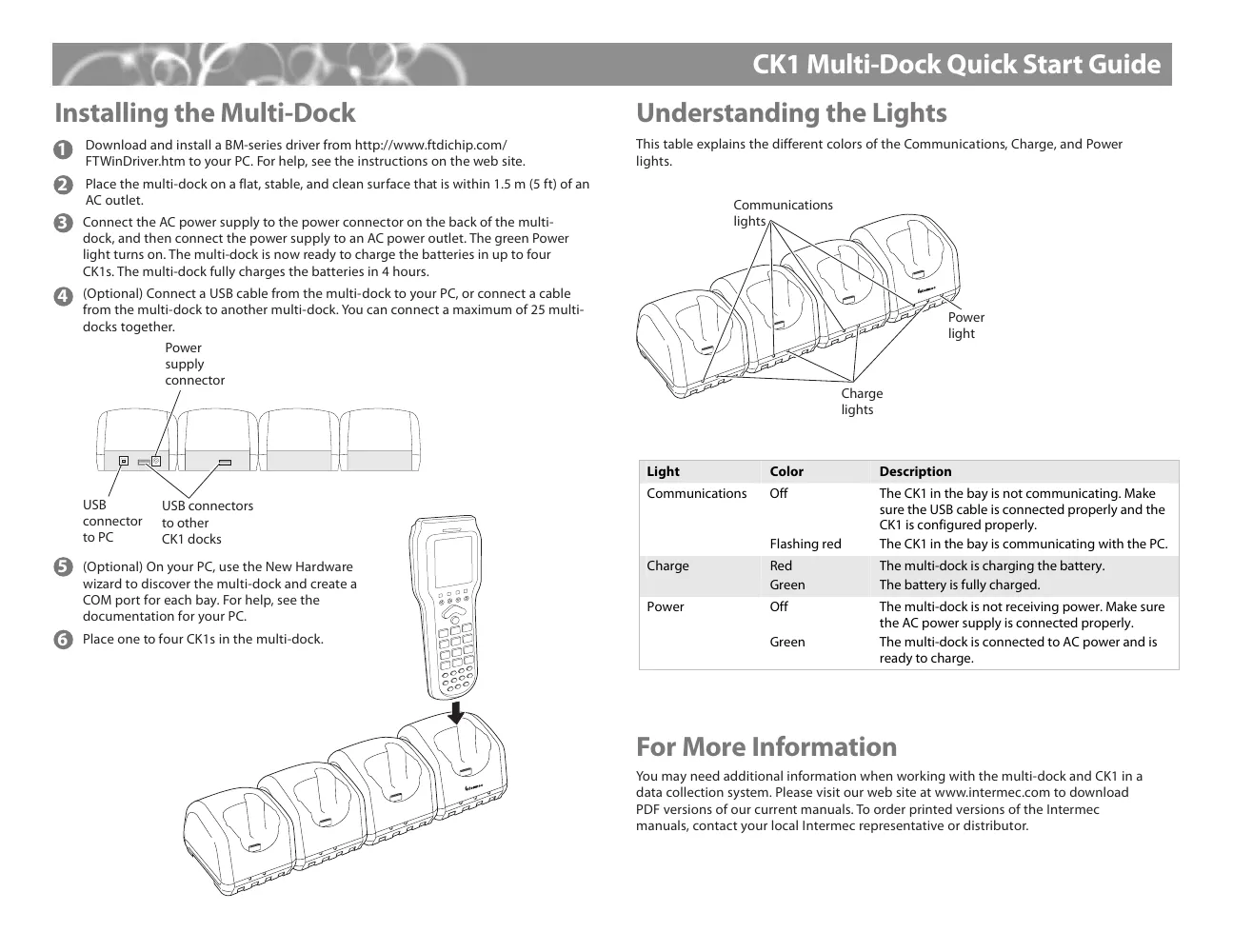
The text of page 2, from the PDF itself
CK1 Multi-Dock Quick Start Guide Installing the Multi-Dock 1
Download and install a BM-series driver from http://www.ftdichip.com/ FTWinDriver.htm to your PC. For help, see the instructions on the web site.
2
Place the multi-dock on a flat, stable, and clean surface that is within 1.5 m (5 ft) of an AC outlet.
3
Connect the AC power supply to the power connector on the back of the multidock, and then connect the power supply to an AC power outlet. The green Power light turns on. The multi-dock is now ready to charge the batteries in up to four CK1s. The multi-dock fully charges the batteries in 4 hours.
4
(Optional) Connect a USB cable from the multi-dock to your PC, or connect a cable from the multi-dock to another multi-dock. You can connect a maximum of 25 multidocks together.
Understanding the Lights This table explains the different colors of the Communications, Charge, and Power lights.
Communications lights
Power light
Power supply connector Charge lights
USB connector to PC56
USB connectors to other CK1 docks
(Optional) On your PC, use the New Hardware wizard to discover the multi-dock and create a COM port for each bay. For help, see the documentation for your PC. Place one to four CK1s in the multi-dock.
LightColorDescriptionCommunicationsOffFlashing red
The CK1 in the bay is not communicating. Make sure the USB cable is connected properly and the CK1 is configured properly. The CK1 in the bay is communicating with the PC.
Charge
Red Green
The multi-dock is charging the battery. The battery is fully charged.
Power
Off
The multi-dock is not receiving power. Make sure the AC power supply is connected properly. The multi-dock is connected to AC power and is ready to charge.
Green
For More Information You may need additional information when working with the multi-dock and CK1 in a data collection system. Please visit our web site at www.intermec.com to download PDF versions of our current manuals. To order printed versions of the Intermec manuals, contact your local Intermec representative or distributor.