Manual · Intermec
EasyLAN Wireless Quick Start Guide
Manual20 pagesPDF 314 KB
Quick start guide for the Intermec EasyLAN Wireless Model AW02 802.11b radio option for EasyCoder 3400e, 4420 and 4440 printers.
Filed with · 1 model
Also filed with these models on the old site
Summary
What is in it
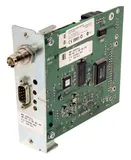
Quick start guide for the Intermec EasyLAN Wireless Model AW02, an IEEE 802.11b radio option installed in EasyCoder 3400e, 4420 and 4440 label printers. It covers what is new in firmware version 4.35, what comes in the box, system requirements for each security mode (WEP, 802.1x with TTLS, LEAP or PEAP, WPA and WPA2), the components and LEDs, collecting network information, connecting to a PC, setting communications and security, attaching the antenna, printing test labels and configuring and managing the printer on the network.
Its parts
- Getting Started
- Installing EasyLAN Wireless
- Starting EasyLAN Wireless
- Printing Test Labels
- Configuring and Managing EasyLAN Wireless
From the manual · read page by page
Key facts from this manual
Some pages are scans or cannot be read; this says only what the readable text supports. Each line names its page in the PDF.
A quick start guide for the Intermec EasyLAN Wireless Model AW02, an 802.11b radio option for the EasyCoder 3400e, 4420 and 4440 printers. It walks through gathering network details, first setup over the serial port, fitting the antenna and printing test labels. It does not name 072595-003.
- What it is
- IEEE 802.11b radio option for EasyCoder 3400e, 4420 and 4440 printers p. 5
- Radio compatibility
- Talks to 802.11b/g devices, at negotiated 802.11b data rates only p. 7
- Security options
- Static WEP (64-bit or 128-bit), 802.1x with TTLS, LEAP or PEAP, WPA and WPA2 Personal or Enterprise, or none p. 12, 13
- Firmware for security
- 4.30 or later for TTLS, LEAP, WPA-Personal and WPA-Enterprise; 4.32 or later for PEAP and WPA2 p. 7, 8, 9
- Firmware 4.35
- Adds firmware reload by web browser and TFTP, Dynamic WEP, WPA2 or WPA2-WPA encryption, PEAP p. 6
- Factory settings
- Infrastructure mode, SSID INTERMEC, DHCP enabled, security disabled p. 12
- Serial port
- DB9, PC-compatible 9-pin male D-connector, for configuration only p. 10, 14
- Serial cable
- 9-pin female to 9-pin female, P/N 059167 p. 14
- Serial settings
- 115200 baud, 8 data bits, 1 stop bit, no parity p. 15
- Indicators
- Orange LED (on with power, blinks on error); green and yellow LEDs for diagnostics and network activity p. 11
- Test switch
- Prints a test label or resets EasyLAN Wireless p. 10
- Software
- PrinterCompanion CD with EasyLAN Network Setup, Intermec Printer Network Manager (IPNM) and Intermec Print Monitor p. 6
- Related documents
- EasyLAN Wireless User's Manual P/N 074980; this guide P/N 074981; Important EasyLAN Wireless Information P/N 074991 p. 6
What this manual walks you through
- Choosing an ad-hoc or infrastructure network p. 5, 7
- What each security method needs p. 7, 8, 9
- Collecting network details before setup p. 12, 13
- Connecting EasyLAN Wireless to a PC serial port p. 14
- Setting network communications and security with EasyLAN Network Setup p. 14, 15
- Attaching the antenna p. 16
- Reading the startup sequence and LEDs p. 11, 17
- Printing test labels locally and through the web browser p. 17, 18, 19
- Configuring and managing from a remote location p. 20
Good to know
- The serial port is only for configuration with EasyLAN Network Setup or the command console. p. 10
- Choosing no security disables it; Intermec recommends a security solution. p. 12
- The guide assumes a site survey is done and the wireless network is installed. p. 11
- If the orange LED keeps blinking after power-up, unplug the printer and plug it in again; if it persists, contact an Intermec representative. p. 17
Questions this manual answers
Which printers take the EasyLAN Wireless Model AW02?
The EasyCoder 3400e, 4420 and 4440 printers. p. 5
Does EasyLAN Wireless work on an 802.11g network?
It can talk to 802.11b/g devices, but the link must use negotiated 802.11b data rates only. p. 7
What serial settings does EasyLAN Wireless need for setup?
115200 baud, 8 data bits, 1 stop bit and no parity, over a 9-pin serial cable to the PC. p. 14, 15
What cable connects EasyLAN Wireless to a PC?
A 9-pin female to 9-pin female serial cable, Intermec P/N 059167. p. 14
What does it mean when the green and yellow LEDs are both on?
The wireless network is active; both blinking means wireless network data is being received. p. 11
Contents
Chapters and sections
Each line opens the PDF at its page.
The whole text · 4 parts
Read the manual here as text
Its text as extracted from the PDF, unedited, in parts; each page opens the PDF at that page.
The file