Manual · Icon
TimeCalculator Reporter
Manual10 pagesPDF 861 KB
Guide to TimeCalculator Reporter, the Icon Time Systems PC program that reads and prints reports from the TimeCalculator time clock.
What this file really is
The old site listed this file as a manual for the Icon TimeCalculator. This covers the TimeCalculator Reporter PC software, not the operation of the TimeCalculator clock itself.
Filed under · 1 model
Filed under these models in the old catalog
Summary
What is in it
Short guide to the Icon Time Systems TimeCalculator Reporter, a computer program that prints reports from the stand-alone TimeCalculator time clock. It covers installing from CD, the first-run setup wizard, polling the clock for employee punches when it is plugged in, printing attendance, exception and timecard reports (full page, compact or summary), the report viewer toolbar, idle mode, searching for the clock and automatic startup.
Its parts
- Introduction
- Installation
- Running The Program For The First Time
- Operation
- Automatic Operation
From the manual · read page by page
Key facts from this manual
Each line names its page in the PDF.
A ten-page Icon Time Systems guide to TimeCalculator Reporter, the computer program that reads punches from the TimeCalculator time clock and prints reports. It covers installing the program, polling the clock, printing attendance, exception and timecard reports, and how the program runs in the background.
- Reporting software
- TimeCalculator Reporter, a computer program that prints reports from the stand-alone TimeCalculator clock p. 2
- Clock printing
- The clock can also print directly to an attached printer p. 2
- Reports
- Attendance (by date), exception, and timecard reports for one or all employees p. 6
- Timecard formats
- Full page with a signature line, compact (several employees per page), summary (total hours only) p. 6
- Data transfer
- The program reads the employee punches when the clock is plugged into the computer p. 5
- Installation
- From the CD (auto-run or Setup.exe), followed by a reboot p. 2
- Background running
- Starts with the computer from the Startup folder and waits in the system tray p. 5, 10
What this manual walks you through
- Installing TimeCalculator Reporter from the CD p. 2
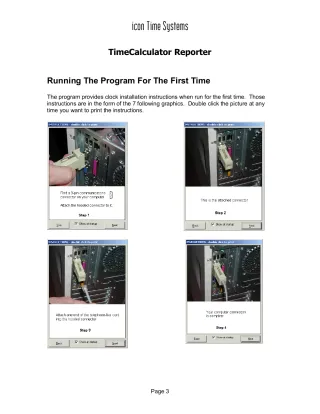
- Following the clock installation instructions shown at first run p. 3, 4
- Polling the clock for employee punches p. 5
- Printing attendance, exception and timecard reports p. 6, 7
- Using the report viewer toolbar p. 7, 8
- Idle mode and searching for the clock again p. 9
- Stopping the program or its automatic start p. 10
Good to know
- After a poll the program does not poll again until the clock has been disconnected for about 60 seconds. p. 9
- The copy button on the report toolbar does not work for these reports. p. 7
Questions this manual answers
How do I get reports off an Icon TimeCalculator onto my computer?
Install TimeCalculator Reporter from the CD, then plug the clock into the computer; the program reads the punches and offers the reports. p. 2, 5
What reports can TimeCalculator Reporter print?
Attendance, exception and timecard reports; timecards come in full page, compact or summary format. p. 6
Why does TimeCalculator Reporter not read my clock again?
In idle mode it waits until the clock has been unplugged for about 60 seconds, or until you click Look for TimeCalculator now. p. 9
Does the timecard report have a signature line?
The full page format prints one employee per page with a signature line; the compact format has none. p. 6
The whole text · 1 part
Read the manual here as text
Its text as extracted from the PDF, unedited, in parts; each page opens the PDF at that page.
The file