Manual · Hypercom
Hypercom Optimum T4200 Family Terminal Installation Guide
Manual2 pagesPDF 4.9 MB
Both pages are below, each with its text.
Filed with · 1 model
Also filed with these models on the old site
From the manual · read page by page
Key facts from this manual
Much of this manual is scanned with little readable text, so this says only what its text supports. Each line names its page in the PDF.
A two-page installation guide (940540-001 Rev.A) for the Hypercom Optimum T4200 family of countertop terminals, which names the Optimum T4210 among its models. It shows how to connect the cables and power adapter, load receipt paper, swipe a card and insert a smart card, and pictures the accessories.
- Device
- Optimum T4200 family countertop terminal with receipt printer, bi-directional card reader and smart card reader p. 1, 2
- Rear ports
- LINE (RJ11 telephone cable), POWER (A/C power adapter), SERIAL (RS232 cable), PIN PAD (PIN pad cable), NET (Ethernet cable) p. 2
- Power
- External A/C power adapter and power cord; the connector turns counter clockwise to lock p. 2
- Card readers
- Swipe reader read with a downward or upward motion; smart card inserted gold chip side up p. 2
- Printer
- Receipt printer with a drop-in paper roll under a printer cover p. 2
- Cables
- RJ11 telephone cable (P/N# 810005-010); Mono cable (P/N# 810389-001) p. 2
What this manual walks you through
- Removing the wiring clip and connecting the cables p. 2
- Connecting the power adapter p. 2
- Loading receipt paper p. 2
- Swiping a card and inserting a smart card p. 2
Good to know
- Do not use the terminal if visibly damaged or expose it to temperatures above 140 °F or 60 °C. p. 2
- Bend each cable 90° at the base of its connector. p. 2
- The manual states FCC Part 15 compliance; its other listings are marked pending. p. 1
Questions this manual answers
What ports are on the back of the Hypercom T4210?
The T4200 family guide lists LINE (RJ11 telephone), POWER, SERIAL (RS232), PIN PAD and NET (Ethernet) ports. p. 2
How do I load receipt paper in the Optimum T4200?
Open the printer cover, drop the paper roll into the holder, pull the paper out and close the cover. p. 2
How do I connect power to the T4200 terminal?
Connect the power cord to the A/C power adapter, insert the adapter into the POWER port, turn it to lock, then plug the cord into the wall. p. 2
Which way does a smart card go into the T4210?
Insert it gold chip side up into the smart card reader. p. 2
The file
Size and text
Every page · 2
Read it here
Each page as it is printed, and its words beside it, so a phone can search and copy them.
Page1of 2
Open in the PDF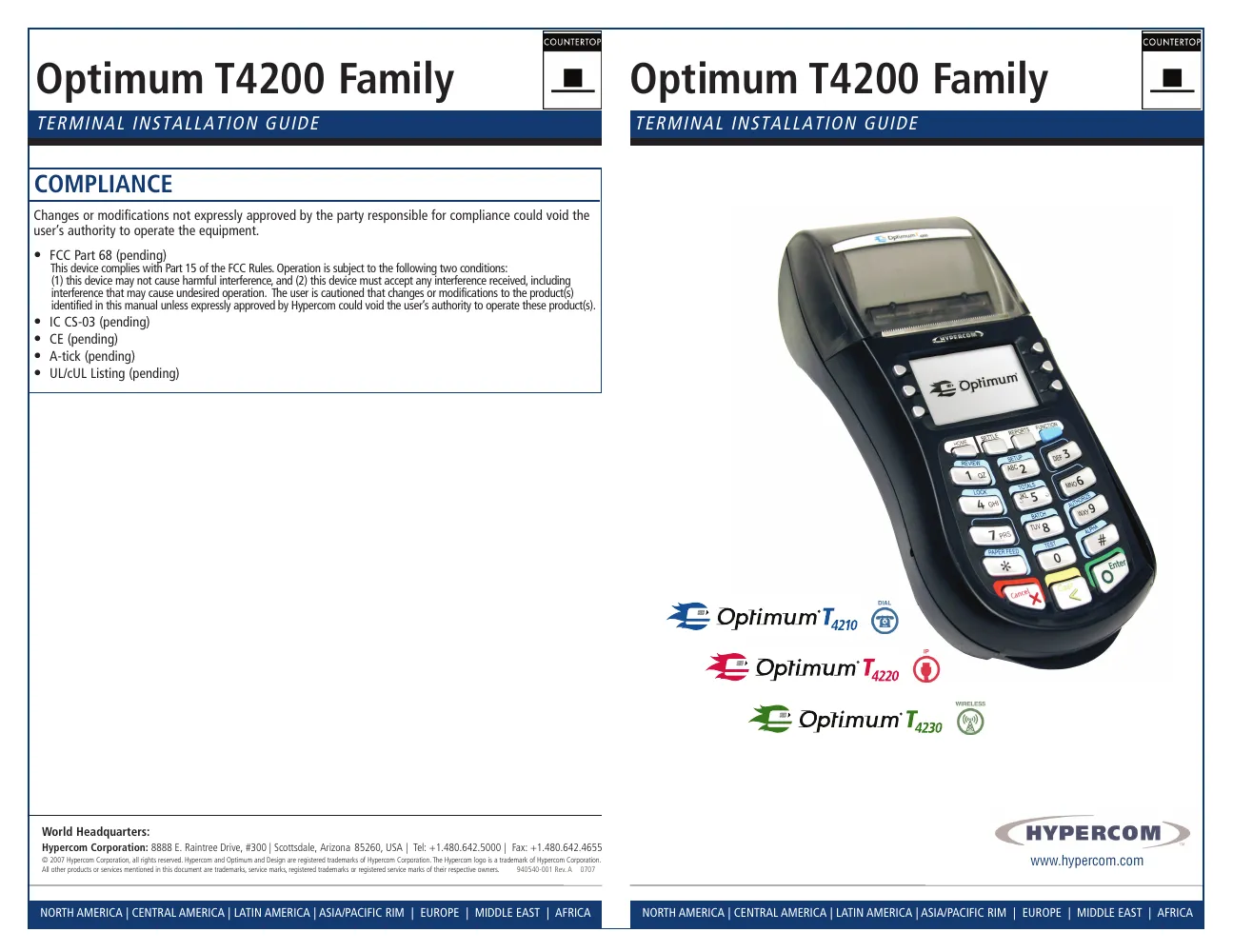
The text of page 1, read from a scan by OCR; it may hold reading errors
COUNTERTOP
Optimum T4200 Family Optimum T4200 Family
COMPLIANCE
Changes or modifications not expressly approved by the party responsible for compliance could void the user's authority to operate the equipment.
© FCC Part 68 (pending) This device complies with Part 15 of the FCC Rules. Operation is subject to the following two conditions: (1) this device may not cause harmful interference, and (2) this device must accept any interference received, including interference that may cause undesired operation. The user is cautioned that changes or modifications to the product(s) identified in this manual unless expressly approved by Hypercom could void the user's authority to operate these product(s).
IC CS-03 (pending)
CE (pending) qceioencomny A-tick (pending) : \
UL/cUL Listing (pending)
DIAL
z= Optimum T,9,5 ZZ Optimum Tp ®
WIRELESS
2 Optimum T2309
World Headquarters: HYPERCOM Hypercom Corporation: 8888 E. Raintree Drive, #300 | Scottsdale, Arizona 85260, USA | Tel: + 1.480.642.5000 | Fax: +1.480.642.4655
© 2007 Hypercom Corporation, all rights reserved. Hypercom and Optimum and Design are registered trademarks of Hypercom Corporation. The Hypercom logo is a trademark of Hypercom Corporation. www.hypercom.com
All other products or services mentioned in this document are trademarks, service marks, registered trademarks or registered service marks of their respective owners. 940540-001 Rev.A 0707
NORTH AMERICA | CENTRAL AMERICA | LATIN AMERICA | ASIA/PACIFIC RIM | EUROPE | MIDDLE EAST | AFRICA NORTH AMERICA | CENTRAL AMERICA | LATIN AMERICA | ASIA/PACIFIC RIM | EUROPE | MIDDLE EAST | AFRICA
Page2of 2
Open in the PDF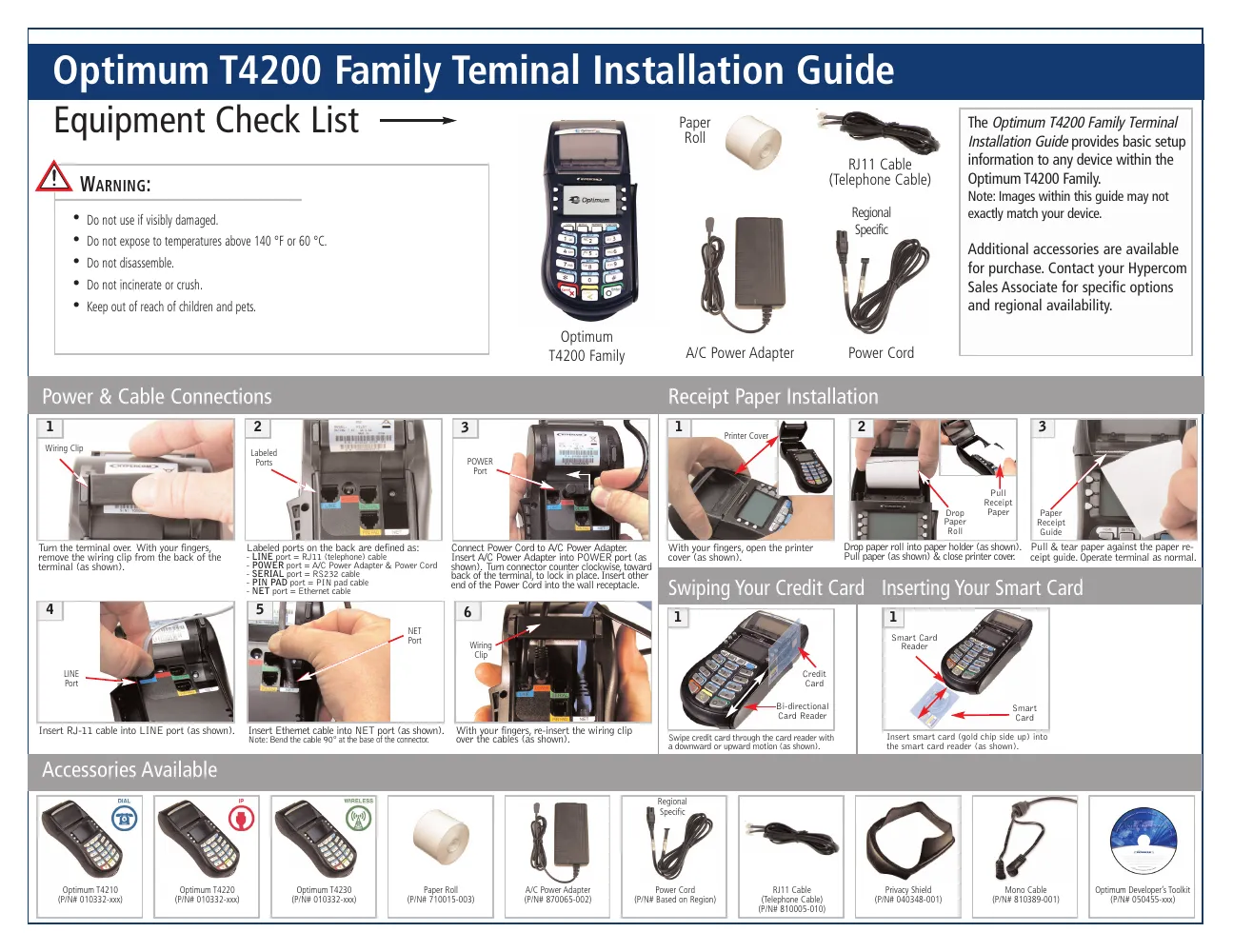
The text of page 2, read from a scan by OCR; it may hold reading errors
Optimum T4200 Family Teminal Installation Guide
Equipment Check List, - A WARNING:
- Do not use if visibly damaged.
- Do not expose to temperatures above 140 °F or 60 °C.
- Do not disassemble.
- Do not incinerate or crush.
- Keep out of reach of children and pets.
Power & Cable Connections 1
Wiring Clip -
Turn the terminal over. With your fingers, remove the wiring clip from the back of the terminal (as shown).
Labeled ports on the back are defined as:
- LINE ort = RJ11 (telephone) cable
- POWER port = A/C Power Adapter & Power Cord
- SERIAL port = RS232 cable
- PIN PAD port = PIN pad cable
- NET port = Ethernet cable
NET, Port
LINE Port
Insert RJ-11 cable into LINE port (as shown)., Insert Ethernet cable into NET port (as shown).
Note: Bend the cable 90° at the base of the connector.
Accessories AvailableCLTTTED 7 \addeagUesaeOptimum T4200 Family
Receipt Paper Installation
bes Connect Power Cord to A/C Power Adapter. Insert A/C Power Adapter into POWER port (as shown). Turn connector counter clockwise, toward back of the terminal, to lock in place. Insert other end of the Power Cord into the wall receptacle.
With your fingers, re-insert the wiring clip over the cables (as shown).
WIRELESS Regional } Specific Optimum T4210 Optimum 14220 Optimum 14230 Paper Roll A/C Power Adapter Power Cord (P/N# 010332-xxx) (P/N# 010332-xxx) (P/N# 010332-xxx) (P/N# 710015-003) (P/N# 870065-002) (P/N# Based on Region)
A/C Power Adapter
With your fingers, open the printer cover (as shown).
Swiping Your Credit Card Insertin
Swipe credit card through the card reader with a downward or upward motion (as shown).
The Optimum T4200 Family Terminal j Installation Guide provides basic setup 3 RJ11 Cable information to any device within the
(Telephone Cable) Optimum T4200 Family. Note: Images within this guide may not Regional exactly match your device. Specific
Additional accessories are available I for purchase. Contact your Hypercom t Sales Associate for specific options and regional availability.
3 ~ aS 4 Pull Receipt\Power Cord2
Drop Paper Paper Paper Receipt Roll Guide
Drop paper roll into paper holder (as shown). Pull & tear paper against the paper re- Pull paper (as shown) & close printer cover., _ceipt guide. Operate terminal as normal.
1
Smart Card Reader
Bi-directional Card Reader
Insert smart card (gold chip side up) into the smart card reader (as shown).
~~
RJ11 Cable (Telephone Cable) (P/N# 810005-010)
Mono Cable (P/N# 810389-001)
Privacy Shield
Optimum Developer's Toolkit (P/N# 040348-001)
(P/N# 050455-xxx)