Manual · Hypercom
Hypercom ICE5500 Restaurant User Guide
Manual2 pagesPDF 224 KB
Both pages are below, each with its text.
Filed with · 1 model
Also filed with these models on the old site
From the manual · read page by page
Key facts from this manual
Each line names its page in the PDF.
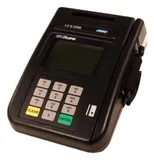
Hypercom HyperWare Restaurant Software quick reference card (940318-009, rev. C) for the ICE 5500Plus and ICE 5700Plus with SPOS 08A. It lists the screens and steps for each everyday restaurant transaction. The second page repeats the first.
- What it is
- Quick reference card for HyperWare Restaurant Software p. 1
- Terminals and software
- ICE 5500Plus and ICE 5700Plus with SPOS 08A p. 1
- Transactions
- Credit and debit sale, refund, server sign-on, open and close tab, tip adjust, void, reprint p. 1
- Tip options
- 10%, 15%, 20%, other amount or none p. 1
- Receipts
- Signature on screen for electronic receipt capture; customer receipt optional on all transactions p. 1
- Debit PIN entry
- Customer enters the PIN on the terminal keypad p. 1
What this manual walks you through
- Running a credit sale with tip and signature p. 1
- Running a debit sale p. 1
- Refunding a credit or debit card p. 1
- Adding a server ID to the terminal p. 1
- Opening and closing a tab p. 1
- Adjusting a tip after the sale p. 1
- Voiding the last transaction or one by invoice p. 1
- Reprinting the last merchant or customer receipt p. 1
Good to know
Questions this manual answers
How do I adjust a tip on a Hypercom ICE 5500Plus restaurant terminal?
Touch the menu bar, then BATCH and ADJUST, enter the invoice number of the original sale and the tip amount, and touch YES to confirm the new total. p. 1
How do I void a transaction on the ICE 5500Plus?
From the menu bar touch BATCH, then VOID, then LAST or BY INVOICE, and touch YES; the terminal dials the host. p. 1
How do I reprint a receipt on the ICE 5500Plus?
Touch the menu bar, REPORTS, REPRINT and LAST, then choose the merchant or customer receipt. p. 1
The file
Size and text
Every page · 2
Read it here
Each page as it is printed, and its words beside it, so a phone can search and copy them.
Page1of 2
Open in the PDF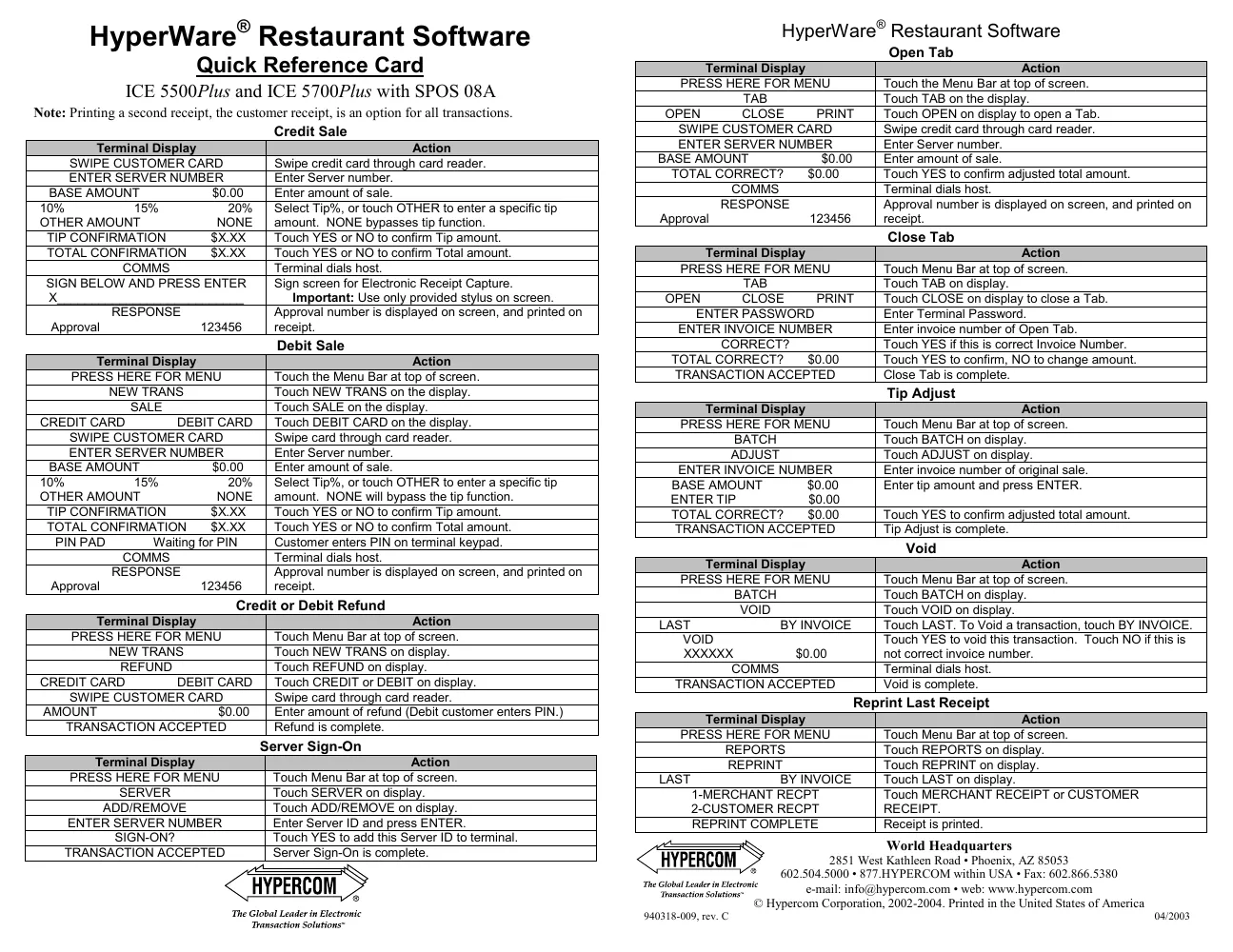
The text of page 1, from the PDF itself
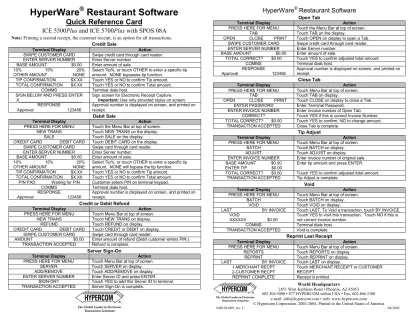
HyperWare® Restaurant Software Quick Reference Card ICE 5500Plus and ICE 5700Plus with SPOS 08A Note: Printing a second receipt, the customer receipt, is an option for all transactions. Credit Sale Terminal Display SWIPE CUSTOMER CARD ENTER SERVER NUMBER BASE AMOUNT $0.00 10% 15% 20% OTHER AMOUNT NONE TIP CONFIRMATION $X.XX TOTAL CONFIRMATION $X.XX COMMS SIGN BELOW AND PRESS ENTER X___________________________ RESPONSE Approval 123456
Action Swipe credit card through card reader. Enter Server number. Enter amount of sale. Select Tip%, or touch OTHER to enter a specific tip amount. NONE bypasses tip function. Touch YES or NO to confirm Tip amount. Touch YES or NO to confirm Total amount. Terminal dials host. Sign screen for Electronic Receipt Capture. Important: Use only provided stylus on screen. Approval number is displayed on screen, and printed on receipt.
Debit Sale Terminal Display PRESS HERE FOR MENU NEW TRANS SALE CREDIT CARD DEBIT CARD SWIPE CUSTOMER CARD ENTER SERVER NUMBER BASE AMOUNT $0.00 10% 15% 20% OTHER AMOUNT NONE TIP CONFIRMATION $X.XX TOTAL CONFIRMATION $X.XX PIN PAD Waiting for PIN COMMS RESPONSE Approval 123456
Action Touch the Menu Bar at top of screen. Touch NEW TRANS on the display. Touch SALE on the display. Touch DEBIT CARD on the display. Swipe card through card reader. Enter Server number. Enter amount of sale. Select Tip%, or touch OTHER to enter a specific tip amount. NONE will bypass the tip function. Touch YES or NO to confirm Tip amount. Touch YES or NO to confirm Total amount. Customer enters PIN on terminal keypad. Terminal dials host. Approval number is displayed on screen, and printed on receipt.
Credit or Debit Refund Terminal Display PRESS HERE FOR MENU NEW TRANS REFUND CREDIT CARD DEBIT CARD SWIPE CUSTOMER CARD AMOUNT $0.00 TRANSACTION ACCEPTED
Action Touch Menu Bar at top of screen. Touch NEW TRANS on display. Touch REFUND on display. Touch CREDIT or DEBIT on display. Swipe card through card reader. Enter amount of refund (Debit customer enters PIN.) Refund is complete.
Server Sign-On Terminal Display PRESS HERE FOR MENU SERVER ADD/REMOVE ENTER SERVER NUMBER SIGN-ON? TRANSACTION ACCEPTED
Action Touch Menu Bar at top of screen. Touch SERVER on display. Touch ADD/REMOVE on display. Enter Server ID and press ENTER. Touch YES to add this Server ID to terminal. Server Sign-On is complete.
HyperWare® Restaurant Software Open Tab Terminal Display PRESS HERE FOR MENU TAB OPEN CLOSE PRINT SWIPE CUSTOMER CARD ENTER SERVER NUMBER BASE AMOUNT $0.00 TOTAL CORRECT? $0.00 COMMS RESPONSE Approval 123456
Action Touch the Menu Bar at top of screen. Touch TAB on the display. Touch OPEN on display to open a Tab. Swipe credit card through card reader. Enter Server number. Enter amount of sale. Touch YES to confirm adjusted total amount. Terminal dials host. Approval number is displayed on screen, and printed on receipt.
Close Tab Terminal Display PRESS HERE FOR MENU TAB OPEN CLOSE PRINT ENTER PASSWORD ENTER INVOICE NUMBER CORRECT? TOTAL CORRECT? $0.00 TRANSACTION ACCEPTED
Action Touch Menu Bar at top of screen. Touch TAB on display. Touch CLOSE on display to close a Tab. Enter Terminal Password. Enter invoice number of Open Tab. Touch YES if this is correct Invoice Number. Touch YES to confirm, NO to change amount. Close Tab is complete.
Tip Adjust Terminal Display PRESS HERE FOR MENU BATCH ADJUST ENTER INVOICE NUMBER BASE AMOUNT $0.00 ENTER TIP $0.00 TOTAL CORRECT? $0.00 TRANSACTION ACCEPTED
Action Touch Menu Bar at top of screen. Touch BATCH on display. Touch ADJUST on display. Enter invoice number of original sale. Enter tip amount and press ENTER. Touch YES to confirm adjusted total amount. Tip Adjust is complete.
Void Terminal Display PRESS HERE FOR MENU BATCH VOID LAST BY INVOICE VOID . XXXXXX $0.00 COMMS TRANSACTION ACCEPTED
Action Touch Menu Bar at top of screen. Touch BATCH on display. Touch VOID on display. Touch LAST. To Void a transaction, touch BY INVOICE. Touch YES to void this transaction. Touch NO if this is not correct invoice number. Terminal dials host. Void is complete.
Reprint Last Receipt Terminal Display PRESS HERE FOR MENU REPORTS REPRINT LAST BY INVOICE 1-MERCHANT RECPT 2-CUSTOMER RECPT REPRINT COMPLETE
Action Touch Menu Bar at top of screen. Touch REPORTS on display. Touch REPRINT on display. Touch LAST on display. Touch MERCHANT RECEIPT or CUSTOMER RECEIPT. Receipt is printed.
World Headquarters 2851 West Kathleen Road • Phoenix, AZ 85053 602.504.5000 • 877.HYPERCOM within USA • Fax: 602.866.5380 e-mail: info@hypercom.com • web: www.hypercom.com © Hypercom Corporation, 2002-2004. Printed in the United States of America 940318-009, rev. C
04/2003
Page2of 2
Open in the PDF
The text of page 2, from the PDF itself
HyperWare® Restaurant Software Quick Reference Card ICE 5500Plus and ICE 5700Plus with SPOS 08A Note: Printing a second receipt, the customer receipt, is an option for all transactions. Credit Sale Terminal Display SWIPE CUSTOMER CARD ENTER SERVER NUMBER BASE AMOUNT $0.00 10% 15% 20% OTHER AMOUNT NONE TIP CONFIRMATION $X.XX TOTAL CONFIRMATION $X.XX COMMS SIGN BELOW AND PRESS ENTER X___________________________ RESPONSE Approval 123456
Action Swipe credit card through card reader. Enter Server number. Enter amount of sale. Select Tip%, or touch OTHER to enter a specific tip amount. NONE bypasses tip function. Touch YES or NO to confirm Tip amount. Touch YES or NO to confirm Total amount. Terminal dials host. Sign screen for Electronic Receipt Capture. Important: Use only provided stylus on screen. Approval number is displayed on screen, and printed on receipt.
Debit Sale Terminal Display PRESS HERE FOR MENU NEW TRANS SALE CREDIT CARD DEBIT CARD SWIPE CUSTOMER CARD ENTER SERVER NUMBER BASE AMOUNT $0.00 10% 15% 20% OTHER AMOUNT NONE TIP CONFIRMATION $X.XX TOTAL CONFIRMATION $X.XX PIN PAD Waiting for PIN COMMS RESPONSE Approval 123456
Action Touch the Menu Bar at top of screen. Touch NEW TRANS on the display. Touch SALE on the display. Touch DEBIT CARD on the display. Swipe card through card reader. Enter Server number. Enter amount of sale. Select Tip%, or touch OTHER to enter a specific tip amount. NONE will bypass the tip function. Touch YES or NO to confirm Tip amount. Touch YES or NO to confirm Total amount. Customer enters PIN on terminal keypad. Terminal dials host. Approval number is displayed on screen, and printed on receipt.
Credit or Debit Refund Terminal Display PRESS HERE FOR MENU NEW TRANS REFUND CREDIT CARD DEBIT CARD SWIPE CUSTOMER CARD AMOUNT $0.00 TRANSACTION ACCEPTED
Action Touch Menu Bar at top of screen. Touch NEW TRANS on display. Touch REFUND on display. Touch CREDIT or DEBIT on display. Swipe card through card reader. Enter amount of refund (Debit customer enters PIN.) Refund is complete.
Server Sign-On Terminal Display PRESS HERE FOR MENU SERVER ADD/REMOVE ENTER SERVER NUMBER SIGN-ON? TRANSACTION ACCEPTED
Action Touch Menu Bar at top of screen. Touch SERVER on display. Touch ADD/REMOVE on display. Enter Server ID and press ENTER. Touch YES to add this Server ID to terminal. Server Sign-On is complete.
HyperWare® Restaurant Software Open Tab Terminal Display PRESS HERE FOR MENU TAB OPEN CLOSE PRINT SWIPE CUSTOMER CARD ENTER SERVER NUMBER BASE AMOUNT $0.00 TOTAL CORRECT? $0.00 COMMS RESPONSE Approval 123456
Action Touch the Menu Bar at top of screen. Touch TAB on the display. Touch OPEN on display to open a Tab. Swipe credit card through card reader. Enter Server number. Enter amount of sale. Touch YES to confirm adjusted total amount. Terminal dials host. Approval number is displayed on screen, and printed on receipt.
Close Tab Terminal Display PRESS HERE FOR MENU TAB OPEN CLOSE PRINT ENTER PASSWORD ENTER INVOICE NUMBER CORRECT? TOTAL CORRECT? $0.00 TRANSACTION ACCEPTED
Action Touch Menu Bar at top of screen. Touch TAB on display. Touch CLOSE on display to close a Tab. Enter Terminal Password. Enter invoice number of Open Tab. Touch YES if this is correct Invoice Number. Touch YES to confirm, NO to change amount. Close Tab is complete.
Tip Adjust Terminal Display PRESS HERE FOR MENU BATCH ADJUST ENTER INVOICE NUMBER BASE AMOUNT $0.00 ENTER TIP $0.00 TOTAL CORRECT? $0.00 TRANSACTION ACCEPTED
Action Touch Menu Bar at top of screen. Touch BATCH on display. Touch ADJUST on display. Enter invoice number of original sale. Enter tip amount and press ENTER. Touch YES to confirm adjusted total amount. Tip Adjust is complete.
Void Terminal Display PRESS HERE FOR MENU BATCH VOID LAST BY INVOICE VOID . XXXXXX $0.00 COMMS TRANSACTION ACCEPTED
Action Touch Menu Bar at top of screen. Touch BATCH on display. Touch VOID on display. Touch LAST. To Void a transaction, touch BY INVOICE. Touch YES to void this transaction. Touch NO if this is not correct invoice number. Terminal dials host. Void is complete.
Reprint Last Receipt Terminal Display PRESS HERE FOR MENU REPORTS REPRINT LAST BY INVOICE 1-MERCHANT RECPT 2-CUSTOMER RECPT REPRINT COMPLETE
Action Touch Menu Bar at top of screen. Touch REPORTS on display. Touch REPRINT on display. Touch LAST on display. Touch MERCHANT RECEIPT or CUSTOMER RECEIPT. Receipt is printed.
World Headquarters 2851 West Kathleen Road • Phoenix, AZ 85053 602.504.5000 • 877.HYPERCOM within USA • Fax: 602.866.5380 e-mail: info@hypercom.com • web: www.hypercom.com © Hypercom Corporation, 2002-2004. Printed in the United States of America 940318-009, rev. C
04/2003